How to Add webmailer.perfora.net to Your IONOS SPF Record

Quick Answer
To add webmailer.perfora.net to your IONOS SPF record, update your existing SPF TXT record with the appropriate include mechanism. This authorizes Perfora to send emails on your domain’s behalf and helps improve email authentication and deliverability.

webmailer.perfora.net is associated with the IONOS/1&1 webmail infrastructure used to send messages from an IONOS email account through browser-based webmail rather than a local mail client such as Outlook. If your domain uses IONOS email, Office Solutions, professional email, Mail Archiving, or related services, your SPF record should authorize the correct IONOS mail servers so receiving systems such as Gmail, Yahoo, MSN, and Outlook can recognize legitimate mail from your domain.
This matters because SPF helps the recipient server decide whether an incoming message that claims to be from your email address was sent by an approved mail server. Without the right SPF configuration, mail sent through webmailer.perfora.net may land in the spam folder, fail spam filtering, or trigger spam detection warnings. In some cases, the inbox never receives the message at all.
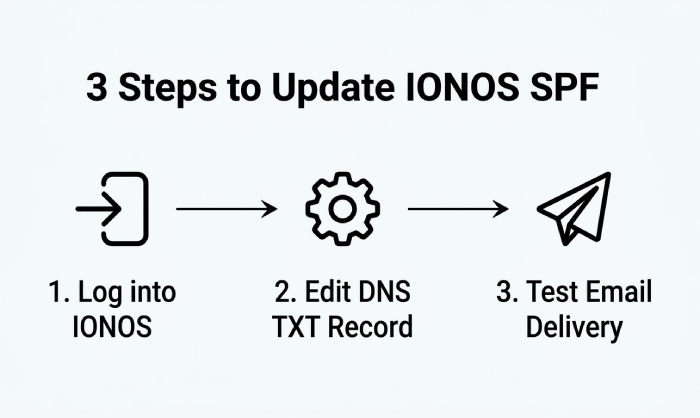
To configure SPF for an IONOS domain, sign in to your IONOS account, select the relevant domain, and open its DNS settings. Locate the existing TXT records and check whether an SPF record beginning with v=spf1 is already published. Before making changes, identify all services that send email on behalf of your domain so you can authorize the correct sending sources without creating multiple SPF records.
A typical IONOS SPF workflow is to sign in to your IONOS account, select the relevant domain, open its DNS settings, and review the existing TXT records. Look for an SPF record that begins with v=spf1. Before making any changes, confirm which mail services send email on behalf of your domain so that all legitimate sending sources are properly authorized.
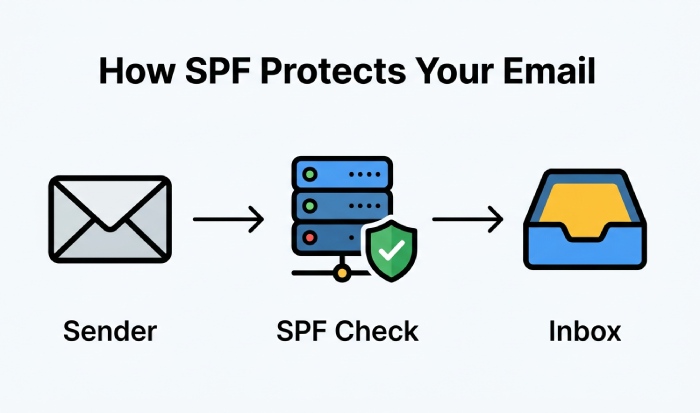
Understanding SPF Records and Email Authentication Basics
SPF, or Sender Policy Framework, is a DNS TXT record that lists which email servers are allowed to send mail for a domain. A basic SPF record may look like this:
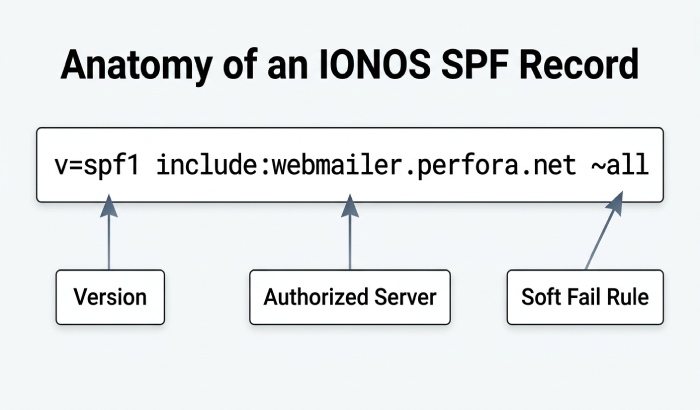
v=spf1 include:*spf*.example-provider.com ~all
The v=spf1 part identifies the TXT record as SPF. The include mechanism authorizes another providers SPF policy. The final qualifier, such as ~all or -all, tells recipient server systems how strictly to treat unlisted sources. IONOS SPF records often reference IONOS-controlled infrastructure rather than individual hostnames, but webmailer.perfora.net may come up when tracing webmail, SMTP, or legacy 1&1 sending paths. Email security is essential for protecting sensitive information from phishing, spoofing, malware, and unauthorized access.
SPF is designed to reduce spoofing, spoofed email, spam, and phishing attempts by spammers. It does not scan for malware, virus, or worm payloads; that is handled by anti-virus tools, spam protection, and content filters. SPF also does not verify the visible reply address, return address, or subject line by itself. It checks whether the server sending the message is authorized for the envelope sender domain.
This is why SPF works alongside DKIM, DMARC, SRS, and spam complaint systems. SRS is especially important with forwarding and email forwarding, because forwarding can break SPF when the forwarding address resends mail from a new server. If you use a forwarding address, proxy address, proxy e-mail, or private registration service, SPF alignment may require extra care.
Your domains WHOIS or registration information is separate from SPF authentication. SPF is configured through the domains DNS records, where you specify the authorized email-sending sources for your domain. When configuring IONOS SPF, focus on the DNS TXT record and the mail servers or SPF mechanisms required by the IONOS services you use.
Common signs include:
- Messages from an IONOS email address are marked as spam by Gmail, Yahoo, MSN, or Outlook.
- A recipient server reports SPF failure for your domain.
- A mail application or email program shows successful SMTP delivery, but the recipient never sees the message.
- The inbox works for receiving mail, but sending from webmail fails authentication.
- IONOS displays activation required for an email account, domain, hiDrive, email archiving, or office solutions service.
- You recently used create an email address in My Account but did not update DNS.
When configuring SPF for IONOS, rely on the current DNS configuration and the SPF mechanisms required by the IONOS services you use. Avoid copying SPF values from outdated forum posts or legacy 1&1 configurations without verifying that they are still valid.
Before making changes, sign in through product login, go to my account, select the domain, and confirm that the email account is active. If product login loops or My Account does not load, check browser cookies, try private browsing mode, then log out and sign back in. If help & contact shows activation required, resolve activation required first.
How to Check Your Current IONOS SPF Record
To check your current IONOS SPF record, open product login, go to my account, select the domain, and open the DNS or control panel area. Look for TXT records that begin with:
v=spf1
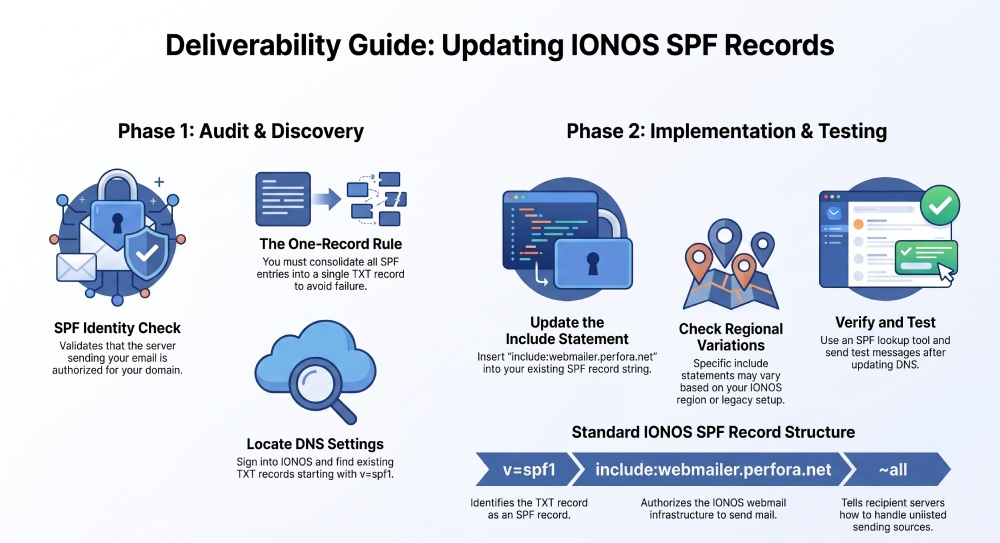
You should have only one SPF TXT record per domain. Multiple SPF records can cause SPF failure. If you see several TXT entries starting with v=spf1, consolidate them into a single record.
You can also check from a terminal:
dig TXT example.com
You can also use an SPF lookup tool to review your domains published record. Check whether the record already authorizes IONOS and any other legitimate services that send email on behalf of your domain, such as SMTP providers, email marketing platforms, or forwarding services. If you use multiple sending services, make sure they are covered by the same SPF record without creating multiple SPF records for the domain.
If you use IONOS webmail, Outlook, or another mail application, verify which IONOS mail servers or SPF mechanisms are actually used to send your messages. Do not add webmailer.perfora.net to the SPF record unless the current IONOS documentation or a valid SPF lookup confirms that it is an appropriate SPF authorization mechanism.
Also check mailbox settings and sending settings. A mismatch between the authenticated email account and the visible email address can cause a reply address or return address problem. If you recently create an email address but use an old password in Outlook, the mail client may authenticate incorrectly. Update the password, test SMTP, and verify the message reaches the recipient inbox instead of the spam folder.
If the control panel does not show the expected DNS tools, log out, clear browser cookies, and retry in private browsing mode. A stale session, user session, or session id cause outdated pages to appear. If the issue persists, use help & contact, solution finder, or technical support at ionos.com.
Preparing the Correct SPF Include Statement for webmailer.perfora.net
When preparing the SPF change, do not add random hostnames blindly. An SPF include must point to a domain that publishes a valid SPF TXT record. If IONOS documentation or technical support specifically incan structs you to authorize webmailer.perfora.net, the statement would typically be prepared in this form:
include:webmailer.perfora.net
A combined SPF record might look like:
v=spf1 include:webmailer.perfora.net include:_spf-us.ionos.com ~all
However, the exact include depends on your IONOS region, legacy 1&1 setup, and whether you use Office Solutions, Mail Archiving, forwarding, or another EMAILPROVIDER. Before saving, run an SMTP check or SPF validator to confirm webmailer.perfora.net resolves appropriately for SPF. If it does not publish SPF, use the current IONOS-recommended include instead.
After updating DNS, allow propagation time, then send test messages from webmail, Outlook, and any mail application you use. Test an email address created in IONOS, confirm the email account is active, and verify that mail reaches the recipient inbox. If mail still fails, check spam filtering, spam protection logs, automatic notification messages, and any spam complaint feedback. Then return to help & contact with the domain, sender email address, recipient, subject line, SPF result, and SMTP check output.
General Manager
General Manager of DuoCircle. Product strategy and commercial lead for AutoSPF's 2,000+ customer base.
LinkedIn Profile →