Gmail Spf Setup Guide: Configure Spf For Google Workspace Easily

Quick Answer
Sender Policy Framework (SPF) is an open email authentication standard that helps receiving mail servers verify which hosts are authorized to send email for your domain. For Gmail and Google Workspace, an accurate SPF record is foundational to email security, email deliverability, and overall security and data protection.

Sender Policy Framework (SPF) is an open email authentication standard that helps receiving mail servers verify which hosts are authorized to send email for your domain. For Gmail and Google Workspace, an accurate SPF record is foundational to email security, email deliverability, and overall security and data protection. When you set up SPF (often called an SPF setup or SPF configuration), you create a TXT record in DNS that lists your authorized senders. Gmail SPF lets other providers run an SPF check and reject or flag messages that fail authentication, reducing email spoofing and improving anti-spam outcomes.
For organizations using Google Workspace, administrators are responsible for domain management choices that affect email authentication. By implementing a correct SPF policy, you help Google’s filters and external email provider systems determine whether your messages are legitimate. This strengthens data protection and aligns with broader policies and security settings defined in the Admin console. It also supports compliance initiatives led by a super administrator or workspace admin, tying together authentication, user management, and apps and integrations that may send on behalf of your domain.
For a complete overview of SPF setup across all major platforms, see our SPF Record Setup Guide.
From a business standpoint, Gmail SPF is about trust. Brand reputation and reports and monitoring in your email system improve when you authorize verified sources and use consistent configuration. Proper SPF validation helps maintain inbox placement, lowers support and troubleshooting overhead, and protects users across Google Workspace services such as Gmail, Drive, Docs, Sheets, Slides, Forms, Meet, Chat, Sites, Groups, and Vids.
Benefits for administrators and users
- Stronger email security and data protection by preventing unauthorized senders from abusing your domain.
- Better email deliverability as receiving servers can authenticate your mail via SPF check and related anti-spam controls.
- Centralized domain management in the Admin console, ensuring administrators can align SPF setup with organizational policies, SSO/SAML identity controls, and other apps and integrations.
How SPF Works: DNS TXT Records, MAIL FROM, Mechanisms, and Qualifiers
SPF works at the SMTP layer. When a message is sent, the receiving service inspects the envelope (or HELO) domain and queries DNS records (specifically a TXT record) to validate whether the connecting IP addresses are authorized. This SPF validation is purely DNS-based and fast, making it easy to integrate with established mail servers.
Core SPF syntax and mechanisms
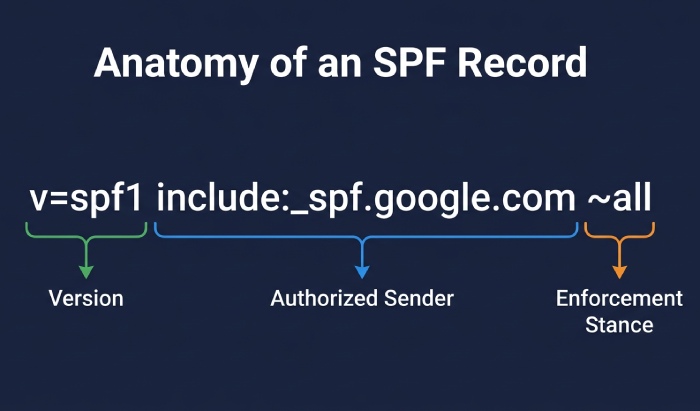
- Version tag: Every SPF record starts with v=spf1.
- Mechanisms: Use ip4, ip6, a, mx, include, exists, and all to define authorized senders. For Gmail SPF, the common mechanism is spf include via include:_spf.google.com.
- Lookups: SPF has a 10-DNS-lookup limit, so your spf policy and spf configuration should be efficient.
Common examples:
- v=spf1 include:_spf.google.com ~all
- v=spf1 a mx ip4:203.0.113.10 include:_spf.google.com -all
These entries tell the receiving email system which hosts can send email on behalf of your domain and how to treat everything else.
Qualifiers and enforcement outcomes
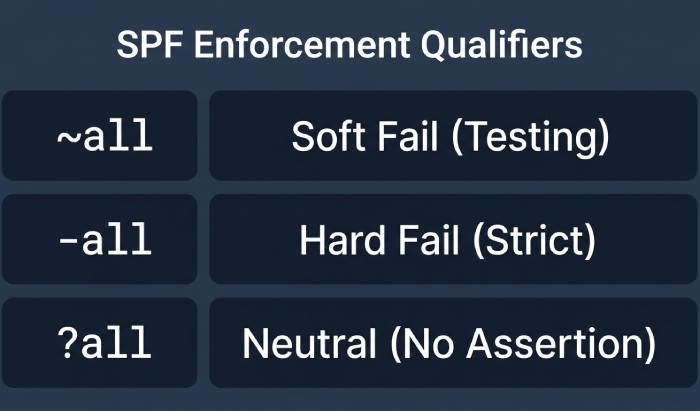
Qualifiers set your spf enforcement stance:
- (pass): Usually implicit, meaning authorized senders.
- ~ (softfail): Mark as suspicious but typically accept; useful during spf testing.
- (fail): Reject messages not matching; strong enforcement once you’ve inventoryed all sources.
- ? (neutral): No assertion.
Using ~all while you set up SPF allows careful rollout and spf testing. Later, harden with -all when you have a clean, comprehensive allowlist.
Authorized senders and allowlisting
- Authorized senders are the services or IPs you explicitly list with mechanisms like include or ip4/ip6.
- An SPF allowlist is effectively your mechanisms set; keep it updated as apps and integrations change.
- Receiving mail servers rely on this list during SPF checks to mitigate email spoofing.
Prerequisites: Domain Verification, DNS Access, and Inventory of Sending Sources
Before you set up SPF for Gmail and Google Workspace, confirm:
- Domain verification: Ensure your domain is verified in the Admin console. This ties Gmail, SSO/SAML identity, and user management together under central domain management.
- DNS access: You need the ability to add a TXT record and perform a DNS update at your registrar or DNS host. Knowing how your mx records and other dns records are configured helps avoid conflicts.
- Inventory of senders: Document every system that can send email for the domain.
Gather every system that can send email for your domain
List core and peripheral services:
- Google Workspace Gmail (primary)
- Website or CMS SMTP from your web host
- Transactional platforms (for example, Amazon Web Services SES)
- Marketing tools or third-party apps (e.g., Adobe, Asana, Atlassian Cloud, Box)
- Automations via Apps Script or Marketplace integrations using OAuth 2.0
- Service tools that relay via smtp or custom mail servers
These apps and integrations may require an spf include or dedicated ip addresses. Align with your internal policies and configuration, and confirm any billing and subscriptions, data migration timelines, and integration dependencies so changes don’t disrupt operations.
Confirm DNS and account access
- Ensure administrators and the super administrator can reach the Admin console and your DNS provider.
- If you use Google Cloud DNS or another DNS service, verify permissions to add a TXT record.
- Keep workspace help resources handy for support and troubleshooting during rollout.
The Google Workspace SPF Record: include:_spf.google.com Explained (with Examples)
Google publishes its authorized senders at _spf.google.com. To set up SPF for Gmail, you add an spf record like: v=spf1 include:_spf.google.com ~all This tells recipients that Google’s infrastructure is authorized to send email for your domain. When you rely solely on Gmail, this Gmail SPF line is typically sufficient.
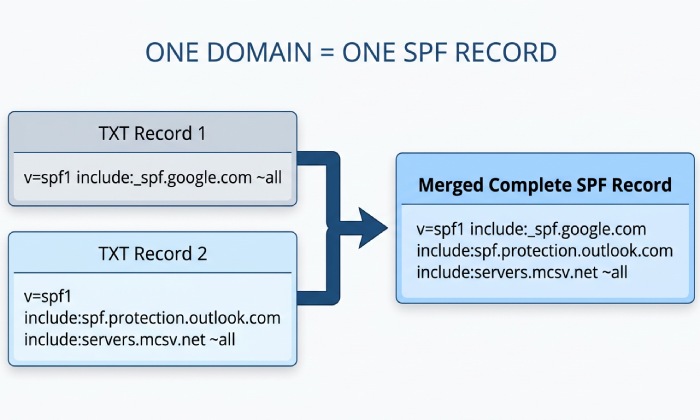
When additional authorized senders exist, expand your SPF syntax and spf policy. Combine mechanisms without creating multiple SPF records for the same domain.
Examples for common apps and integrations
- Gmail only (baseline): v=spf1 include:_spf.google.com -all
- Gmail + AWS SES (Amazon Web Services): v=spf1 include:_spf.google.com include:amazonses.com ~all
- Gmail + Web host SMTP (single IP): v=spf1 include:_spf.google.com ip4:203.0.113.10 -all
Always consult each email provider’s documentation; spf include targets vary. Some services prefer ip4 blocks; others use specific includes. Keep your spf configuration within the 10-lookup limit to maintain reliable spf enforcement.
Avoiding multiple SPF records
- One domain must have a single SPF TXT record. If you find duplicates, merge mechanisms into one line.
- Use an organized spf allowlist approach to track changes when tools, mail servers, or third-party tools are added or removed.
- Periodically run an SPF check using reputable third-party tools to ensure no syntax or lookup-limit issues.
Gmail-only baseline
If you exclusively use Google Workspace to send email, a strict policy is appropriate: v=spf1 include:_spf.google.com -all This asserts only Google is authorized.
Gmail plus a marketing platform
If you add a marketing platform later, adjust to: v=spf1 include:_spf.google.com include:examplemta.com ~all Then monitor reports and monitoring for impact on email deliverability, moving to -all when validated.
Topics
General Manager
Founder and General Manager of DuoCircle. Product strategy and commercial lead for AutoSPF's 2,000+ customer base.
LinkedIn Profile →