How To Manage SPF Settings Using Adobe Business Catalyst Login

Quick Answer
Email deliverability is a critical factor in modern website management, especially when using solutions like Adobe Business Catalyst. Correctly configuring Sender Policy Framework (SPF) records ensures that your Business Catalyst email campaigns reach their intended recipients while maintaining sender reputation and compliance with major inbox providers.
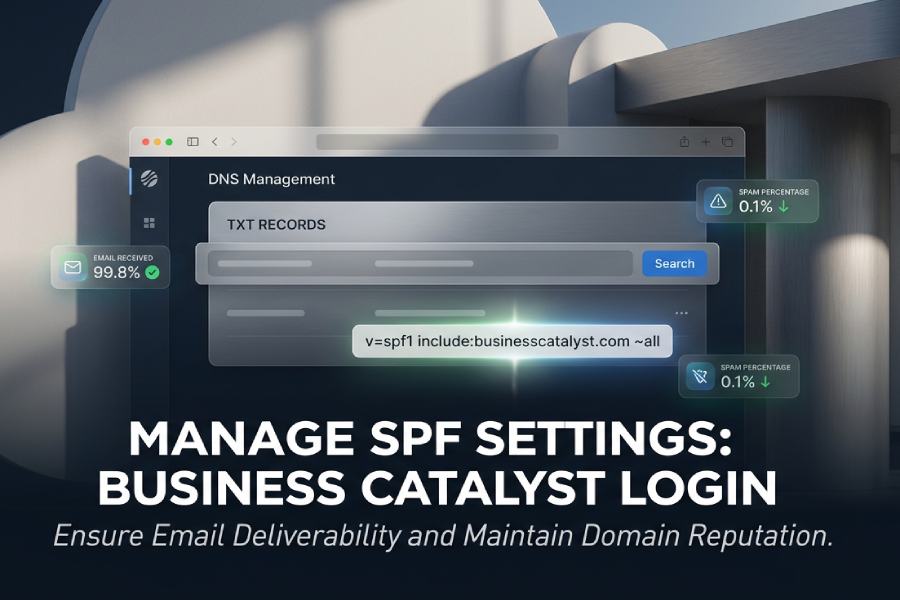
Email deliverability is a critical factor in modern website management, especially when using solutions like Adobe Business Catalyst. Correctly configuring Sender Policy Framework (SPF) records ensures that your Business Catalyst email campaigns reach their intended recipients while maintaining sender reputation and compliance with major inbox providers. This guide walks you through understanding, reviewing, and managing SPF settings by leveraging the Adobe Business Catalyst login process and the admin dashboard.
Understanding SPF Records and Why They Matter for Business Catalyst Emails
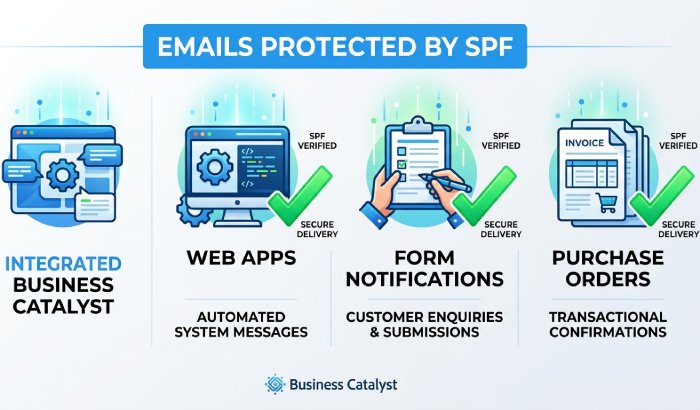
Sender Policy Framework (SPF) is a key anti-spam protocol that enables you to specify which mail servers are authorized to send email on behalf of your domain. For Adobe Business Catalyst customers, configuring an accurate SPF record is vital to prevent your outbound mail from being flagged as spam or rejected by recipient servers. Whether you use Adobe Exchange integrations, Experience Cloud services, or leverage Creative Cloud for asset management, a misconfigured SPF record can impact email delivery from the Business Catalyst platform, including web apps, form notifications, purchase order confirmations, and case messages. Email security helps protect sensitive information from phishing attacks, malware, and unauthorized access.
What is an SPF record?
An SPF record is a DNS TXT record associated with your domain name. It explicitly authorizes certain IP servers, such as Adobe BC or cloud publishers within Creative Cloud apps, to deliver mail for you. Email providers like Google and Microsoft check these records to decide if your mail is authentic, thereby protecting your domain reputation and ensuring trust within the broader Adobe community and Experience Cloud Partners network.
Adobe Business Catalyst email communications, ranging from platform notifications to user pages alerts or purchase order history invoices, depend on reliable delivery. Failure to properly configure SPF can also cause issues with integrations, cloud apps, and email notifications related to wishlist favorites, web form payments, and system-generated web form HTML.
Accessing the Adobe Business Catalyst Login and Admin Dashboard
Before adjusting SPF settings, you need to sign in to your Adobe Business Catalyst admin dashboard. Access starts with the correct business catalyst login procedure, which validates your user account credentials and secures administrative access for sensitive DNS management.
Using the Adobe Business Catalyst Login
To begin, navigate to the official Adobe.com portal or the direct login area for your Business Catalyst deployment. You may use your Adobe ID (sometimes linked to Creative Cloud or Experience Cloud) to sign in to confirm you have full administrative permissions. The same set of credentials allows access to associated services like the Adobe Exchange Partner Portal, Creative Cloud Console, and Experience Cloud integrations, ensuring centralized account management across your cloud apps and cloud publishers.
If you’re part of Adobe’s partner program or have access through creative cloud publishers or the Experience Cloud Partners ecosystem, be sure to maintain your software login credentials, as these may impact integrations with UXP plugins, CEP plugins, and broader cloud integration efforts.
Once your sign in is successful, you are directed to the members area. Here, you’ll typically have access to various modules such as module manager, user pages, case history, and purchase order history. Account settings and distribution features reside within the admin dashboard, providing detailed control over your site’s configuration, including DNS and mail server settings.
Locating Domain and DNS Management Settings After Login
After successful authentication via the business catalyst login, using either your Adobe ID or linked Google Accounts, you gain access to the business catalyst admin dashboard. From the dashboard, navigation to the domain management section is essential for SPF adjustments.
Navigating the Admin Dashboard
- Access the Members Area: Once in the admin console, locate the Members Area, which houses the core website management tools like Module Manager, Web Apps, and Web Form Payments. This is your central hub for business catalyst web app configuration, mailflows, and general cloud integration.
- Find the Domain Management Interface: Look for “Site Settings,” “Domain Management,” or a similarly labeled section. Here, you can view your domain and manage DNS records. This section is also where you typically review and update domain-level settings such as WishList Favorites, account settings, and privacy configurations. All changes may be audited via case history and purchase history logs.
- DNS Settings and SPF Configuration: Within the DNS management panel, search for the area featuring TXT records. SPF configurations are stored as TXT records that include designated mail servers or sending platforms, like those used natively by Adobe BC or integrations you’ve enabled via business catalyst exchange partner plugins. See SPF record examples for the exact syntax.
Importance of Knowing Where Settings Reside
Understanding where to access these settings in the admin dashboard is fundamental for troubleshooting login issues, engaging with Adobe Support, and managing integrations, including cloud apps and developer distribution projects. This centralized approach supports cloud publishers and aligns with best practices taught in bc training or tutorials from bcgurus and the Adobe Exchange Partner Blog.
Reviewing Existing SPF Settings Before Making Changes
Before you make any modifications, always review existing SPF settings. This helps avoid disrupting current email flows, ensuring that email from business catalyst web apps, web forms, module manager notifications, and purchase order history maintains deliverability.
Steps for Reviewing SPF Records
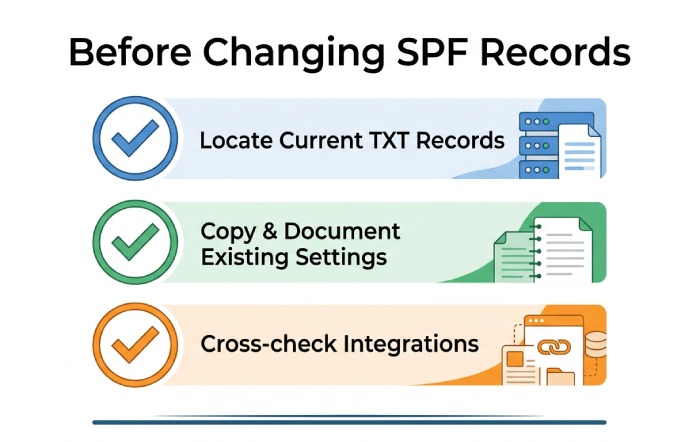
- Locate Current TXT Records: In the DNS settings panel, scan for existing TXT records. There may already be one or more SPF records in place, either to authorize Adobe cloud-based services, integrations via UXP or CEP plugins, or historic configurations added during prior cloud app deployments.
- Document the Current State: Copy existing SPF record(s) to a secure note or case messages log before you make any changes. This allows for a straightforward rollback if complications arise. You may also wish to reference purchase history, module manager documentation, or overview notes for any recent DNS adjustments.
- Cross-check with Integrations: Ensure your current SPF record doesn’t inadvertently block or invalidate authorized senders from Adobe Exchange, Experience Cloud, or any related community cloud integration. This caution is especially relevant if you operate web app automations or partnership-driven newsletters via Adobe.
Proper documentation and pre-change review align with the compliance and privacy standards outlined in the Adobe Privacy Policy, and also ensure that you can provide accurate information if troubleshooting is required with Adobe support or within your partner program agreements.
Avoiding Common SPF Configuration Mistakes
Overcoming Syntax Errors in SPF Records
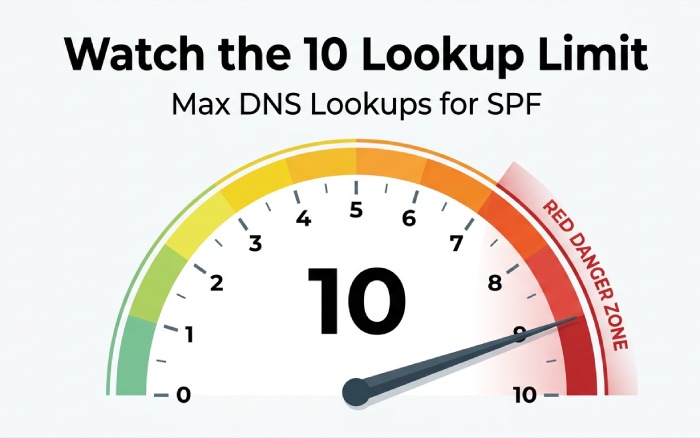
Many Adobe Business Catalyst administrators face delivery issues due to misconfigured SPF records. A frequent pitfall is exceeding the DNS lookup limit (typically 10), which can occur when integrating numerous cloud apps, publishers from the Experience Cloud Partners network, or linking several tools such as partner blog plugins. Always strive for simplicity and avoid extraneous includes or redirect statements. When you have several, combining SPF records into one keeps you compliant. Build a valid record with our free SPF record generator.
For effective management, regularly audit your SPF syntax and optimize entries to avoid unnecessary redundancies. Our guide to SPF syntax shows the correct format. Utilize help from bcgurus, Adobe Exchange Partner Blog references, and the community for case history insights.
In your user account settings, maintain an overview of integrations, review partner newsletters for best practices and updates on domain authentication protocols relevant to Business Catalyst web apps.
Topics
General Manager
General Manager of DuoCircle. Product strategy and commercial lead for AutoSPF's 2,000+ customer base.
LinkedIn Profile →