Setting SPF, DKIM, and DMARC for Loops.so

Quick Answer
Setting up SPF, DKIM, and DMARC for your Loops.so domain is one of the most important steps to keep your emails secure and trusted. These records make sure that only authorized servers can send emails from your domain and that messages aren’t tampered with in transit.
Try Our Free DMARC Checker
Validate your DMARC policy, check alignment settings, and verify reporting configuration.
Check DMARC Record →
SubscribeShare
DMARC (RFC 7489) ties SPF and DKIM together by requiring alignment between the envelope sender and the visible From header. According to Google’s February 2024 bulk sender requirements, a DMARC policy of at least p=none is now mandatory for any domain sending 5,000+ messages per day to Gmail users.
Setting up SPF, DKIM, and DMARC for your Loops.so domain is one of the most important steps to keep your emails secure and trusted. These records make sure that only authorized servers can send emails from your domain and that messages aren’t tampered with in transit. SPF checks if the sender’s server is allowed, DKIM adds a digital signature to confirm the message is genuine, and DMARC ties everything together by defining how to handle emails that fail these checks. If you’re new to this, our primer on what is an SPF lookup explains how receivers verify your record.
In this guide, we’ll go through how to set up SPF, DKIM, and DMARC for Loops.so so that your emails get delivered safely and reflect your brand’s authenticity.
How to Set Up Email Authentication for Loops
Since emails aren’t inherently secure, the goal is to make them both verifiable and trustworthy. The best way to do that is by setting up SPF, DKIM, and DMARC for your domain.
When you authenticate your emails, you’re basically telling receiving mail servers that Loops is authorized to send messages on your behalf, that your messages haven’t been altered, and that your domain is protected from spoofing or spam abuse.
Here’s how to do it step by step:
Step 1: Add MX Records for Loops
Before anything else, you need to verify your domain and configure your MX records. This helps Loops confirm your ownership and boosts overall deliverability.
To do this:
-
Register your domain inside your Loops account.
-
Loops will guide you to the “Improve Email Deliverability” section once the domain is added. There, you’ll see the DNS records that need to be added; start with the MX record.
-
Copy the MX record shown on your Loops dashboard.
-
Log in to your DNS hosting provider, select your domain, and go to Manage DNS or Advanced Settings.
-
Add a new MX record and paste the details you copied.
-
Save your changes.

Step 2: Add an SPF Record
Next, create an SPF record. This tells mail servers that Loops has permission to send emails from your domain.
Here’s how:
In your Loops setup page, go to the SPF section.
-
Copy the SPF record provided.
-
Head to your DNS platform, open Manage DNS, and click Add TXT Record.
-
Paste the SPF record value exactly as shown.
-
Save the record and wait for it to propagate.

Step 3: Set Up DKIM Records
To enable DKIM, you’ll need to add CNAME records in your DNS settings. DKIM ensures your emails haven’t been modified and verifies that they genuinely came from your domain.
Here’s the process:
-
Go to the DKIM section in your Loops dashboard.
-
Copy all DKIM record details provided.
-
In your DNS console, open Advanced Settings.
-
Add three new CNAME records, each using the DKIM details from Loops.
-
Save your updates and give the DNS some time to sync.
Step 4: Configure a DMARC Record
Finally, set up a DMARC record to complete the authentication setup. DMARC lets you control how unauthenticated emails are handled and helps you track email activity related to your domain.
The setup process is similar to SPF and DKIM:
-
Copy the DMARC record provided by Loops.
-
Add it as a TXT record in your domain’s DNS settings.
-
Save and apply the changes.

Do note that while Loops allows you to publish a DMARC policy, it doesn’t include built-in DMARC reporting. You’ll need to use a third-party tool to view and analyze DMARC reports for ongoing visibility.
Final Words
Setting up SPF, DKIM, and DMARC for your Loops.so domain isn’t just a one-time task - it’s a foundation for maintaining long-term email security and consistent deliverability. Once your DNS records are properly configured, every email sent through Loops carries proof of authenticity that mail servers can verify. This reduces the chances of your messages ending up in spam or being spoofed by attackers.
It’s also worth checking your records occasionally, especially after making domain or platform changes, since even a small syntax error in a DNS entry can break authentication. Running our SPF checker after each change catches those errors early. If you’re using a DMARC policy, start with a relaxed mode like “p=none” to monitor reports safely before enforcing stricter actions like quarantine or reject.
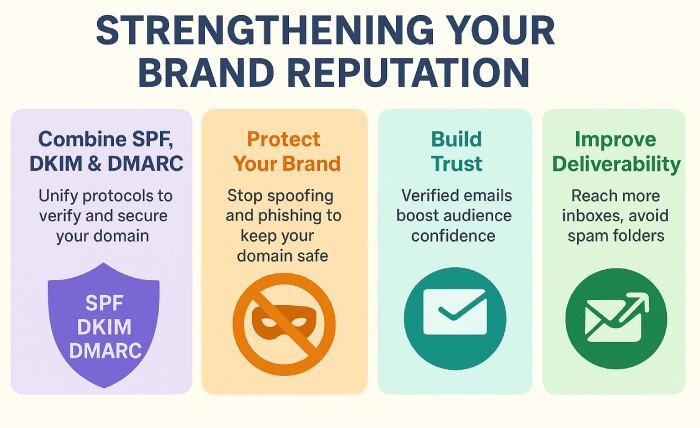
By combining SPF, DKIM, and DMARC, you’re giving your domain a strong security layer that not only protects your brand’s reputation but also improves trust with your audience. Think of it as setting clear rules that tell the world, “only verified messages from this domain should be trusted.” Once everything is live and validated, your Loops.so emails will perform better, reach more inboxes, and keep your communication both safe and reliable. Staying aware of where SPF is heading will help you keep these records current as standards evolve.
To begin your DMARC journey, contact us.
Topics
General Manager
General Manager of DuoCircle. Product strategy and commercial lead for AutoSPF's 2,000+ customer base.
LinkedIn Profile →