What does 'queued email' mean, and how can you fix it?

Quick Answer
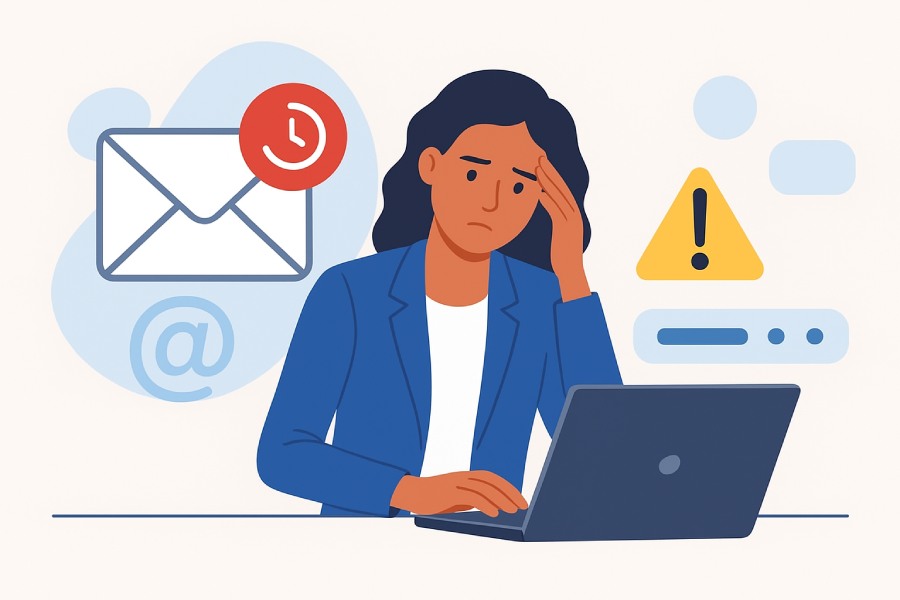
We’ve all hit that moment where an email just sits there and refuses to leave, and suddenly you’re refreshing your inbox like it’s a magic trick. When that happens, it’s easy to assume the system is broken, but most of the time the problem is completely fixable once you know what’s happening behind the scenes.
SubscribeShare
We’ve all hit that moment where an email just sits there and refuses to leave, and suddenly you’re refreshing your inbox like it’s a magic trick. When that happens, it’s easy to assume the system is broken, but most of the time the problem is completely fixable once you know what’s happening behind the scenes.
Email delivery is more technical than it looks, and even minor issues like a shaky network or a minor setting error can slow everything down. The good part is that queued emails follow very clear patterns, and once you understand those patterns, you can get back in control quickly.
This guide walks you through the real reasons emails get stuck, what you can do to fix them instantly, and how to avoid the same headache in the future. By the end, you’ll know exactly where to look when an email decides to pause instead of send.
What does a queued email mean?
A queued email is a message that your email system places on hold because it cannot send it at that moment. It waits in a temporary area called the queue until the system can process it. This usually happens when the internet connection is weak, the device is struggling, or the mail server is too busy. In the background, the email has to move through different servers using SMTP, and if anything slows that path, the message is queued. Most queued emails get sent quickly once the connection or server is ready again. If an email stays queued for a long time, it often shows that there is a technical problem that needs to be fixed before it can be delivered.
Common reasons for emails getting queued
Sometimes an email does not leave your outbox right away because something in the sending path is slowing it down. These are the most common technical reasons behind queued emails.
Poor internet connection
Emails need a steady connection to reach the mail server. When the network is weak, drops suddenly, or switches between signals, the message cannot move forward and is placed in the queue. Even a short disruption can pause the sending process, especially when the email has large files attached.
Server overload
Mail servers can handle only a certain amount of traffic at one time. When many users send emails together, the server processes them in order. If the load is high, your email waits in the queue until the server has enough capacity to handle it.

Large attachments
Email providers limit attachment size to keep their systems stable. If your file is too large or close to the limit, the message may not upload properly and remain in the queue. This is more common on slow networks where large attachments take longer to transfer to the server.
Incorrect SMTP settings
Your device needs the correct SMTP server address, port number, and login details. If even one value is wrong, your email app cannot connect to the outgoing server. When the connection fails, the message has no route to travel and stays stuck in the queue.
Email app glitches
Sometimes the email app itself has small bugs that interrupt sending. Older versions or apps running low on memory can freeze during the process. When the app cannot complete the sending task, the email remains queued until the issue is fixed or the app is restarted.
Problems on the recipient’s server
If the recipient’s server is offline, full, or aggressively filtering messages, your email may not be delivered right away. The sending system keeps it in the queue and tries again later. Delivery resumes only when the recipient’s server becomes available or is ready to accept new mail.
Sending limit restrictions
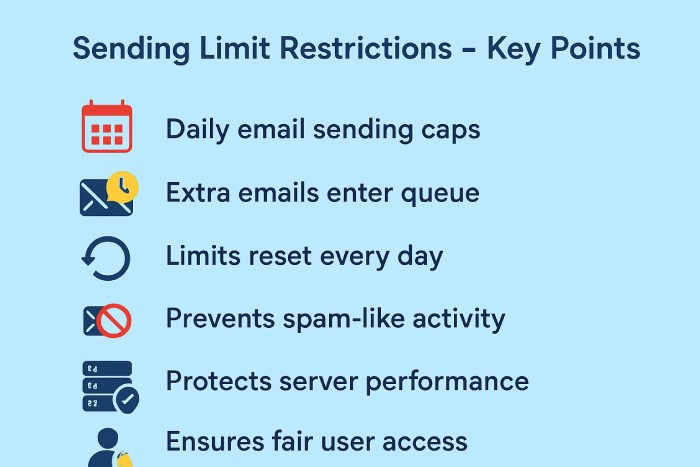
Email providers restrict how many messages a user can send in a day. If you reach the limit, any new email is added to the queue until the limit resets. These limits help prevent spam and keep the server stable for all users.
How to fix the queued emails
The steps below help you fix the most common causes and get your messages to send properly again.
How Do You Verify your internet connection?
Start by making sure your device is connected to a stable network. Switch between Wi-Fi and mobile data to test whether the issue is with your current signal. Slow or unstable internet interrupts communication with the mail server, and fixing the connection often releases the queued email.
Restart the email app or device
Email apps sometimes freeze or hit small errors while sending. Closing the app completely or restarting the device clears temporary glitches. This refresh forces the app to reconnect to the server, which often pushes queued emails to send right away.
Reduce attachment size
Large files slow down the upload process and can stop the email from leaving your outbox. Compressing files, removing unnecessary attachments, or sharing cloud links keeps the email lightweight. Smaller emails move through the server faster and are less likely to get stuck in the queue.
How Do You Verify SMTP settings?
Your outgoing mail settings must match your provider’s requirements. Incorrect server names, ports, or login details block the connection between your device and the mail server. Fixing these settings restores the correct routing for the message, allowing queued emails to be sent successfully.
Clear app cache
Cache files help apps run faster, but can sometimes become outdated. When this happens, the email app may not communicate properly with the server. Clearing the cache removes old data and resets the sending process without affecting your account or saved emails.
Update or reinstall the app
Outdated email apps often have bugs that affect sending. Installing the latest update improves stability and compatibility. If the issue continues, reinstalling the app gives it a fresh start and clears any hidden errors that may be blocking queued emails.
How Do You Verify sending limits?
If you have reached your provider’s daily sending limit, new emails will wait until the limit resets. These limits prevent spam and protect server performance. Once the limit refreshes, the queued messages will be sent normally. Heavy senders may need tools designed for high-volume email.
What Are Best Practices for to avoid email queuing?
Stopping queuing problems before they happen is the best way to keep your messages moving smoothly.
Maintain a steady internet connection
Check that your connection is strong before sending important emails. If you are traveling or switching networks, wait until your Wi-Fi or mobile data is stable. For businesses, a dependable internet provider and a backup connection can reduce delays and support nonstop email flow.
Keep your software updated
Updates fix errors and improve how your apps work. Turning on automatic updates for your email client and operating system ensures you always have the latest, most stable version. This lowers the chance of issues that interrupt sending and push emails into the queue.

Avoid bulk sending without the proper setup
Large sending volumes need proper tools. If you often send emails to too many recipients, use an email marketing platform, an SMTP relay to handle heavy traffic, or an authenticated domain setup to improve deliverability and reduce sending failures, which also keeps you aligned with modern email compliance rules.
Use verified SMTP or trusted delivery tools
Strong authentication increases the chance of your email reaching the inbox. Platforms help track and manage authentication protocols, improve domain reputation, and strengthen the trust signals that mail servers look for. By implementing SPF, DKIM, and DMARC, you strengthen email security and ensure your messages are authenticated and delivered with trust. Pairing that with a DMARC report analyzer shows you which sources are failing.
Monitor bounce and delay reports
Keep an eye on delivery reports to spot early signs of trouble. Frequent delays or queued messages can point to issues like poor domain reputation, recipients marking emails as spam, or outdated security rules. If your DNS shows too many lookups, learn how to resolve SPF PermError before it blocks delivery. Understanding these patterns helps you fix problems early and maintain reliable communication.
Final words
If your emails keep getting stuck, don’t stress; it happens to everyone. Queuing feels annoying in the moment, but once you understand what usually causes it, the whole thing becomes way less stressful. You start to notice the small signs, like a slow connection or a big attachment, before they turn into actual delays. And slowly, your email setup starts running smoother without you even trying too hard.
Think of it like keeping your workspace tidy. A few small habits make a big difference. When your apps are updated, your settings are correct, and your internet isn’t acting up, emails just move the way they should. So the next time a message sits in the outbox a little too long, you’ll already know what to check and how to get it going again.
Topics
Content Specialist
Content Specialist at AutoSPF. Writes vendor-specific SPF configuration guides and troubleshooting walkthroughs.
LinkedIn Profile →