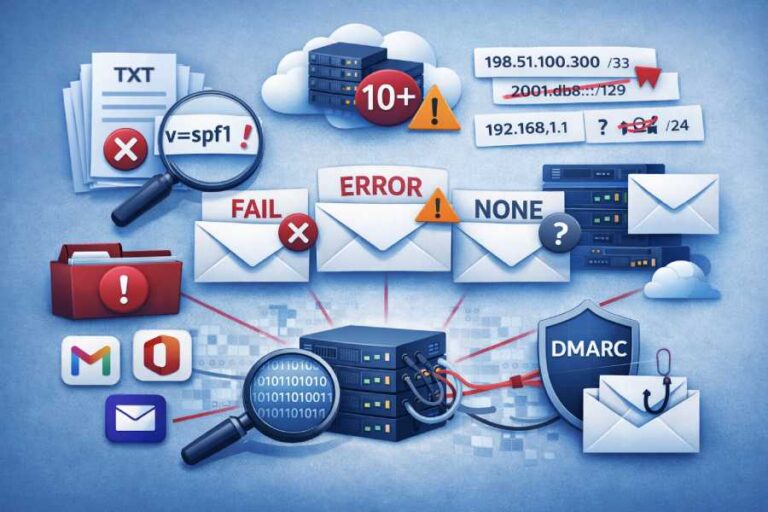
Email spoofing, phishing, and deliverability issues remain a big challenge for any organisation sending email at scale. That’s why combining authentication standards — like Sender Policy Framework (SPF) and DomainKeys Identified Mail (DKIM) — with a well-configured gateway like Barracuda is vital. This guide walks you through how to correctly set up SPF and DKIM when you use Barracuda’s email services, to ensure best possible email security and deliverability.
Why SPF and DKIM Matter (and How They Relate to DMARC)
- SPF lets domain owners declare which mail servers (by IP address or service) are allowed to send email “on behalf” of their domain. When an email arrives, the recipient server checks your domain’s DNS: if the sending server isn’t authorised per SPF, the mail can be rejected or flagged. This helps stop spoofed emails.
- DKIM uses public-key cryptography to “sign” outgoing messages, allowing the receiver to verify that the content wasn’t tampered with in transit and that the “From” domain is legitimate.
- DMARC builds on SPF and DKIM. It lets a domain owner publish a policy that tells recipient servers what to do if both SPF and DKIM checks fail (reject, quarantine, or none), and optionally request reporting on failures. This adds both a safety net and monitoring capability.

Using SPF and DKIM together — and then enabling DMARC — gives layered protection: SPF ensures servers are authorised; DKIM ensures message integrity; DMARC glues it all together at the “From” domain level.
With a gateway/filter system like Barracuda, properly configuring SPF and DKIM is especially important — because mail flows differently (via Barracuda) and misconfiguration can lead to legitimate mail being blocked or failing authentication.
Step 1: Configure SPF for Your Domain to Include Barracuda
If you’re using Barracuda as your sending gateway (or want recipient servers to accept emails sent via Barracuda), you need to update your domain’s DNS SPF record.
- Log in to your DNS provider’s management console (this may be Cloudflare, GoDaddy, Route 53, Namecheap, or any DNS host).
- If you don’t already have an SPF record — create a new TXT record named for your root domain (e.g. example.com).
- If you already have an SPF record (e.g. because you send mail from multiple sources), you must extend it — don’t create a second SPF record. Only one SPF TXT record per domain is allowed; multiple records cause SPF to break (permerror).
- Add the appropriate “include” mechanism depending on the Barracuda region/instance you use. For example:
- For India: include:spf.ess.in.barracudanetworks.com
- For US: include:spf.ess.barracudanetworks.com
- (Similarly for UK, AU, DE, CA, etc., depending on which Barracuda service you are using.)
Combine with existing mechanisms if any. For example, if you previously had:
v=spf1 mx -allYou might update it to:
v=spf1 mx include:spf.ess.in.barracudanetworks.com -all- (or use ~all/-all according to your policy)
- Save/publish the record, then wait for DNS propagation (may take a few minutes to a few hours — sometimes up to 48–72 hours depending on TTL and DNS infrastructure) before expecting consistent results.
Why this matters: Once this SPF record is in place, recipient mail servers will see that Barracuda’s servers are authorised to send mail for your domain — helping prevent spoofing and improving deliverability, especially for mail passing through Barracuda.
Step 2: Understand the Limitations — DKIM via Barracuda is Special
Here’s a critical caveat: unlike SPF, many Barracuda offerings (including the common Email Security Service / Email Gateway) do not automatically sign outgoing mail with DKIM. That means:
- Even if you are using Barracuda to send outbound mail, DKIM signing must be configured on your actual mail server (or cloud mail provider) — e.g. Microsoft 365, Google Workspace, Exchange, SendGrid, etc.
- If you enable DKIM manually on your own mail server, be cautious: sometimes Barracuda may append a footer or make modifications to outgoing messages (e.g. for branding, disclaimers, tagging). That can break the DKIM signature — because DKIM signs specific headers and body content; any change invalidates the signature.
Because of these constraints, you cannot rely on Barracuda alone for DKIM signing — unless you’ve verified that your Barracuda plan explicitly supports it (some custom / advanced setups may differ). Many standard guides and documentation state that DKIM is “not supported” by Barracuda for signing / outbound mail.
Step 3: If You Control the Mail Server — Configure DKIM There
If your mail originates from a server or service you manage (or a cloud mail provider that allows DKIM), here’s what you should do:
- On your mail server (e.g. Exchange, Office 365, Google Workspace, third-party SMTP), enable DKIM signing. This typically involves generating a public-private key pair, configuring the mail server to sign outgoing messages with the private key, and publishing the public key in your DNS.
- Publish the DKIM DNS TXT record under a selector subdomain — e.g. selector1._domainkey.example.com with the public key and correct syntax.
- Test by sending an email and verifying the DKIM signature passes (many online DKIM checkers / verification tools are available).
- Important: Check if your Barracuda gateway is set to modify outgoing messages (e.g. adding footers). If so — either disable that modification or ensure it doesn’t alter parts of the message DKIM has signed (headers/body). Otherwise DKIM signatures may break. <br> If DKIM fails repeatedly after enabling outgoing modifications, you may need to coordinate with Barracuda support (or your IT team).

Step 4: Configure Barracuda to Enforce SPF / DKIM / DMARC Checks for Inbound Mail (Optional but Recommended)
If you’re using Barracuda not just for outbound sending but also as an email gateway/filter for inbound mail — you should configure how Barracuda handles SPF, DKIM and DMARC checks for incoming mail. This helps protect your organisation from spoofed or malicious incoming email.
- In the Barracuda portal (e.g. via “Inbound Settings → Sender Authentication” if using Email Gateway Defense), you can enable SPF checking.
- Configure what happens if an inbound email fails SPF — you can choose to block, quarantine, or allow (or ignore) such messages, depending on your policy.
- Similarly, you can enable or disable DKIM verification for inbound mail. If DKIM fails, you can configure policy: block, quarantine, or off.
- Also configure the behavior for cases when there is no SPF record (for example, some senders’ servers don’t use SPF) — you can choose to block, quarantine or allow.
- If you have a published DMARC record for your domain, Barracuda can check alignment (SPF or DKIM) + enforce the DMARC policy. If DMARC fails and policy is “reject” or “quarantine”, Barracuda will act accordingly.
Note: If you don’t have SPF or DKIM configured, Barracuda offers a fallback called “Sender Spoof Protection” — but this is less powerful than proper SPF/DKIM/DMARC; it’s primarily a catch-all for domains lacking any DNS authentication setup.
Common Pitfalls & Troubleshooting Tips
Based on field reports and community discussions, these are some common issues and how to avoid them:
- Multiple SPF records for the same domain — causes “permerror” and SPF will fail. Always consolidate into a single SPF TXT record.
- DKIM failures because Barracuda modifies messages — many Barracuda gateways append footers/disclaimers, which can break DKIM signatures. If DKIM constantly fails, disabling such modifications (or using a DKIM-friendly configuration) is advised.
- SPF failures when inbound SPF is enabled but mail relayed by Barracuda is not in the SPF list — if your organization also had SPF checks on your own mail server, you must make sure either SPF checking is disabled there or Barracuda’s outbound IP ranges are added to SPF exemptions.
- Delayed DNS propagation — after updating SPF or publishing DKIM keys, DNS changes may take time to propagate. Wait before expecting consistent authentication success.
- Missing DKIM because Barracuda doesn’t support signing natively — many users assume DKIM will “just work” with Barracuda. In reality, without manual configuration at the mail server, DKIM simply doesn’t happen.

Recommended Best-Practice Setup (What AutoSPF Recommends for Barracuda Users)
If I were configuring SPF/DKIM/DMARC for a domain using Barracuda — and I wanted maximal security + deliverability — here is what I would do:
Publish a single SPF record that includes all email services and servers used for sending (e.g. mail-server, Barracuda, third-party ESPs). Example:
v=spf1 mx include:spf.ess.in.barracudanetworks.com include:_spf.google.com ip4:1.2.3.4 -all- On the server you control (or via your mail provider), enable DKIM signing and publish DKIM DNS records (selector._domainkey.*) for each domain.
- Ensure that any outgoing mail modification (footers, disclaimers, tagging) does not break DKIM — or disable such modifications.
- Publish a DMARC record for your domain (e.g. _dmarc.example.com) with a policy based on your risk tolerance; start with p=none (monitoring), review reports, then gradually move to quarantine or reject.
- In Barracuda’s inbound settings: enable SPF and DKIM checking, and configure appropriate actions for failures (quarantine or block rather than “allow”). Exempt trusted IPs/domains if necessary.
- Monitor DMARC reports, SPF / DKIM pass/fail logs, mail deliverability metrics — adjust SPF includes, DKIM selectors or DKIM configuration if needed.
This layered approach — SPF + DKIM + DMARC, with correct DNS + gateway + mail server configuration — yields strong protection against spoofing, phishing, and common email-based attacks, while ensuring legitimate email reaches recipients reliably.