In today’s digital world, email is still one of the most powerful tools for communication — whether for marketing, notifications, or transactional messages. Yet, sending emails without proper authentication can lead to delivery issues, reputation damage, and even security vulnerabilities like spoofing. That’s why at AutoSPF, we emphasize the importance of correctly configuring email authentication protocols — particularly SPF and DKIM — for platforms like SendGrid.
This comprehensive guide explains everything you need to know to confidently set up SPF and DKIM for your SendGrid account, improve deliverability, and protect your domain reputation.
Why Email Authentication Matters
Before we dive into configuration details, let’s clarify why SPF and DKIM are critical.
What Is SPF?
SPF (Sender Policy Framework) is a DNS TXT record that defines which mail servers are authorized to send email on behalf of your domain. When an email server receives mail from your domain, it checks your SPF record to confirm the sending server is authorized. If not, the email may be flagged or blocked.
What Is DKIM?
DKIM (DomainKeys Identified Mail) adds a cryptographic signature to every email you send. This signature allows receiving mail servers to verify the message hasn’t been tampered with and that it actually originated from your authenticated domain.
Together, SPF and DKIM significantly reduce the risk of email spoofing and improve your chances of landing in the inbox rather than the spam folder.
Overview: SendGrid and Authentication
SendGrid is a popular cloud-based email delivery service used by developers and marketers to send large volumes of email. However, by default, SendGrid may send emails on your behalf using its own domain (sendgrid.net), causing email clients to display “via sendgrid.net” or treat your messages with less trust.
To gain full control over your email reputation and remove that “via” message, you must authenticate your domain within SendGrid by setting up SPF and DKIM records in your DNS provider.
Part 1 — Domain Authentication in SendGrid
Let’s begin with how and where to start within the SendGrid dashboard:
Step 1: Log in to SendGrid
- Sign in to your SendGrid account.
- Navigate to Settings → Sender Authentication.
This is where SendGrid lets you configure domain authentication — meaning it will generate the DNS records you need to publish for SPF and DKIM.
Step 2: Start Domain Authentication
- Click Authenticate Your Domain.
- You’ll be prompted to choose the DNS host provider (e.g., Cloudflare, GoDaddy, Namecheap).
Tip: Choose the DNS provider you use to manage your domain’s DNS records because SendGrid will tailor the DNS instructions to that provider.
Step 3: Enter Your Domain
Enter the domain you want to authenticate — without “www” or “http://”. For example:
example.com
Avoid including subdomains like www unless you specifically intend to authenticate emails from that subdomain.
Step 4: Choose Advanced Settings
SendGrid now provides options like:
- Using Automated Security
- Branding your links (optional)
Automated Security simplifies authentication by letting SendGrid rotate DKIM signing keys for you and manage SPF via CNAME records. This is usually recommended unless you want manual control.

Part 2 — DNS Records: SPF & DKIM Setup
Once you’ve started the domain authentication process in SendGrid, SendGrid will display the DNS records you need to publish — most commonly CNAME records.
SPF Records
While SendGrid’s domain authentication wizard handles SPF via CNAME or TXT records (depending on Automated Security settings), you may also manually add an SPF include if needed. This is especially true if you already have an SPF record for your domain and want to include SendGrid alongside other sending services.
A typical SPF TXT record might look like:
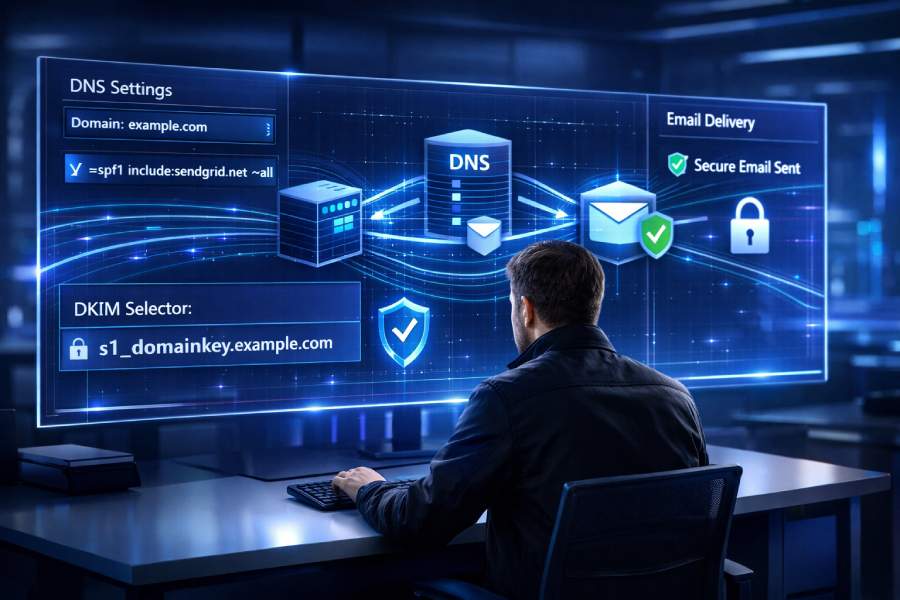
v=spf1 include:sendgrid.net ~all
This tells receiving email servers that SendGrid is authorized to send on behalf of your domain.
💡 Important:
A domain can have only one SPF TXT record. If you already have one, simply include SendGrid using include:sendgrid.net.
DKIM Records
SendGrid provides two (or more) CNAME records that act as DKIM selectors. These CNAME records link back to SendGrid’s DKIM signing keys, enabling cryptographic validation of each email’s origin.
These records might look something like:
| Record Type | Name | Value |
| CNAME | s1._domainkey.example.com | s1.domainkey.sendgrid.net |
| CNAME | s2._domainkey.example.com | s2.domainkey.sendgrid.net |
(Actual names and values are unique per account and visible in the SendGrid dashboard.)
After adding these in your DNS provider’s dashboard — and after DNS propagation — you can verify the records back in SendGrid. This completes the authentication process.
Part 3 — What Happens After Authentication
Once SPF and DKIM are correctly configured, you’ll notice several immediate benefits:
1. Improved Deliverability
Your emails are more likely to reach the recipient’s inbox because mailbox providers (like Gmail and Outlook) trust authenticated email streams.

2. Better Domain Reputation
Authentication demonstrates that you’re a legitimate sender, which protects your domain reputation over time.
3. Removal of “via sendgrid.net”
Email clients will no longer show “via sendgrid.net” in the message header — because your domain itself is authenticated.
Common Mistakes and How to Avoid Them
While the setup sounds straightforward, many users run into common pitfalls:
🔹 Having More Than One SPF Record
Never publish more than one SPF TXT record for a domain. If you do, SPF checks will fail. Instead, use include mechanisms to authorize multiple services within a single SPF record.
Example:
v=spf1 include:google.com include:sendgrid.net ~all
🔹 Not Using Automated Security Correctly
If Automate Security is turned on, SendGrid generates the necessary records — but if your DNS provider prohibits underscores in CNAME records, you might need to turn off Automated Security and manually configure DNS entries.
🔹 Delays from DNS Propagation
DNS changes can take up to 48 hours or more to propagate. Be patient and use DNS tools to verify that your records are active before re-checking in SendGrid.

Best Practices from AutoSPF
Here are our top recommendations when setting up SPF and DKIM for email services like SendGrid:
✔ Use DNS Tools to Confirm Records
Lookups with DNS checkers (e.g., dig, MXToolbox) help ensure your SPF TXT and DKIM CNAME records are correctly published.
✔ Track Deliverability after Setup
Monitor metrics such as open rate, inbox placement, and bounce rates. This helps you see if authentication is performing as expected.
✔ Set Up DMARC Next
Once SPF and DKIM are configured, consider adding a DMARC record. DMARC tells mailbox providers how to handle unauthenticated mail and gives you visibility into email abuse. (Remember: a domain can have only one DMARC record.)