General email authentication and sender requirements for WooCommerce
Quick Answer
WooCommerce stores rely heavily on email for everyday operations, from order confirmations and shipping updates to password resets and marketing campaigns. But simply sending an email does not guarantee that it will reach your customer’s inbox. Inbox providers now verify every sender and apply strict filtering rules to protect users from spam and fraud.
General email authentication and sender requirements for WooCommerce
Related: Free DKIM Lookup ·Free DMARC Checker ·How to Create an SPF Record
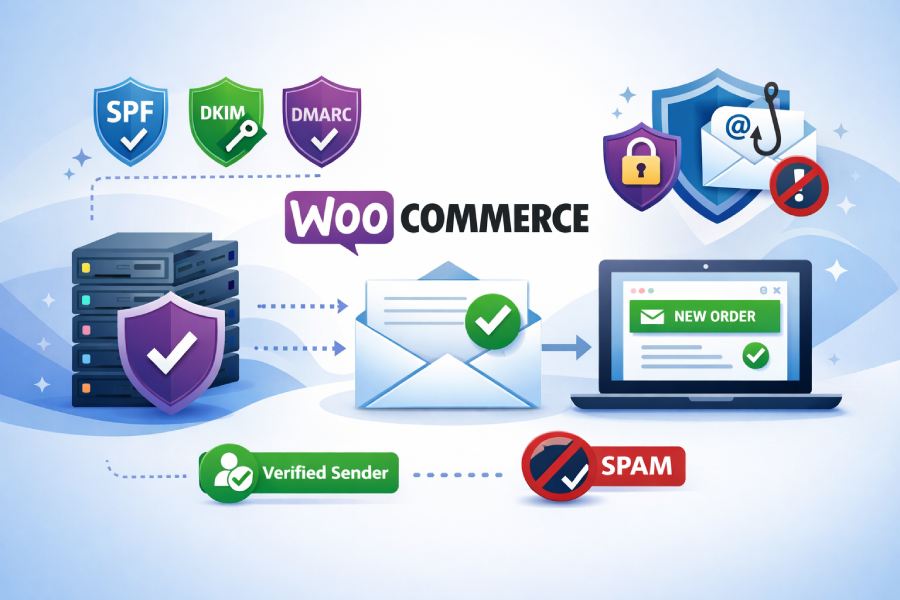
WooCommerce stores rely heavily on email for everyday operations, from order confirmations and shipping updates to password resets and marketing campaigns. But simply sending an email does not guarantee that it will reach your customer’s inbox. Inbox providers now verify every sender and apply strict filtering rules to protect users from spam and fraud.
The three core email authentication standards — SPF (RFC 7208), DKIM (RFC 6376), and DMARC (RFC 7489) — work together to verify that an email genuinely originates from the domain it claims to represent. Since February 2024, Google and Yahoo require all three for bulk senders.
This makes email authentication a critical requirement for WooCommerce store owners. Without proper authentication, even legitimate store emails can be delayed, sent to spam, or blocked completely.
This guide explains the general email authentication and sender requirements for WooCommerce, including how SPF, DKIM, and DMARC work, why they are mandatory, and what steps you need to take to stay compliant.
What is email authentication
Email authentication is a way to prove that you are the real sender of an email and not someone pretending to be you. When an email reaches a mailbox provider, the provider checks this authentication to decide whether the message can be trusted. If the checks fail, the email may be sent to spam or blocked completely.
Major email providers like Gmail and Yahoo now require proper email authentication. If your domain does not meet these requirements, your emails may not be delivered at all, even if your content is legitimate.
To meet these requirements, senders should set up standard email authentication methods such as SPF, DKIM, and DMARC. These standards work together to verify your sending servers, protect your domain from spoofing, and improve email delivery.
What is SPF (Sender Policy Framework)

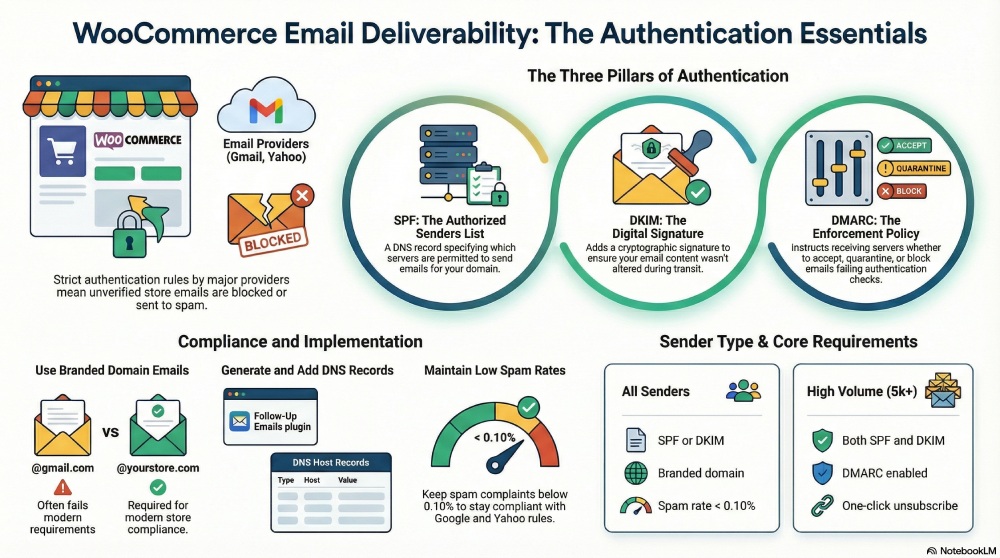
SPF is a rule that tells other mail servers which servers are allowed to send emails on behalf of your domain. It works through a record added to your domain’s DNS. When an email is sent, the receiving server checks the SPF record to see if the sending server is listed. If it is not listed, the email may be marked as suspicious or rejected.
What is DKIM (DomainKeys Identified Mail)
DKIM adds a digital signature to every email you send. This signature proves that the email was not changed while traveling from the sender to the receiver. The receiving server uses a public key stored in your DNS to verify this signature. If the signature is valid, the email is trusted more by inbox providers.
What is DMARC (Domain-based Message Authentication Reporting and Conformance)

DMARC integrates SPF and DKIM and instructs receiving servers on how to handle emails that fail these checks. It can instruct them to allow, quarantine, or block the message. DMARC also sends reports to domain owners so they can see who is sending emails on their behalf.
How Do You Implement email authentication for WooCommerce?
WooCommerce requires email domains to match your website domain. So, if you send marketing and notification emails from public-domain servers like yahoo.com and gmail.com, your emails are very likely to be marked as spam or bounce back.
The platform recommends the following actions-
- Start by checking your WooCommerce email settings under WooCommerce > Settings > Email, along with the settings of any email plugins you use. Make sure all emails are sent from your branded domain, such as me@mybrand.com, rather than from free email addresses like Gmail or Yahoo.

-
If your hosting provider sends your store emails, check their help guides or contact support to confirm that SPF, DKIM, and DMARC are properly configured. Every host has their own method, and they usually guide you through the process.
-
If you use plugins such as WP Mail SMTP or MailPoet, follow their instructions to authenticate your domain.
-
Finally, test your setup by sending an email to a tool like mail-tester.com. You can place a test order to trigger an email and review the results.
Compliance requirements
WooCommerce stores must now comply with stricter email rules to ensure their messages reach customers’ inboxes. From February 1, 2024, Google and Yahoo started enforcing new sender requirements. These rules apply to all types of emails, including order confirmations, password resets, and marketing campaigns. The goal is to reduce spam and make it easier to block fake or fraudulent emails.
Who needs to comply?
All WooCommerce store owners are required to comply with the new email authentication requirements. Even if they only send basic transactional emails, they are required to set up SPF, DKIM, and DMARC. Also, if you qualify as a bulk email sender, which means if you usually or have ever sent more than 5000 emails a day, you are required to follow extra rules as explained below.
To meet the basic requirements set by Google and Yahoo, your WooCommerce store should:
-
Use your own branded email address instead of Gmail or Yahoo
-
Set up SPF or DKIM for your domain
-
Keep spam complaints below 0.10 percent
-
Avoid reaching a spam rate of 0.30 percent
-
Have valid forward and reverse DNS records
-
Use TLS for sending emails
-
Follow standard email formatting rules

Extra Rules for High Volume Senders
If your store sends 5,000 or more emails per day to Gmail users:
-
Both SPF and DKIM are required, and DMARC should be enabled
-
Marketing emails must include a one-click unsubscribe option
-
Unsubscribe links must be clearly visible
General SPF and DKIM set up for WooCommerce
WooCommerce store owners can set up SPF and DKIM using the Follow-Up Emails plugin. These settings help prove that your store is allowed to send emails and that your messages are not being altered during delivery.
You can find these options by going to Follow Up Emails > Settings > DKIM & SPF inside your WooCommerce dashboard.
SPF setup
To enable SPF, select the ‘Enable SPF’ option and enter your full domain name. Click ‘Generate SPF Record’ to get the DNS record. Add this record to your domain through your hosting provider and save your settings.

DKIM setup
To enable DKIM, start by selecting the ‘Enable DKIM’ option. Enter your DKIM domain, which is your website domain without http or https. For example, if your store is WooCommerce.com, enter WooCommerce.com.
Next, add a DKIM selector prefix. This can be any short name. Many providers recommend using a simple identifier, such as your site name.
Select a key size, then click ‘Generate Keys.’ These keys must be added to your DNS records. It is best to confirm the exact steps with your hosting provider, as the process may vary.
AutoSPF helps WooCommerce store owners meet SPF, DKIM, and DMARC sender requirements easily, ensuring authenticated emails reach inboxes instead of spam.
Once done, your store emails will be properly authenticated.
Topics
CEO
Founder and CEO of DuoCircle. Product strategy and commercial lead for AutoSPF's 2,000+ customer base.
LinkedIn Profile →Fix your SPF record in 60 seconds
Try AutoSPF free for 30 days. No credit card required.
Start Free Trial