
Avanan is a cloud-native email security platform that helps secure email in Microsoft 365 and Google Workspace. Unlike traditional gateways, it connects directly via APIs; so, it doesn’t sit in your mail servers and consume resources.
This way, Avanan can scan emails once they land in your inbox, but before you open or interact with them. It analyzes each message using layers of detection, including behavioral analysis, real-time threat intelligence, and machine-learning models.
One of Avanan’s key strengths is its ability to stop advanced phishing attacks that bypass basic email filters. It inspects sender identity, domain reputation, authentication results, and message intent to detect spoofing, credential harvesting, and account takeover attempts. Avanan also continuously rescans emails, so if a link or attachment later becomes malicious, it can automatically remove the message from inboxes.

To make these protections effective, Avanan relies on proper email authentication. This includes SPF, DKIM, and DMARC records that help verify which servers are allowed to send emails on your domain’s behalf. Setting up SPF correctly ensures that Avanan can accurately validate legitimate senders and prevent attackers from abusing your domain for email spoofing.
In this guide, we will walk to through setting up SPF for Avanan step by step, so your email security works as intended and your domain stays protected.
Why SPF is required for Avanan
Avanan secures your emails by deeply analyzing who sent an email, how it was sent, and if you can trust it. To do this accurately, it relies on clear signals from your SPF TXT record. Here is how an SPF record helps Avanan-

Confirms legitimate sending sources
SPF defines which mail servers are authorized to send emails for your domain. When Avanan analyzes an email, it checks whether the sending server matches the servers listed in your SPF record. This allows Avanan to quickly separate legitimate traffic from unauthorized sources and reduce uncertainty during email evaluation.
Helps Avanan detect domain spoofing
Attackers often send emails that appear to come from your domain but are actually sent from external servers. Without SPF, these emails may look technically valid. SPF gives Avanan a reference point for detecting when an email claiming to be from your domain is sent from a server that shouldn’t be sending it, which is a strong indicator of spoofing.DynamicSPF vs UniversalSPF vs AutoSPF: The Ultimate SPF Record Automation Showdown for Enterprises
Reduces false positives for trusted senders
Many organizations use multiple third-party services to send emails, such as CRMs, marketing tools, or ticketing platforms. Adding these services to your SPF record tells Avanan that these senders are expected. This prevents legitimate emails from being flagged as suspicious simply because they originate outside your main mail infrastructure.

Supports DMARC enforcement
Avanan works closely with DMARC policies to decide how unauthenticated emails should be handled. SPF plays a direct role in DMARC evaluation. If SPF is missing or misconfigured, DMARC checks may fail, limiting Avanan’s ability to quarantine or block abusive emails confidently.
Improves visibility into email authentication results
When SPF is set up correctly, Avanan can clearly report why an email passed or failed authentication. This makes investigation easier for security teams and reduces guesswork during incident analysis.
Protects your domain reputation
If attackers successfully send spoofed emails from your domain, mailbox providers may lose trust in it. SPF helps stop this misuse early. By preventing unauthorized senders, Avanan can better protect your sending reputation and keep legitimate emails out of spam folders.

A properly configured SPF setup ensures Avanan sees the full picture of your email environment. Without it, even advanced detection loses an important layer of context that attackers are quick to exploit.
Process of setting up SPF for Avanan
To make sure Avanan works properly with your email domain, you need to allow its mail servers in your SPF record. This helps other mail servers understand that emails passing through Avanan are expected and should not be treated as fake or suspicious.
Here’s how you can set it up:
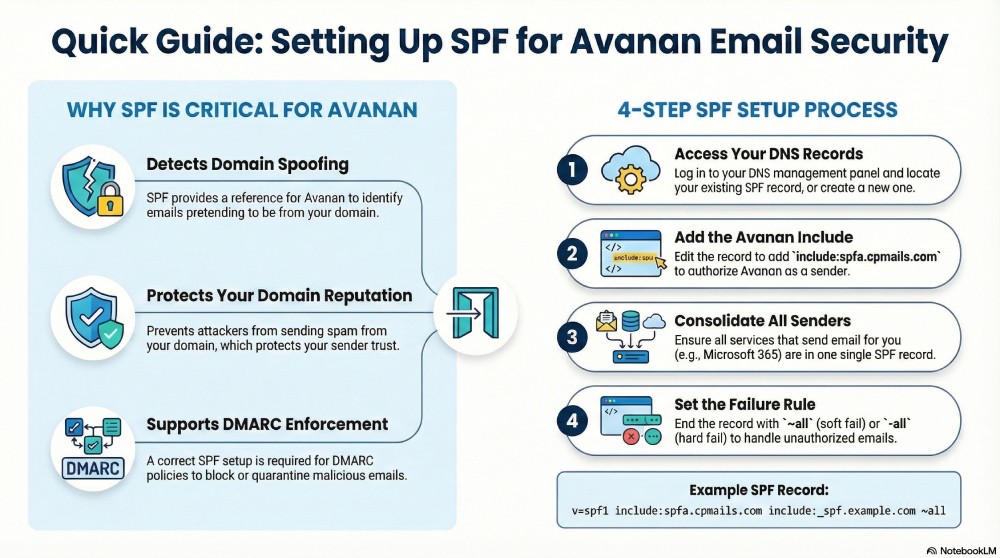
- Start by logging in to your DNS management panel, where you manage your domain records. Look for an existing SPF record. If one already exists, you will edit it. If there is no SPF record, you will need to create a new one.

- Next, update the SPF record to allow Avanan as a valid sender. This is done by adding Avanan’s include entry: include:spfa.cpmails.com. This line tells receiving mail servers that Avanan is allowed to send emails on behalf of your domain.
- Make sure your SPF record also includes any other services that send emails on your behalf, such as Microsoft 365 or Google Workspace. All authorized senders should be listed in a single SPF record.
- At the end of the record, add a rule that defines how to handle emails that fail SPF checks. Using ‘~all’ applies a soft fail, which marks failed emails as suspicious. Using ‘-all’ applies a hard fail, which instructs mail servers to reject them completely. Choose the option that fits your security level.

A simple example SPF record may look like this:
v=spf1 include:spfa.cpmails.com include:_spf.example.com ~all
After saving the record, allow some time for the change to spread across the internet. Once it is active, Avanan can properly align with SPF checks, helping improve email security and ensuring legitimate emails are delivered reliably.