Is the Google Security Alert Real? How to Verify Critical Security Alert Emails

Quick Answer
Yes, a Google Security Alert can be real, but scammers also send fake alerts to steal login credentials. Verify every alert by signing in directly to your Google Account, checking recent security activity, and never clicking suspicious email links or sharing passwords or verification codes.
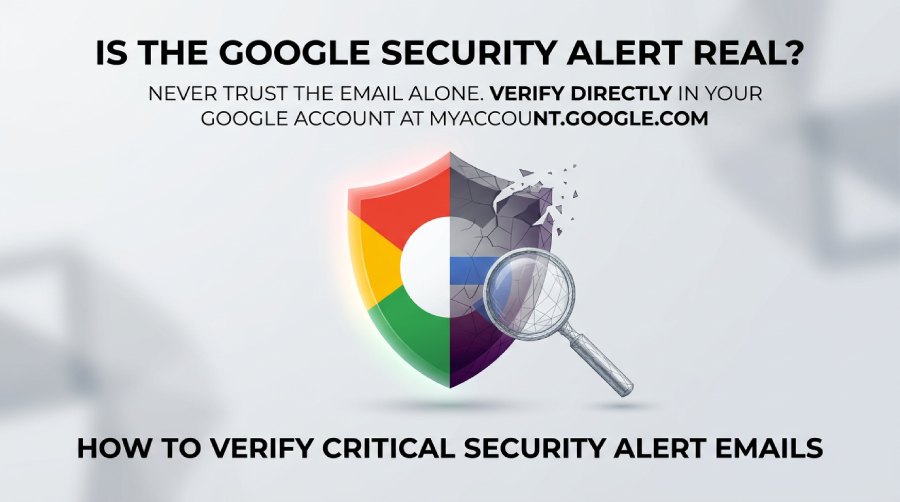
A Google security alert can be real, but it can also be a phishing attempt designed to steal your Google account password. Because your Google Account often protects Gmail, Google Drive, Chrome sync, YouTube, payment data, and recovery options, attackers frequently impersonate Google Security Alerts to create urgency. The safest approach is simple: do not trust the notification email alone. Instead, verify the security alert directly through your Google Account at MyAccount.Google.com or through Google Account Help on Support.Google.com.
Why Google Sends Critical Security Alert Emails
Google sends a security alert when it detects suspicious activity, an unusual sign-in, a sensitive action, or a change that could affect whether your account is secure. These Google Notifications are designed to help keep secure the people using Google Accounts by warning them quickly when something looks risky.
Common reasons include:
- A new sign in from an unfamiliar device
- An unusual sign-in from a new location or browser
- A password change or recovery phone or email update
- A suspicious attempt that Google may have stopped
- A “suspicious sign in prevented” or block sign-in attempt message
- Changes to account information, app access, or recovery settings
- A sensitive action, such as exporting data or changing security settings
Google may also send a notification email if it detects suspicious activity from a device type you do not usually use, such as a new Android phone, iPhone, Windows laptop, or Chrome browser session. The alert may include sign-in details such as approximate location, time, and device type. However, location can be imprecise because of mobile networks, VPNs, or internet routing, so an unfamiliar location does not always prove hackers have access.
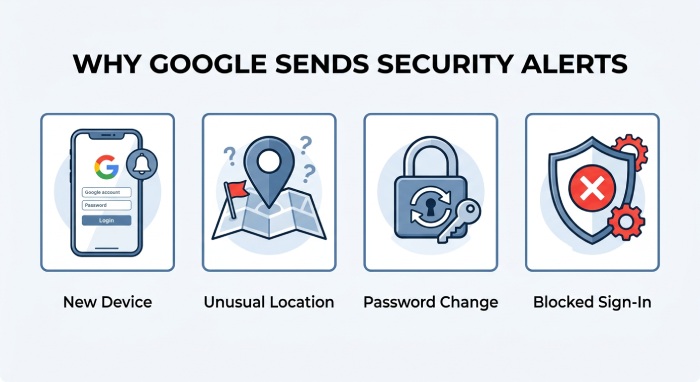 A real security alert usually exists because Google wants you to review activity, protect your account, and secure your account before unauthorized access escalates. If Google detects an unusual sign-in, it may automatically block sign-in attempt activity and ask you to verify device ownership with a CAPTCHA, recovery prompt, or other additional protections.
For broader Cybersecurity hygiene, treat every security alert as important but unverified until you check it inside your Google Account. Strong email security practices also help prevent attackers from abusing spoofed domains, deceptive notification email formats, and phishing campaigns. You can confirm whether a sending domain publishes a valid policy with an SPF checker. See why check SPF regularly matters for stopping spoofing.
Signs a Google Security Alert Email Is Legitimate
A legitimate Google security alert typically comes from a recognizable Google sender, uses your real account context, and avoids asking for your password inside the email. It may say Google detected suspicious activity, an unfamiliar device, or an unusual sign-in, then prompt you to review activity. In many real Google Security Alerts, the message links to a Google Account page where you can review details, check activity, and secure your account.
Look for these indicators:
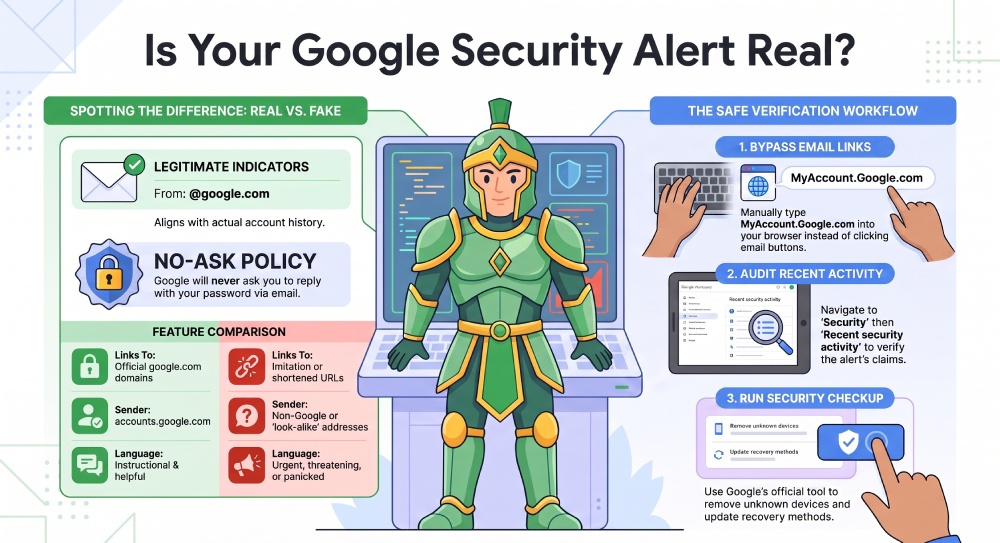
- The sender domain is clearly associated with Google, such as accounts.google.com or a Google notification address.
- The email references a recent security event, such as a sign in, password change, or recovery update.
- The alert instructions ask you to review security events rather than reply with account information.
- The message does not ask you to send your password, verification code, or backup codes.
- The alert aligns with recent security events shown inside your Google Account.
- The message may mention Google Security Events, Google Sign-In, or Security Checkup.
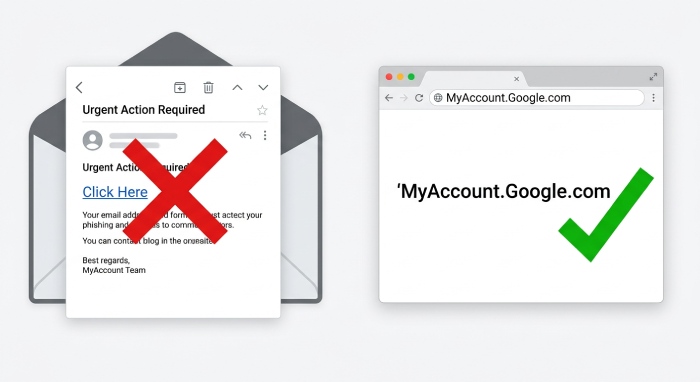
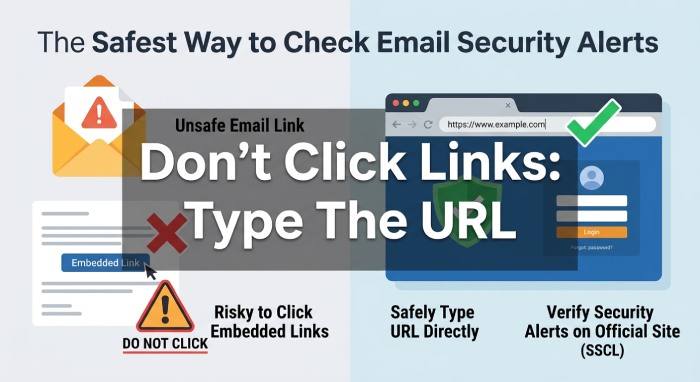 Even when an email looks legitimate, avoid clicking links if you are unsure. Open a browser, go directly to MyAccount.Google.com, sign in, and review activity from there. This is safer than trusting a button in a notification email, even if the button says “Review activity,” “Secure your account,” or “Change your password.”
Legitimate Google Account Help pages on Support.Google.com explain how to respond to alerts, review recent activity, and read recent activity reports. Google Support may also guide Developers and administrators managing Google Accounts in an organization. When in doubt, search Google Account Help yourself rather than following an embedded link.
Red Flags That Indicate a Fake Google Security Alert
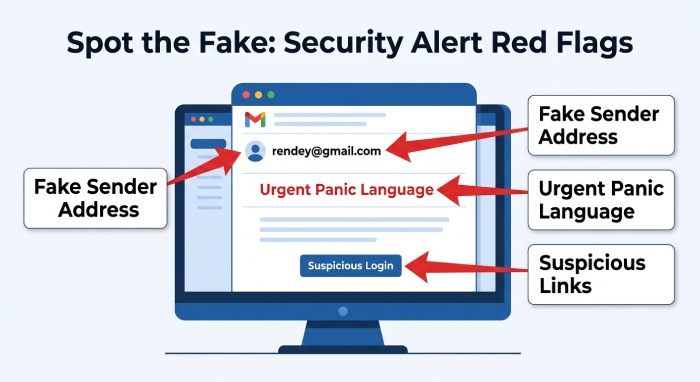
A fake security alert often tries to create panic. It may claim your Google account will be deleted, your data has been exposed, or you must change your password immediately through a suspicious link. Phishing emails frequently use alarming language such as “block sign-in attempt failed,” “unusual sign-in confirmed,” or “your account will be suspended in 24 hours.”
Be cautious if you see:
- Misspellings, odd formatting, or low-quality branding
- A sender address that is not actually from Google
- Links that do not lead to a Google-owned domain
- Requests for your password, two-factor authentication (2FA) code, payment details, or other sensitive account information that bypass email authentication safeguards. Domain owners can tighten those safeguards with an SPF record validator.
- Attachments claiming to contain sign-in details or recent security events
- A link shortener or domain that imitates Google, such as “googIe” with a capital “I”
- Pressure to bypass Security Checkup and “verify device” through a separate form
 Attackers often recycle scams across platforms. A phishing campaign may imitate Google one day and Facebook, Meta, Messenger, Meta Pay, Meta Store, Meta Quest, Ray-Ban Meta, Meta AI, Instagram, Threads, or Facebook Lite the next. The goal is the same: make you click before you think. A fake Google notification may even copy language from Google Privacy, the Privacy Policy, or Google Support pages to appear authentic.
If the email says there was suspicious activity from an unfamiliar device, do not use the email link to change credentials. If it says Google had to block sign-in attempt activity, do not assume the block sign-in attempt message is real. Instead, check recent activity inside your Google Account. Real alerts and fake alerts can look very similar, but only your account dashboard can confirm whether the security alert matches actual Google Security Events.
How to Verify Alerts Safely Through Your Google Account
The safest way to verify a security alert is to ignore the email links and go directly to your Google Account. Open Chrome or another trusted browser, type MyAccount.Google.com manually, and sign in. If you are on a public or shared computer, use guest mode and avoid saving passwords.
Once inside your Google Account:
- Go to Security.
- Open Recent security activity or Your devices.
- Review activity for unfamiliar device entries, unusual sign-in events, and suspicious activity.
- Check activity by location, time, browser, and device type.
- Select any event to review details and verify device information.
- Use Security Checkup to review security, recovery options, app access, and additional protections.
- If needed, choose Secure your account and follow Google’s alert instructions.
If the alert is real, you may see the same unusual sign-in, suspicious activity, or unfamiliar device listed in recent security events. You may also see whether Google blocked access with a suspicious sign in prevented notice. If there is no matching event, the notification email may be fake, delayed, or sent to a different Google Account.
 For users with multiple Google Accounts, make sure you are checking the correct account. A security alert for one Google account may not appear in another. Also check the recovery phone or email associated with the account, because Google may send alerts to those addresses when suspicious activity appears.
Security Checkup is especially useful because it lets you secure account settings in one place. It can help you remove unknown devices, revoke risky third-party access, update recovery methods, and protect data. If Google recommends that you change your password, do it from the account settings page—not from an email link.
What to Do If the Alert Is Real—or If You Clicked a Suspicious Link
If the security alert is real, act quickly but carefully. Start by selecting secure your account inside your Google Account. Review activity, remove any unfamiliar device, and change your password if you do not recognize the sign in. Choose a unique password you have not used on Facebook, Instagram, Threads, Messenger, or any other service.
If you see suspicious activity, take these steps:
- Change your password immediately from MyAccount.Google.com.
- Review recent activity and recent security events.
- Remove any unfamiliar device from your account.
- Check recovery phone or email settings.
- Turn on 2-Step Verification or stronger additional protections.
- Review third-party app access and revoke anything suspicious.
- Run Security Checkup again to confirm the account secure status.
 If Google shows an unusual sign-in or a suspicious sign in prevented message, still change your password if you are unsure. A blocked attempt may mean hackers had your old credentials but failed a CAPTCHA, two-step prompt, or device challenge. The purpose of a block sign-in attempt is to prevent unauthorized access, but you should still secure your account and review security events.
If you clicked a suspicious link, do not enter any more information. If you already entered your password, change your password immediately through Google Account settings. If you entered a verification code, recovery code, or payment information, treat it as a serious compromise. Change credentials, review activity, and contact Google Account Help if you cannot regain control.
Also inspect connected apps, forwarding rules in Gmail, filters, and account recovery settings. Attackers may try to hide access after a successful unusual sign-in. Review details carefully, including location, time, device type, and browser. If an unfamiliar device remains connected, sign it out.
To learn more, use Google Account Help and Google Support directly, not links in a suspicious email. A real Google security alert helps you protect your account; a fake one tries to steal it. The safest habit is to respond to alerts only after you verify them inside your Google Account, review activity, and secure your account using trusted Google tools.
General Manager
General Manager of DuoCircle. Product strategy and commercial lead for AutoSPF's 2,000+ customer base.
LinkedIn Profile →