In today’s email ecosystem, ensuring that your messages actually reach the inbox — and aren’t mistaken for spam or phishing — is more critical than ever. This is where email authentication comes into play. Two primary pillars of email authentication are SPF (Sender Policy Framework) and DKIM (DomainKeys Identified Mail). When paired with DMARC, they form a trio that proves to inbox providers and recipient servers that your emails are legitimate and trustworthy.
At AutoSPF, we help teams and platforms streamline authentication and avoid common problems like delivery issues, spoofing, and domain misuse. This guide dives into how to set up SPF and DKIM for SparkPost, step by step — empowering you with both hands-on instructions and deep understanding.
Why Email Authentication Matters
Before we jump into configuration, let’s understand why SPF and DKIM are so important.
SPF — Stopping Unauthorized Senders
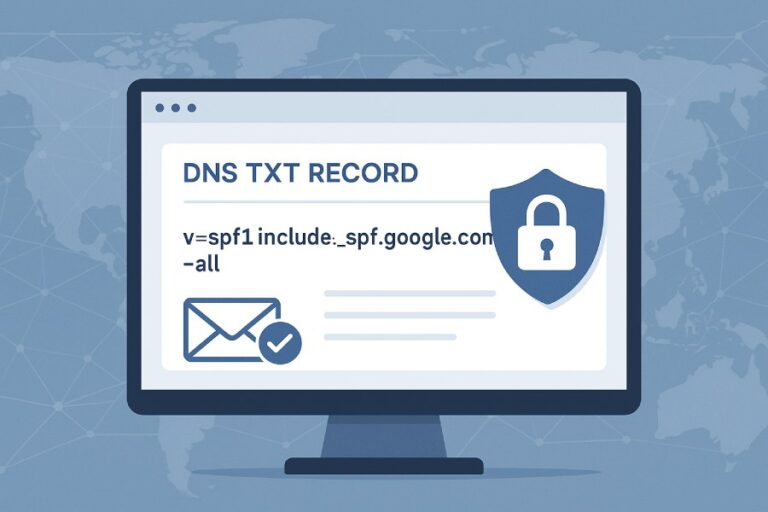
SPF is a DNS record that tells receiving mail servers which servers are allowed to send email on behalf of your domain. Without SPF, anyone could send mail claiming to be from your domain — a common tactic used in phishing and spam.
DKIM — Cryptographically Signing Email
DKIM goes a step further by adding a digital signature to each outbound email. This signature is validated by the receiver using a public key published in your DNS. If the signature checks out, the receiver is assured the message was sent by an authorized source and hasn’t been tampered with.
The Power of SPF + DKIM + DMARC
While SPF and DKIM help prove authenticity, DMARC ties them together. DMARC helps a sending domain communicate what receivers should do if SPF or DKIM fails — and provides reporting for visibility. Together, these protocols dramatically improve deliverability and security.
Getting Started: SparkPost and Domain Authentication
SparkPost is one of the most popular email delivery services for developers and enterprises. To use it effectively — and make sure your emails pass SPF and DKIM checks — you first need to configure these authentication mechanisms correctly.
Here’s how AutoSPF recommends the setup process.
Step-by-Step Setup: SPF and DKIM in SparkPost
1️⃣ Log in to Your SparkPost Dashboard
Sign in to your SparkPost account and navigate to the Configuration area. From here, you’ll manage sending domains and the required DNS authentication elements.
2️⃣ Add Your Sending Domain
Within Sending Domains, click “Add Sending Domain.”
- Sending Domain refers to the domain used in the “From:” email address.
- It’s often recommended to use a subdomain (e.g., mail.yourdomain.com) so your main domain’s reputation remains protected.
Once you add the domain, SparkPost will prompt you to choose domain alignment. You’ll see two options:
- Strict Alignment — Sending and bounce domains must match exactly.
- Relaxed Alignment — Sending and bounce domains can differ. Many organizations opt for this to retain flexibility.
Choose the alignment that suits your email architecture, then click Save and Continue.
3️⃣ Record Your SPF and DKIM DNS Entries
After adding your domain, SparkPost will produce two critical DNS records:
- SPF TXT Record — Defines which servers are allowed to send mail.
- DKIM Public Key Record — A cryptographic key used to verify the DKIM signature.
Add the SPF Record
- Go to your DNS provider’s dashboard (e.g., Cloudflare, GoDaddy, AWS Route 53).
- Create a new TXT record using the hostname and value provided by SparkPost.
- Save the record.
⚠️ Important — only have one SPF record per domain. Multiple SPF TXT records can cause failures or misinterpretations.
Add the DKIM Record
- Still in your DNS dashboard, add another TXT record for DKIM.
- Paste the hostname and public key value that SparkPost gave you.
- Save it.
Most DNS changes can take anywhere from a few minutes to 24–48 hours to propagate globally.
4️⃣ Verify Your Records in SparkPost
After you’ve added both records:
- Return to SparkPost.
- Check the confirmation boxes indicating the records have been added.
- Click Verify Domain.
If everything is correct, SparkPost will confirm that your domain is authenticated — and your email will be signed with DKIM and recognized through SPF.
Tip: Sometimes DNS propagation can delay verification. If verification doesn’t happen instantly, wait a little longer and re-verify. DNS can take time to sync across global servers.
Important Notes and Best Practices
Setting up SPF and DKIM correctly matters — not just for deliverability but also for brand safety and compliance.
One SPF Record per Domain
DNS rules allow only one SPF record per domain. If you accidentally create multiple, mail receivers may ignore all of them, causing SPF to fail — which harms deliverability.
If you need to authorize multiple outbound services (e.g., SparkPost, Google Workspace, SendGrid), you must merge all authorized senders into a single SPF record.
Use Subdomains for Authentication
Using dedicated subdomains for sending (such as news.yourdomain.com) and for bounce/tracking improves security and organizational clarity. It also isolates reputation in case one channel sees issues.
Propagation Patience
DNS propagation can be unpredictable. Even after saving records, some DNS servers around the world may not have updated yet. Give it time — and check using DNS lookup tools if needed.
Monitor with DMARC Reports
After SPF and DKIM are in place, publish a DMARC policy and monitor the reports. These reports show how many emails passed or failed authentication and help you spot misconfigured sources.
DMARC reports provide insight into sources that claim to send on your behalf — a powerful window into unauthorized or low-quality traffic.
What Happens After Setup?
Once your SPF and DKIM are active:
- Email providers are more likely to deliver to the inbox instead of spam.
- Compliance with DMARC lets you control how mail that fails authentication is handled (none, quarantine, reject).
- You reduce the risk of domain spoofing and phishing attempts using your brand.
This leads to improved sender reputation, boosted engagement, and better email performance overall.
Extra Tips from AutoSPF
To make your SparkPost setup even more robust and future-proof, here are some extra suggestions from our world of email authentication:
Use Automated SPF Flattening
SPF records can grow complicated when combining multiple senders. AutoSPF tools can flatten your SPF record — compressing multiple entries into a concise list of authorized IPs without exceeding DNS lookup limits.

This ensures SPF stays valid — especially when integrating many email services.
DKIM Key Rotation
Cryptographic best practices suggest rotating DKIM keys periodically (e.g., annually). Fresh keys keep your authentication strong and resistant to cryptographic threats.
DNS Health Checks
Regularly run DNS health checks to make sure your SPF and DKIM records are still valid and reachable. Misconfigurations sometimes occur after domain migrations or DNS provider changes.
Educate Your Team
Email authentication touches marketing, security, and technical teams. Make sure stakeholders understand the importance of SPF, DKIM, and DMARC. Collaboration between teams helps prevent accidental breaks or unwanted changes.
Final Thoughts
Configuring SPF and DKIM for SparkPost is a foundational step in modern email authentication — and it’s a critical one. When done right, mail deliverability improves, brand protection strengthens, and your infrastructure gains resilience against abuse and spoofing.
As AutoSPF, we advocate for clear, manageable authentication practices — combined with monitoring and automation where possible. With proper setup and ongoing attention, you’ll build trust with inbox providers while keeping your communications secure and efficient.
If you ever need help managing or optimizing your SPF and DKIM strategy — including handling multiple domains or complex DNS environments — tools like AutoSPF can add velocity and reliability to your workflow.