Why Authenticate Your Emails with Constant Contact?
Quick Answer
When you send emails through Constant Contact using your own domain, you want to make sure those emails actually reach your recipients’ inbox — and not their spam or junk folder. That’s where email authentication comes in. Protocols like Sender Policy Framework (SPF), DomainKeys Identified Mail (DKIM), and DMARC act like seals of authenticity that tell email providers: “Yes —.
Related: Free DKIM Lookup ·Free DMARC Checker ·How to Create an SPF Record
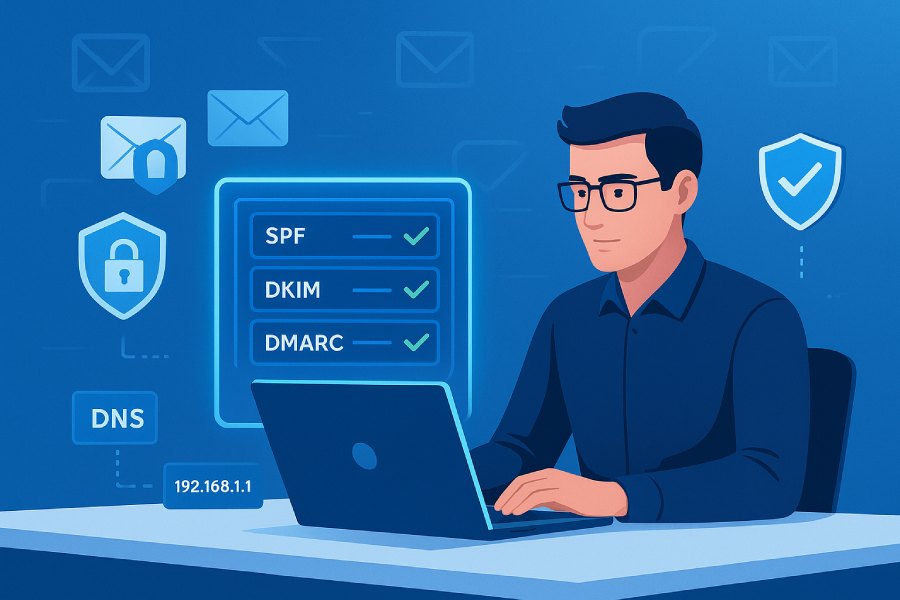
When you send emails through Constant Contact using your own domain, you want to make sure those emails actually reach your recipients’ inbox — and not their spam or junk folder. That’s where email authentication comes in. Protocols like Sender Policy Framework (SPF), DomainKeys Identified Mail (DKIM), and DMARC act like seals of authenticity that tell email providers: “Yes — this email is really from this domain, and it hasn’t been tampered with.”
The three core email authentication standards — SPF (RFC 7208), DKIM (RFC 6376), and DMARC (RFC 7489) — work together to verify that an email genuinely originates from the domain it claims to represent. Since February 2024, Google and Yahoo require all three for bulk senders.
-
SPF lets you declare which servers are allowed to send emails on behalf of your domain.
-
DKIM adds a digital signature to each outgoing email so that the recipient’s mail server can verify it was sent by you and hasn’t been altered.
-
DMARC builds on SPF and DKIM — telling receiving servers what to do with emails that fail checks (accept, quarantine, or reject) and helping you monitor the overall health of your email flows.
For users of Constant Contact, this matters a lot — because by authenticating properly, you improve email deliverability, protect your brand reputation, and reduce the risk of spoofing.
However: with Constant Contact, SPF alignment isn’t always possible (more on this below). That makes DKIM the key piece for reliable authentication when sending via Constant Contact.
Step 1: (Optional But Often Helpful) — Configure SPF to Authorize Constant Contact
Even though SPF alone won’t guarantee full deliverability when using Constant Contact — it’s still useful to indicate that Constant Contact’s servers are allowed to send for your domain.
Here’s how to do it:
- Log in to your domain registrar or DNS hosting provider (e.g. GoDaddy, Namecheap, or whichever registrar hosts your domain).
- Go to the DNS management / DNS records section and check whether there’s already an SPF record (a TXT record beginning with v=spf1).

If you DON’T have an existing SPF record: Create a new TXT record with value
v=spf1 include:spf.constantcontact.com ~allIf you already have an SPF record: edit the existing TXT record and append include:spf.constantcontact.com before the final mechanism (~all or -all). For example:
v=spf1 include:_spf.google.com include:spf.constantcontact.com ~all- MXToolbox+1
- Save your changes. Keep in mind DNS changes can take some time to propagate.
- (Optional) Use an SPF-checker tool (such as the one on MXToolbox) to verify that the record is valid and includes Constant Contact.
Important caveat: Even after you do this, SPF alignment (as required by DMARC) may not pass. That’s because Constant Contact often uses its own domain in the “Envelope From” / “Return-Path” header (not your domain), which breaks SPF alignment.
Because of that — while adding Constant Contact to your SPF record is fine — it should not be relied upon as your primary authentication method. In practice: DKIM is the essential part.
Step 2: Set Up DKIM — The Recommended & Reliable Way to Authenticate Emails via Constant Contact
DKIM is the most reliable method for authenticating emails sent through Constant Contact. When properly configured, DKIM enables your emails to pass DMARC checks even if SPF alignment fails.
Constant Contact offers two ways to publish DKIM records: using CNAME records or using a TXT record. You can choose whichever works best for your domain setup.
Here’s how to set up DKIM with Constant Contact, step by step (from the “AutoSPF” perspective):
Option A: Self-authenticate using DKIM CNAME records (recommended in many cases)
- Log in to your Constant Contact account. Go to the top-right profile menu → “My Account” → then go to the Advanced Settings tab.
- Click Add self-authentication. In the pop-up, choose “Self-authenticate using DKIM CNAME records” and click Continue.
- From the domain dropdown, pick the domain you want to authenticate. If your domain isn’t listed yet, select “Add another domain” or verify a new email address tied to your domain. Then click Continue.
- Constant Contact will generate two CNAME records (host/name and value) for you. Copy them exactly.
- Log in to your DNS hosting provider’s control panel, navigate to DNS management, and create the two new CNAME records you received (use the exact host/name and value as provided). Save / publish them.
- Wait for DNS propagation (usually 24–48 hours). Then return to Constant Contact and click “Check status” (or similar) to verify activation. Once it shows “Ready,” click Activate to finalize.

This method is generally the simplest and cleanest, especially if you host your DNS on providers that support CNAME records easily.
Option B: Self-authenticate using a DKIM TXT record (useful if you have multiple Constant Contact accounts on the same domain, or prefer TXT records)
If CNAME isn’t suitable — or if you’re managing multiple accounts sending from the same domain — Constant Contact allows publishing a standard DKIM TXT record instead. Here’s how:
- In Constant Contact: go to My Account → Advanced Settings → Add self-authentication. Choose “Self-authenticate using DKIM TXT record” and click Continue.
- Select the domain you want to authenticate (or add a new one if needed), then click Continue.
- Click Generate Key. Constant Contact will generate a public/private DKIM key pair — the private key will be used to sign your outgoing emails, and you will get a public key for DNS.
- Copy the DKIM public key, and note the “selector” or host name (often something like k1._domainkey or similar).
- Log in to your DNS provider’s console, go to DNS records, and add a new TXT record:
- Host / Name: the DKIM selector (e.g. k1._domainkey)
- Value / TXT Value: the full key string provided by Constant Contact (e.g. something like v=DKIM1; k=rsa; p=…)
- Save / publish the record and wait for DNS propagation (sometimes a few minutes — but DNS propagation can take longer depending on your host).
- Return to Constant Contact and click to confirm or activate DKIM — once successful, outgoing emails will be signed with your domain’s DKIM key.
This method works especially well if you manage multiple accounts or want clearer control over TXT records (some DNS providers don’t handle CNAMEs or multiple CNAMEs per subdomain as expected).
Step 3: (Recommended) — Publish a DMARC Record for Monitoring & Policy
Although configuring DKIM (and optionally SPF) via Constant Contact is essential, adding a DMARC record is a powerful additional step. DMARC tells receiving servers: if an email fails DKIM (or SPF) — what should they do? Deliver, quarantine, or reject? It also allows you to get reports about email authentication outcomes for your domain.
Here’s a simple, common approach to start with:
- Create a TXT record with host/name _dmarc
Value something like:
v=DMARC1; p=none; rua=mailto:dmarc-reports@yourdomain.com- This ‘none’ policy ensures you’re only monitoring — not rejecting or quarantining — while you get data about email authentication.

Once you’re confident everything is configured correctly and you understand the report data: you may gradually tighten the policy to p=quarantine (for some percentage) — and eventually to p=reject, if you want mail that fails DMARC to be rejected altogether.
DMARC is optional — but highly recommended. It gives you visibility over your domain’s email flow and safeguards your brand from spoofing or phishing misuses.
Why DKIM Matters More Than SPF for Constant Contact
It’s important to understand a subtle point: with Constant Contact, even if you add them to your SPF record, SPF alignment will often fail. That’s because Constant Contact uses its own server domain (e.g. something like in.constantcontact.com) for the “Return-Path” (aka Envelope From) — not your custom domain. So SPF alone usually doesn’t satisfy the requirements for full DMARC compliance.
Because of this: DKIM is the backbone of reliable authentication when sending through Constant Contact. Once DKIM is properly set up, your emails will pass DMARC (so long as DKIM alignment is correct), deliverability improves significantly, and your domain reputation is better protected.
Quick Troubleshooting & Best-Practice Tips
-
Only one SPF record per domain: Don’t create multiple SPF TXT records. Instead, always edit the existing SPF record and append the include:spf.constantcontact.com.
-
DNS propagation can take time: After adding SPF, DKIM (via CNAME or TXT), or DMARC records — wait for DNS propagation. Some providers update quickly, others take hours or even a day or two. Avoid sending major campaigns until propagation is confirmed.
-
Test before sending: After DNS changes, send test emails and use SPF / DKIM checker tools (e.g. MxToolbox) to verify that records are correctly published and recognized.
-
Use DKIM when you have multiple accounts: If multiple Constant Contact accounts send on behalf of the same domain, publishing DKIM as a TXT record (with unique selectors per account) avoids conflicts and ensures each account can sign properly.
-
Monitor DMARC reports: Once you publish a DMARC record with a rua report address, check reports regularly. These will help you spot misconfigurations, unauthorized senders, or failed deliveries.
-
Plan for key rotation (if supported): For enhanced security, DKIM keys should ideally be rotated periodically. Check whether Constant Contact allows regenerating keys and update DNS accordingly.

Summary — What “AutoSPF” Recommends for Constant Contact Users
If you use Constant Contact to send emails from your own domain, here’s what I (AutoSPF) recommend for a reliable, deliverability-friendly setup:
- (Optional) Add Constant Contact to your SPF record by including include:spf.constantcontact.com.
- Most importantly: Set up DKIM — preferably via CNAME records (simpler), or via TXT if that suits your setup better.
- Publish a DMARC record (starting with a monitoring policy) so you get visibility over your email authentication health.
- Test thoroughly — use SPF/DKIM checkers, send test emails, wait for DNS propagation; proceed with larger campaigns only after confirmation.
Topics
CEO
Founder and CEO of DuoCircle. Product strategy and commercial lead for AutoSPF's 2,000+ customer base.
LinkedIn Profile →Fix your SPF record in 60 seconds
Try AutoSPF free for 30 days. No credit card required.
Start Free Trial