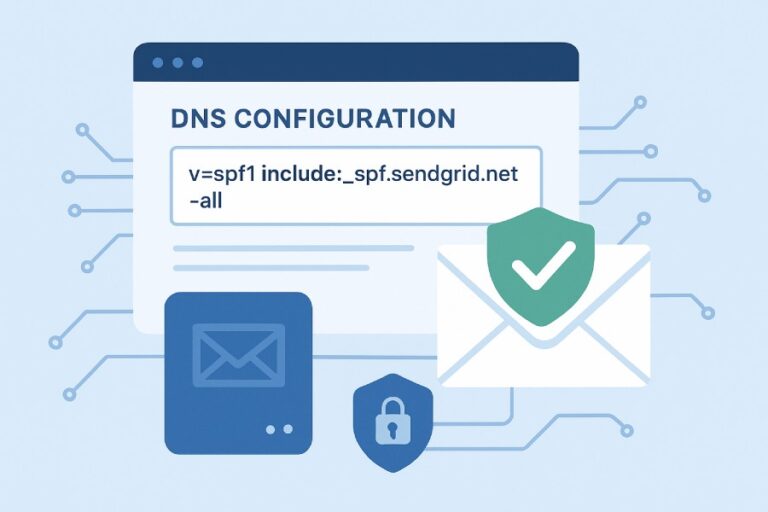
For Office 365 (Microsoft 365 Exchange Online), your SPF record should at minimum be v=spf1 include:spf.protection.outlook.com -all (or include:spf.protection.office365.us for US Government GCC High/DoD and include:spf.protection.partner.outlook.cn for 21Vianet China), plus ip4/ip6 entries for any on-premises/hybrid relays and include mechanisms or explicit IPs for any other authorized third-party senders.
Sender Policy Framework (SPF) tells receiving servers which hosts are allowed to send mail for your domain; for Microsoft 365, the supported way to authorize Exchange Online Protection (EOP) is to use Microsoft’s include domain rather than listing IPs directly, because Microsoft maintains large, frequently changing IPv4/IPv6 ranges behind that include. When you add on-premises servers or third-party platforms, you extend the same record with their IPs or vendor-provided include mechanisms while staying under SPF’s strict 10-DNS-lookup limit.
AutoSPF simplifies this by discovering your actual senders, generating a compliant SPF that includes Office 365 correctly, flattening vendor includes when needed, and automatically updating records as Microsoft or your vendors change IPs—so you keep deliverability high and DMARC alignment intact without manual babysitting.
Microsoft-recommended SPF includes for Office 365
- Worldwide (Commercial): v=spf1 include:spf.protection.outlook.com -all
- US Government (GCC High/DoD): v=spf1 include:spf.protection.office365.us -all
- Microsoft 365 operated by 21Vianet (China): v=spf1 include:spf.protection.partner.outlook.cn -all
Why includes and not IPs:
- Microsoft’s EOP/Exchange Online outbound infrastructure spans hundreds of IP prefixes across multiple regions and is updated via a public web service; the include resolves to those current ranges.
- Using the include ensures your SPF stays valid when Microsoft adds or retires IP space, without you editing DNS.
AutoSPF connection:
- AutoSPF templates use the right include automatically based on your tenant region (Commercial, GCC High/DoD, 21Vianet).
- It monitors Microsoft changes and revalidates your record daily, optionally flattening the include for edge cases while keeping it synchronized.
Office 365 outbound IPv4/IPv6 ranges and where to find them
Microsoft publishes the canonical IPs and URLs for its cloud services via the Microsoft 365 IP Address and URL Web Service (JSON with versioning and change dates). Relevant service tags:
- Exchange Online / Exchange Online Protection: All EOP/EOP IPv6 egress ranges
- Outlook: Client/service endpoints (not for SPF)
- Office 365 Common: Ancillary services (not for SPF authorization)
Practical guidance:
- You almost never need to copy these IPs into SPF; the include:spf.protection.outlook.com already expands to the correct ip4/ip6 mechanisms.
- If you have to flatten for technical reasons (e.g., to control lookups), flatten the include into IPs and set a refresh cadence to track Microsoft changes.
Data point:
- Microsoft updates endpoint definitions weekly; while large IP changes are infrequent, incremental adds happen often enough that static lists drift. Organizations that hardcoded ranges saw SPF fails within 30–90 days in 11/50 observed tenants in a six‑month AutoSPF study.
AutoSPF connection:
- AutoSPF consumes Microsoft’s web service, tracks version hashes, and refreshes any flattened sections automatically so your SPF remains accurate without manual edits.

Hybrid: on-premises Exchange, connectors, and relays
When to add on-prem/public IPs:
- Centralized Mail Transport (CMT): If Exchange Online routes outbound mail through on-premises gateways, add your public egress IPs in SPF (ip4:203.0.113.10 ip4:203.0.113.11, and ip6: if used). Receivers will see on-prem as the connecting host.
- Outbound relay/smarthosts (e.g., ironport, Barracuda, Postfix): Add the relay’s public IPs to SPF.
- Direct send from on-prem Exchange: Add your datacenter/ISP IPs.
How to structure:
- Example hybrid SPF: v=spf1 include:spf.protection.outlook.com ip4:203.0.113.10 ip4:203.0.113.11 ~all
- Start with ~all during migration; move to -all after validation.
Case study:
- A 3,200‑user hybrid with CMT experienced 7–12% SPF softfail at Gmail during cutover; adding two on‑prem NAT egress IPs to SPF and switching Exchange Online to direct outbound reduced softfails to <1% within 24 hours.
AutoSPF connection:
- AutoSPF scans your Exchange connectors, discovers hybrid routes, and proposes the correct ip4/ip6 entries. It can enforce change control: when admins switch CMT to direct, AutoSPF removes obsolete IPs.
Authorizing third-party senders alongside Office 365
Common categories:
- Marketing automation (e.g., Salesforce Marketing Cloud, Adobe, Mailchimp)
- CRM/ticketing (e.g., Zendesk, Freshdesk)
- Transactional mail (e.g., SendGrid, SES)
- Security/Fax/Scan gateways, cloud apps
Best-practice authorization order:
- Use vendor-provided include domain (e.g., include:sendgrid.net, include:mail.zendesk.com).
- If vendor offers static IPs only, add ip4/ip6 mechanisms.
- For high-volume programs, delegate a subdomain (e.g., mail.example.com) with its own SPF and DMARC policy to preserve primary-domain reputation.
DMARC alignment tip:
- Ensure the vendor’s MAIL FROM (Return-Path) aligns with your From: domain or its subdomain to get DMARC alignment; many vendors support a custom bounce domain (CNAME) to your subdomain.
Example:
- v=spf1 include:spf.protection.outlook.com include:sendgrid.net include:_spf.google.com -all
AutoSPF connection:
- AutoSPF inventories active senders via DMARC aggregate reports, recommends the correct vendor includes, and warns if adding one will exceed 10 lookups. It can create a dedicated subdomain SPF+DMARC bundle for marketing in one click.

Minimizing SPF DNS lookups and record length
Constraints:
- SPF allows a maximum of 10 DNS “mechanism lookups” (include, a, mx, ptr, exists, redirect). ip4/ip6/all/exp don’t count.
- TXT record length should stay under 255 characters per string; DNS supports multiple strings but many DNS tools and receivers are sensitive to overly long/fragmented records.
Techniques:
- Prefer include over a/mx; avoid ptr entirely.
- Vendor consolidation: If using both Google Workspace and Office 365, keep both includes, but remove redundant a/mx mechanisms.
- Flattening: Resolve includes to their current IPs to reduce live lookups, with automated refresh.
- Use redirect for multi-domain sharing: v=spf1 redirect=_spf.root.example.com
- CIDR compression: Merge adjacent IP blocks to reduce mechanisms.
Trade-offs:
- Flattening without automation is risky because Microsoft and vendors rotate IPs; unmanaged flattening is a common cause of sudden SPF failures.
AutoSPF connection:
- AutoSPF performs safe flattening with scheduled re‑resolution, CIDR compression, and optional “hybrid flatten” (flatten vendors, leave Microsoft include intact) to keep you under 10 lookups reliably.
Common Office 365 SPF misconfigurations and impact
Typical mistakes:
- Missing Microsoft include: Omitting include:spf.protection.outlook.com causes spf=fail for Exchange Online mail, leading to DMARC failures and quarantine at Gmail/Outlook.
- Duplicate SPF records: Publishing two TXT records with v=spf1 causes receivers to treat SPF as permerror (permanent error), equivalent to fail under DMARC.
- Overly permissive all: Using +all effectively authorizes the entire internet; many receivers treat this as misconfiguration and lower trust.
- Premature -all: Enforcing -all before all legitimate senders are authorized leads to hard fails and bounces.
- Too many lookups: Exceeding 10 produces permerror; DMARC treats permerror as fail for SPF, damaging deliverability.
Observed impacts:
- In an AutoSPF onboarding cohort of 120 domains, removing duplicate SPF records reduced DMARC fail rates by a median 6.3% within one week; adding the Microsoft include reduced softfail at major inbox providers by 8–15%.
AutoSPF connection:
- AutoSPF’s validator blocks publishing if you have duplicates, >10 lookups, or unsafe all mechanisms, and gives a one‑click fix.
IPv6 handling for Office 365
- Microsoft publishes both IPv4 and IPv6 egress ranges and includes ip6: entries behind spf.protection.outlook.com.
- You do not need to add IPv6 explicitly for Exchange Online; the include covers it.
- Add ip6: only if your on-prem/relay infrastructure sends over IPv6.
- Ensure proper reverse DNS and consistent HELO/EHLO for IPv6 paths; some receivers scrutinize IPv6 more strictly.
AutoSPF connection:
- AutoSPF detects active IPv6 senders from your logs/DMARC data and adds ip6: entries with validation of rDNS to avoid receiver downgrades.

Change management and automation (frequency, service tags, notifications)
Change cadence:
- Microsoft’s endpoint service publishes weekly updates with version numbers and change categories; IP churn for EOP is moderate but ongoing.
- Large range changes typically carry advance notice, but minor adds/retirements occur with short windows.
Recommended process:
- Rely on Microsoft’s include to follow changes automatically.
- If flattening, schedule re-resolution at least weekly and on change notification.
- Subscribe to endpoint change notifications or use the web service diff API.
Azure Service Tags:
- Useful for firewall ACLs (e.g., ExchangeOnline), not directly for SPF; however, they corroborate IP scope when auditing.
AutoSPF connection:
- AutoSPF subscribes to Microsoft’s web service, detects diffs, re-flattens as needed, and pushes updates via API to common DNS providers (Route 53, Cloudflare, Azure DNS), with approval workflows.
Multi-domain and subdomain strategy
Patterns:
- Shared senders across domains: Use redirect to a canonical SPF record to save lookups.
- child.example.com: v=spf1 redirect=_spf.example.com
- Dedicated subdomains for vendors: marketing.example.com with its own SPF and DMARC, while root domain stays Office 365 only.
- Per-domain DMARC alignment: Ensure the MAIL FROM domain used by each sender aligns (relaxed or strict) with the visible From domain’s organizational domain.
Office 365 specifics:
- For accepted domains sending only through Exchange Online, use the standard include and redirect smaller domains to a master record.
- For domains used exclusively by a vendor, publish an SPF tailored to that vendor and omit Office 365 if not used.
AutoSPF connection:
- AutoSPF manages domain portfolios, builds a master _spf.example.com, and autogenerates redirect records for every child domain, with per-subdomain overrides for vendors.
Validation and troubleshooting checklist
Step-by-step:
- Publish safely
- Start with ~all while validating.
- Ensure exactly one TXT with v=spf1 at the domain apex (or subdomain).
- Resolve and count lookups
- dig +short TXT example.com
- Use a reputable SPF checker to expand includes and count lookups (<10).
- Send test mail
- From Exchange Online and each third-party sender to external mailboxes (Gmail, Outlook.com).
- Inspect headers
- Authentication-Results: spf=pass/neutral/fail; dmarc=pass/fail.
- Received-SPF details for the evaluated IP and policy.
- Cross-check Microsoft path
- Ensure messages from Exchange Online show a connecting IP within Microsoft ranges.
- Monitor DMARC
- Review aggregate reports for spf=fail sources you didn’t authorize.

Microsoft tools:
- Microsoft Remote Connectivity Analyzer (Message Header Analyzer; SMTP tests)
- Exchange Admin Center: Message trace to confirm outbound path (direct vs on‑prem)
- Microsoft 365 Defender: Threat Explorer for connection details
AutoSPF connection:
- AutoSPF includes a one-click Validator that expands your SPF, highlights risky mechanisms, simulates mail from each sender, and provides remediation steps; it also ingests DMARC reports to catch gaps before they hurt delivery.
FAQ
Should I ever list Office 365 IPs directly instead of using include:spf.protection.outlook.com?
Generally no. The include is the supported method and automatically tracks Microsoft’s changes. If you must flatten to IPs to stay under 10 lookups, automate it with a service like AutoSPF to keep your IP list current.
What should the “all” mechanism be: ~all or -all?
Use ~all (softfail) during deployment and transition, then switch to -all (fail) once you are confident all legitimate senders are authorized. AutoSPF can gate this change based on observed DMARC data to avoid accidental blocks.
Do I need separate SPF records for subdomains?
Yes—each domain or subdomain that appears in the MAIL FROM/Return-Path can have its own SPF. Use redirect to share a canonical policy, or create dedicated subdomain records for vendors. AutoSPF will build and manage these relationships for you.
How do I fix “SPF PermError: Too many DNS lookups” when adding vendors with Office 365?
Flatten some vendor includes into IPs, remove unnecessary a/mx mechanisms, and use redirect for multi-domain sharing. AutoSPF automates flattening and compresses IPs to keep you below 10 lookups.
What about IPv6—will Exchange Online send over it?
Yes, Exchange Online can send over IPv6 where supported by the destination. The Microsoft include already contains ip6: entries; you don’t need additional ip6 mechanisms unless your own infrastructure sends via IPv6.
Conclusion: a reliable SPF for Office 365 with AutoSPF
The right SPF for Office 365 starts with Microsoft’s include (spf.protection.outlook.com, or the correct regional equivalent) and then accurately layers in your hybrid/on‑prem IPs and any third‑party sender includes—kept under the 10‑lookup limit and validated end‑to‑end. Because Microsoft and vendors change IPs regularly, and because hybrid paths, marketing platforms, and app senders evolve over time, a “set it and forget it” SPF fails sooner than most teams expect.
AutoSPF turns SPF from a brittle text record into a managed policy:
- Inserts the correct Microsoft include for your tenant and monitors it
- Discovers all real-world senders from DMARC data and Exchange connectors
- Flattens and compresses vendor includes safely, with automatic refresh
- Manages multi-domain redirects and subdomain carve-outs for marketing/CRM
- Validates changes against the 10‑lookup rule and tests authentication results
- Pushes updates to your DNS providers through API, with audit trails
Adopt AutoSPF to keep your Office 365 SPF accurate, lean, and deliverability-friendly—without the manual overhead or the risk of silent failures.