ActiveCampaign SPF and DKIM Setup for Better Email Delivery

Quick Answer
ActiveCampaign SPF and DKIM setup helps authenticate your sending domain and improve email deliverability. By configuring SPF, DKIM, and DMARC records correctly, you can prevent spoofing, protect sender reputation, and improve inbox placement.
Email deliverability is essential for ensuring your ActiveCampaign campaigns reach subscribers’ inboxes instead of getting lost in spam folders. Properly configuring SPF and DKIM helps mailbox providers verify your sending domain, authenticate your emails, and build sender trust. DMARC adds another layer of protection by preventing unauthorized use of your domain and improving email security.
Why SPF and DKIM Matter for ActiveCampaign Email Deliverability
SPF, DKIM, and DMARC tell mailbox providers that your email is legitimate. Without proper email authentication, even well-written ActiveCampaign campaigns can land in spam, get delayed, or fail newer delivery requirements from Gmail and Yahoo.
ActiveCampaign sends email on your behalf, but mailbox providers judge the message against your sending domain, sender identity, DNS record setup, and past email sender reputation. That means domain authentication is not a nice extra. It’s part of basic email deliverability.
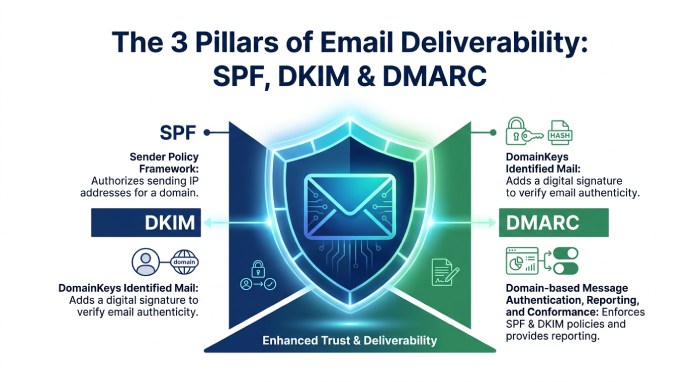
How SPF, DKIM, and DMARC work together
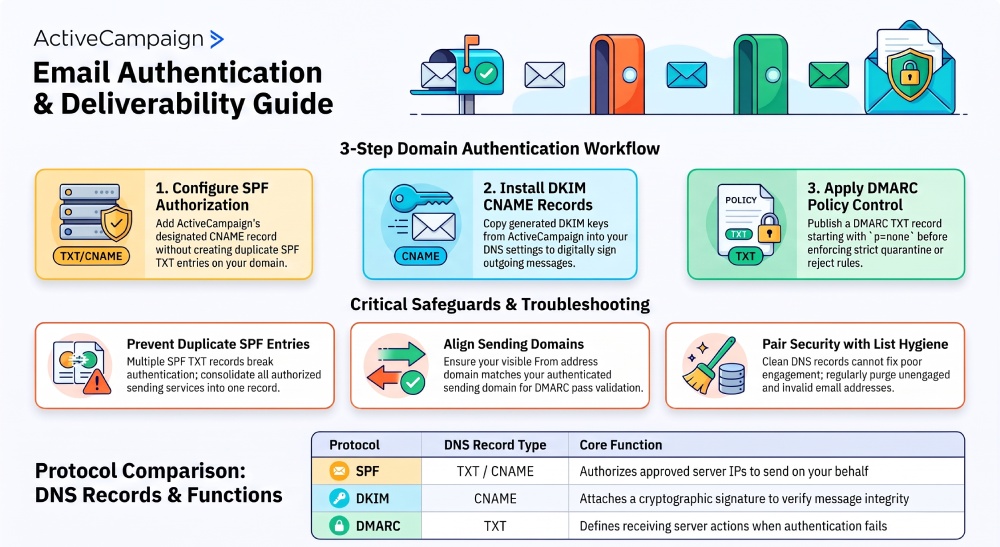
SPF verifies whether a sending server is authorized to send emails on behalf of your domain, while DKIM adds a digital signature to messages to confirm their authenticity. Both protocols help mailbox providers verify incoming emails and reduce the risk of unauthorized sending.
DMARC builds on SPF and DKIM by instructing receiving servers how to handle emails that fail authentication. You can start with a monitoring policy and gradually move to quarantine or reject as needed. Together, these three protocols strengthen email security, prevent phishing and spoofing, and protect your domain reputation.
How to Set Up SPF for ActiveCampaign: DNS Records, Includes, and Common Mistakes
SPF lives in a TXT record. To set up SPF for ActiveCampaign, you add or update the SPF TXT record at your DNS provider so it authorizes the systems sending email for your domain.
Do not create multiple SPF records for the same sending domain. That’s the classic mistake. A domain should have one SPF TXT record, and that TXT record should include every approved service.
SPF record basics
A typical SPF TXT record looks something like this:
v=spf1 include:example-service.com include:another-sender.com ~allYour actual ActiveCampaign setup may vary, so copy the value shown inside ActiveCampaign rather than guessing. SPF syntax is strict. One missing space, one extra quote, or one duplicate TXT record can break email authentication.
ActiveCampaign uses a Mailserver Domain CNAME to handle SPF authentication. When you configure your sending domain, ActiveCampaign provides the required DNS records. Add the CNAME exactly as displayed in your account. You generally do not need to modify your existing SPF TXT record just to authenticate ActiveCampaign.
For domains with many senders, SPF can hit the DNS lookup limit. Tools such as AutoSPF can help teams manage SPF flattening and avoid broken records, especially when several platforms send from the same sending domain.
Common SPF mistakes to avoid
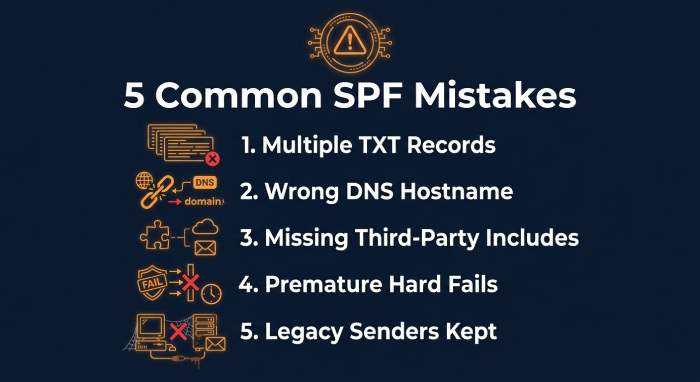
Watch for these problems:
- Multiple SPF TXT records on one sending domain
- Wrong host name in the DNS record, such as adding the full domain when the DNS host expects
@ - Missing include mechanisms for services like ActiveCampaign, Postmark, or Microsoft
- Hard fail too early, especially before DMARC reporting features confirm valid email traffic
- Ignoring old senders, including legacy SenderID-era configurations from older systems
OpenSPF guidance is still useful for understanding SPF syntax, though modern delivery depends on SPF, DKIM, and DMARC together. Gmail requires SPF or DKIM authentication for all senders and SPF, DKIM, and DMARC for bulk senders. Yahoo also has authentication requirements for bulk senders. Configuring all three protocols is a recommended practice for organizations using ActiveCampaign.
How to Set Up DKIM in ActiveCampaign: Generating, Adding, and Verifying CNAME Records
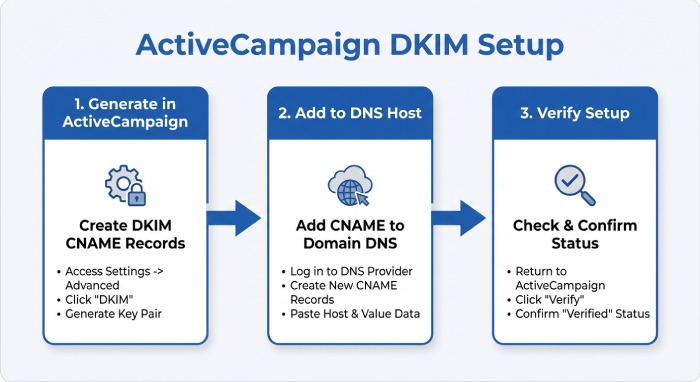
DKIM verifies that emails are authorized by your sending domain. In ActiveCampaign, generate the required authentication records, add the DKIM CNAME values to your DNS settings, and complete verification. ActiveCampaign uses these records to sign outgoing emails, helping protect message integrity and improve email deliverability.
Steps to Set Up DKIM
In ActiveCampaign, open your domain authentication settings, select Configure Domain, and choose manual setup. Copy the required DKIM CNAME records, add them to your DNS settings, save the changes, and verify the configuration after DNS propagation.
DKIM Verification Tips
If DKIM verification fails, check the CNAME values for errors and ensure they match ActiveCampaign’s requirements. Proper DKIM authentication helps protect domain reputation and improves email trust and deliverability.
Where DMARC, BIMI, and Brand Trust Fit
DMARC helps you move from basic domain authentication to active policy control. To set up DMARC, publish a DMARC TXT record at _dmarc.yourdomain.com.
A basic DMARC record might start like this:
v=DMARC1; p=none; rua=mailto:dmarc-reports@example.comThat "none" DMARC policy monitors email traffic without blocking messages. After reviewing reports through tools such as DMARC Digests, you can consider enforcement mode with a quarantine policy or reject policy.
DMARC depends on SPF or DKIM alignment. In plain terms, the authenticated domain should match the visible From domain closely enough for mailbox providers to trust the sender identity.
BIMI, short for Brand Indicators for Message Identification, can display a brand logo in supported inboxes after strong authentication is in place. Some brands may also need a Verified Mark Certificate (VMC) or other qualifying certificate, depending on the BIMI requirements of the receiving mailbox provider.
Testing, Troubleshooting, and Maintaining Authentication for Better Inbox Placement
Email authentication requires regular monitoring because DNS changes, platform updates, and new sending services can affect deliverability. After setting up SPF and DKIM, test your emails, review message headers, and confirm SPF, DKIM, and DMARC pass results to maintain reliable inbox placement.
Ongoing best practices
Keep this maintenance checklist close:
- Review SPF, DKIM, and DMARC after adding any new sender
- Confirm every CNAME record and TXT record still resolves correctly
- Watch DMARC reporting features for unknown sources
- Keep your opt-in list clean and remove dead addresses
- Practice strong list hygiene to protect domain reputation
- Separate risky tests from your main sending domain when possible
- Monitor bounces, spam complaints, and engagement trends
- Recheck domain authentication before major product launches or seasonal campaigns
Email deliverability also depends on content, cadence, permission, and recipient engagement. Clean DNS cannot save a purchased list. An opt-in list, steady sending behavior, and clear unsubscribe paths still matter.
Troubleshooting Failed Authentication
If SPF fails, check for duplicate records, missing includes, and DNS lookup limits. For DKIM, verify the CNAME values, and for DMARC, confirm domain alignment. Ensure all ActiveCampaign sending services are authenticated correctly to protect sender reputation and improve email deliverability.
General Manager
General Manager of DuoCircle. Product strategy and commercial lead for AutoSPF's 2,000+ customer base.
LinkedIn Profile →