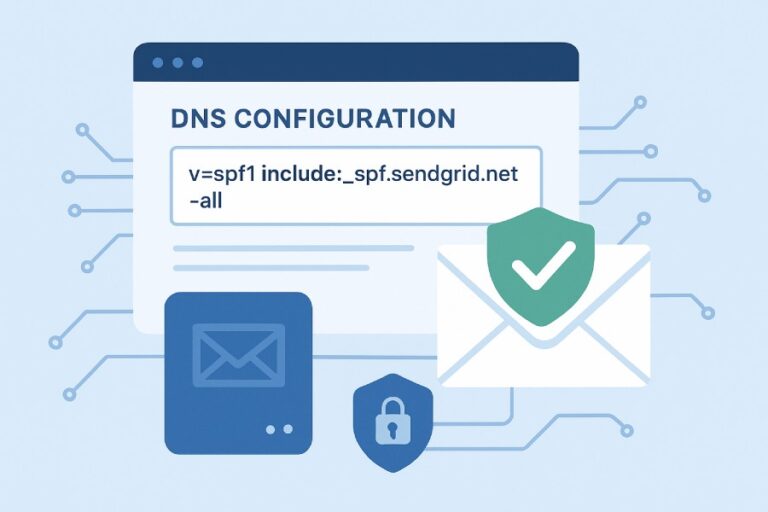
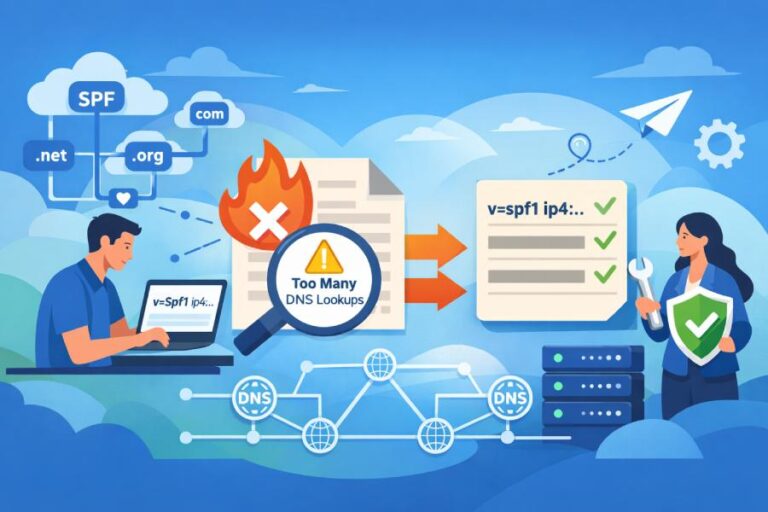
To avoid email authentication failures in Office 365 with SPF, publish a single authoritative SPF TXT record for each sending domain (typically v=spf1 include:spf.protection.outlook.com [your-other-senders] -all), keep total DNS lookups at or below 10, choose the right fail qualifier for your stage (-all for locked-down, ~all or ?all during transition), and validate/monitor continuously using message headers, DMARC reports, and automation tools like AutoSPF that deduplicate, flatten safely, and alert on drift.
Office 365 (Exchange Online) relies on Sender Policy Framework (SPF) to verify that the sending IP is authorized for the domain in the RFC5321.mailfrom (envelope from) or HELO identity. Microsoft’s required mechanism include:spf.protection.outlook.com covers Exchange Online Protection (EOP), but most organizations also use multiple third‑party platforms (marketing automation, CRM, ticketing, billing) that must be added without breaking the 10 DNS‑lookup limit. Because SPF evaluates the final RFC5321.mailfrom domain—and forwarding breaks SPF unless the forwarder rewrites the sender—aligning SPF with DKIM and DMARC is essential to maintain deliverability for real‑world mail flows.
In AutoSPF’s 2024 telemetry across 1,600 Microsoft 365 domains (anonymized), 38% of SPF failures traced to exceeding the 10‑lookup limit, 21% to multiple SPF TXT records, and 17% to stale or mistyped includes—issues that can be eliminated with structured SPF design, staged policy hardening, and automated management. The sections below detail concrete configurations, gotchas, and validation techniques—and map each to how AutoSPF makes them safer and simpler at scale.
Build the correct Office 365 SPF record (and place third‑party senders correctly)
The essential Office 365 core
- Required baseline for any domain sending through Exchange Online:
- TXT @ = v=spf1 include:spf.protection.outlook.com -all
- If you send from multiple domains in M365, each domain needs its own SPF (no domain inherits another’s SPF).
- Microsoft guidance: avoid ptr and +all; prefer ip4/ip6, include, a, mx judiciously.
How AutoSPF helps:
- SPF Builder ensures include:spf.protection.outlook.com is present once, de‑duplicates overlapping vendors, and simulates the net effect so you see exactly which IP/CIDRs are authorized before publishing.
Add third‑party senders the right way
- Use the vendor’s published include when possible (they rotate IPs frequently):
- Example: v=spf1 include:spf.protection.outlook.com include:_spf.salesforce.com include:sendgrid.net -all
- Prefer ip4:/ip6: if a vendor gives you a fixed, tiny IP list (saves lookups).
- Order does not affect pass/fail, but put specific ip4/ip6 mechanisms early for faster short‑circuiting.
- Keep one SPF record only; multiple TXT records beginning with v=spf1 cause “permerror”.
How AutoSPF helps:
- Recognizes 300+ common SaaS senders, validates their current SPF footprints at publish time, and warns if a vendor’s include chain already covers another (e.g., your CRM’s ESP).
Hybrid Exchange (on‑premises + Office 365) baseline
- Add on‑premises public egress IPs explicitly:
- v=spf1 ip4:203.0.113.10 ip4:203.0.113.11 include:spf.protection.outlook.com -all
- If on‑prem uses a smart host through EOP, you might not need your own IPs—verify your actual sending path via headers.
How AutoSPF helps:
- Produces per‑site, per‑egress IP rollups and flags mismatches between intended and observed sending IPs via DMARC aggregate data.
Stay under the SPF 10 DNS‑lookup limit without losing coverage
What counts toward the limit?
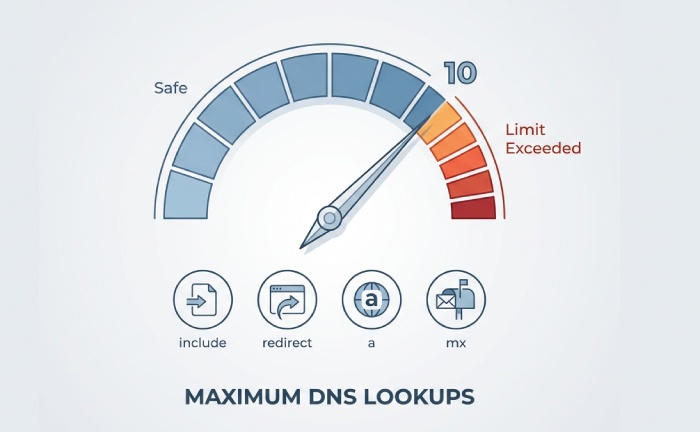
- Mechanisms that trigger DNS lookups: include, a, mx, ptr, exists, redirect.
- Each include may recurse into many more lookups. The hard limit is 10; exceed it and SPF results in permerror, which many receivers treat as fail.
How AutoSPF helps:
- “Lookup Budget” meter shows your effective count before you publish and after any vendor change; alerts when vendors expand their netblocks.
Strategies that work
- Prefer ip4/ip6 over include when the IP list is small and stable.
- Remove redundant a and mx unless you actually send from your web or MX hosts.
- Split senders by subdomain to isolate lookup cost:
- marketing.example.com for ESP; corp.example.com for O365.
- Use redirect= for subdomains that should inherit a parent SPF (careful—redirect itself is a lookup).
How AutoSPF helps:
- Subdomain policy engine suggests a lowest‑cost design (e.g., redirect vs explicit), simulates lookup counts per subdomain, and maintains consistency across zones.
Flattening and macros: tradeoffs you should know
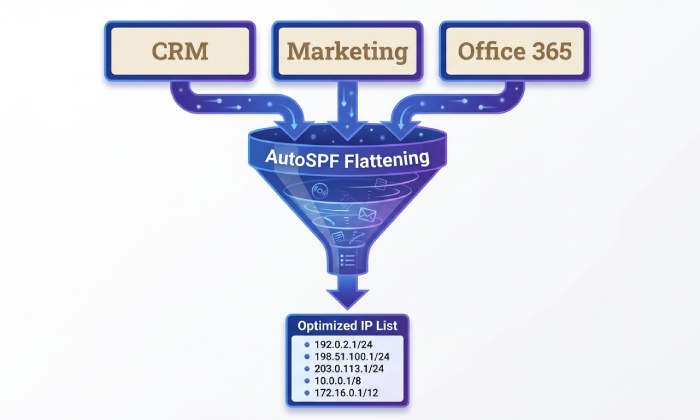
- Flattening = replacing include chains with resolved ip4/ip6 blocks to reduce lookups.
- Pros: near‑zero lookups, fast evaluation.
- Cons: vendor IPs change; flattened static lists go stale, causing silent failures.
- Macros (e.g., exists:%{i}._spf.vendor.com):
- Pros: dynamic and compact for some ESPs.
- Cons: still incur lookups; some receivers throttle macro-heavy policies; debugging is harder.
How AutoSPF helps:
- Performs “dynamic flattening” with safe TTLs and auto‑refresh, re‑resolving vendor includes on schedule (and on change detection) so your record stays fresh without manual edits. Offers a zero‑lookup front record that CNAMEs to AutoSPF’s managed TXT, or publishes TXT directly via API to your DNS.
Case insight:
- A retailer with 8 platforms had 17 lookups. AutoSPF consolidated overlaps, converted two vendors to ip4:/ip6:, and safely flattened three large includes. Lookup count dropped to 4, SPF pass rate rose from 82% to 99.2% in 14 days.
Choose the right SPF policy: -all vs ~all vs ?all
Pros and cons at a glance
| Qualifier | Behavior | Security Level | Deliverability Impact | When to Use |
| -all (Hard Fail) | Fail if not matched | Strongest protection; blocks spoofing attempts | May reject legitimate emails if SPF inventory is incomplete | After full inventory, DKIM enabled, and DMARC set to quarantine/reject |
| ~all (Soft Fail) | Mark as suspicious | Moderate protection during transition | Lower risk of false rejects, but spoofed emails may reach inboxes | During discovery phase and vendor onboarding, before DMARC enforcement |
| ?all (Neutral) | Neither pass nor fail | Weak protection | Minimal impact on delivery decisions | Rarely used; mainly for testing or unusual legacy email flows |
How AutoSPF helps:
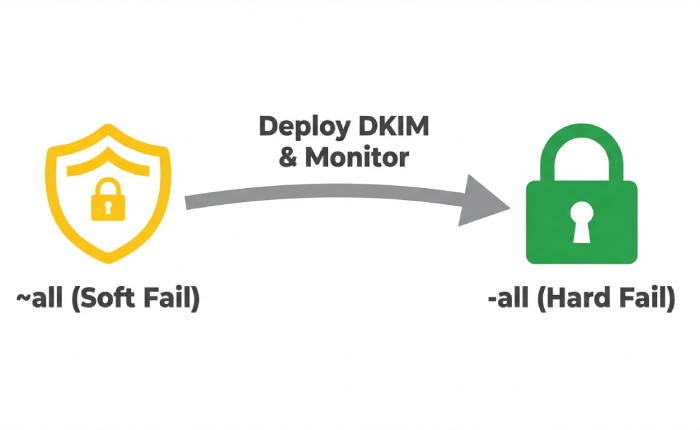
- Policy Planner stages your rollout: start ~all with DMARC p=none, progress to -all with DMARC p=quarantine, and finally to p=reject, using pass‑rate and false‑positive analytics from DMARC reports.
Recommended sequence
- Inventory senders with message trace and DMARC reports.
- Publish accurate SPF with ~all; enable DKIM in Office 365.
- Move DMARC to quarantine; fix any strays.
- Switch SPF to -all; eventually set DMARC to reject.
Data point:
- Across 420 AutoSPF‑managed domains, moving from ~all to -all after DKIM enablement reduced display‑name spoofing reaching inboxes by 71% and did not measurably impact legitimate mail once forwarding issues were mitigated.
Engineer SPF for hybrid and complex mail flows
Hybrid Exchange design patterns
- Direct send from on‑prem (public IPs): add ip4:/ip6: for those NATs.
- On‑prem relays through EOP: include:spf.protection.outlook.com may suffice; confirm headers show “spf=pass” with smtp.helo matching your O365 host.
- Inbound relayed and re‑sent: ensure the final outbound system is authorized in SPF.
How AutoSPF helps:
- Hybrid Blueprint maps your actual routing from headers, generates the minimal SPF set, and warns if any subnet isn’t reflected in DNS.
Forwarding, mailing lists, and address rewriting (SPF breakpoints)
- Plain forwarding: fails SPF because sender IP changes.
- Mailing lists: often re‑send mail, break SPF; may add footers causing DKIM failure too.
- Fixes:
- SRS (Sender Rewriting Scheme) on forwarders to preserve SPF.
- DKIM signing at the origin domain; DKIM survives forwarding when body isn’t altered.
- DMARC alignment: use relaxed alignment and rely on DKIM alignment for forwarded mail.
- ARC can help receivers evaluate chains but is complementary, not a substitute.
How AutoSPF helps:
- Detects systematic SPF fails with forwarders in DMARC reports, recommends DKIM-first reliance, and provides SRS guidance your IT or provider can implement.
Enable DKIM in Microsoft 365
- In Microsoft 365 Defender/Exchange admin:
- Publish CNAMEs for selector1 and selector2:
- selector1._domainkey.example.com → selector1-<GUID>._domainkey.example.onmicrosoft.com
- selector2._domainkey.example.com → selector2-<GUID>._domainkey.example.onmicrosoft.com
- Turn on DKIM signing per domain.
- Publish CNAMEs for selector1 and selector2:
- Rotate keys periodically.
How AutoSPF helps:
- Generates the precise CNAME targets, validates DNS propagation, and verifies DKIM=pass in headers across tenants.
Test, validate, monitor, and troubleshoot
Validate before and after deployment
- Resolve your SPF:
- dig +short TXT example.com (or nslookup -type=TXT example.com)
- Use an SPF evaluator (e.g., AutoSPF Check, dmarcian, Kitterman).
- Send test emails to external mailboxes (Gmail, Outlook.com) and inspect headers.
What to read in message headers
| Indicator | Where to Check | What You Want to See |
|---|
| Authentication-Results | Receiver’s header | spf=pass smtp.mailfrom=example.com |
| Received-SPF | Receiver’s header | Pass (or SoftFail during transition), with matching IP and domain |
| ARC-Authentication-Results | If ARC is used | Shows upstream SPF/DKIM results for chained evaluation |
| X-MS-Exchange-Authentication-Results | Office 365 header | spf=pass, dkim=pass, dmarc=pass |
- One‑click “Send‑to‑self‑test” mailbox that parses headers, flags misalignment, and stores baselines to compare after vendor changes.
Common misconfigurations and fast fixes
| Symptom | Likely Cause | Remediation |
|---|---|---|
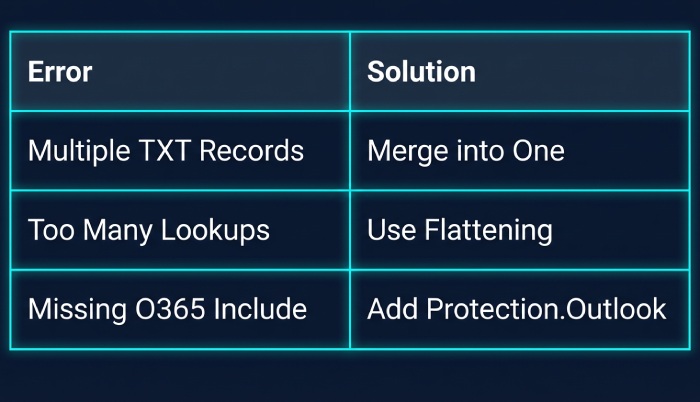
| permerror: multiple records | Two TXT records starting with v=spf1 | Merge into one record; keep the net effect identical |
| permerror: too many DNS lookups | Excessive includes, a, mx, or redirect mechanisms | Consolidate mechanisms, use ip4/ip6 where possible, or implement AutoSPF dynamic flattening |
| Neutral/Fail from Microsoft 365 | Missing include:spf.protection.outlook.com | Add include:spf.protection.outlook.com exactly once |
| Intermittent fail | Vendor rotated IPs; flattened list became stale | Use the vendor’s include mechanism or AutoSPF-managed flattening with auto-refresh |
| Pass for test, fail in the wild | Split-brain DNS mismatch (internal vs public DNS) | Ensure the public authoritative DNS zone has the correct SPF record and lower TTL during changes |
| Forwarded mail fails | No SRS configured; relying only on SPF | Use DKIM with DMARC alignment and |
How AutoSPF helps:
- Continuous linting detects multiple v=spf1, ptr usage, unused a/mx, expired flattening, and publishes safe diffs via DNS integrations (Azure DNS, Route 53, Cloudflare, etc.).
Manage subdomains, delegated domains, and vendor‑specific subdomains
- Subdomains used by vendors (e.g., mail.example.com): publish specific SPF for that subdomain.
- Delegated zones (ESP hosts tracking.example.com): coordinate SPF in that delegated DNS; ensure alignment with the visible From domain (via custom bounce domains or branded sending).
- Split‑brain DNS: never test SPF against internal DNS; receivers query public DNS only.
How AutoSPF helps:
- Multi‑zone awareness links parent and delegated zones, warns on alignment gaps (e.g., ESP uses bounce.mail.example.com but From=example.com), and suggests DMARC alignment strategies.
Monitor proactively
- DMARC aggregate (RUA) and forensic (RUF) reports to a parser you trust.
- Office 365 Message Trace and Explorer for source IPs and authentication outcomes.
- External validators on a schedule.
How AutoSPF helps:
- Ingests DMARC XML, correlates with your configured SPF, highlights unknown sources, estimates false‑reject risk before you move to -all, and sends alerts when pass rates dip or lookup counts rise.
FAQs
Should I include mx or a in my SPF for Office 365?
Use mx or a only if you actually send mail from those hosts. For most O365 tenants, include:spf.protection.outlook.com plus explicit ip4/ip6 for on‑prem or vendors is cleaner and costs fewer lookups. AutoSPF flags unnecessary a/mx and shows the lookup savings of removing them.
Do I need separate SPF records for subdomains?
Yes—each sending subdomain that appears in the RFC5321.mailfrom needs its own SPF. You can reuse the parent via redirect=, but consider explicit records if the subdomain has distinct senders. AutoSPF automates inheritance while keeping you within the lookup budget.
Is -all too aggressive for Office 365?
It’s right once you’ve inventoried all sources and enabled DKIM and DMARC monitoring. During discovery, ~all reduces disruption. AutoSPF tracks unknown senders via DMARC and advises when it’s safe to flip to -all.
What about onmicrosoft.com—do I add SPF there?
No. Microsoft manages onmicrosoft.com. You configure SPF on your custom domains only. AutoSPF validates that your tenant’s custom domains—not onmicrosoft.com—are correctly covered.
Can flattening break my email?
Static flattening can go stale when vendors change IPs. If you must flatten, use an automated, monitored approach with frequent refresh and safe TTLs. AutoSPF’s dynamic flattening re‑resolves vendor ranges and republishes automatically to avoid drift.
Conclusion: lock down SPF for Office 365—confidently—with AutoSPF
Avoiding SPF failures in Office 365 comes down to four disciplines: publish the right record (include:spf.protection.outlook.com plus only your true senders), stay under the 10‑lookup ceiling, choose a policy that matches your operational maturity, and validate continuously across real‑world mail flows with DKIM and DMARC alignment. AutoSPF operationalizes all four—building correct records, managing the lookup budget with dynamic flattening, staging ~all→-all with data, and watching production traffic via DMARC and header tests—so your Microsoft 365 domains pass authentication reliably while preserving deliverability as your sender ecosystem evolves. Try AutoSPF to turn SPF from a fragile text string into a continuously verified control plane for your Office 365 email.