Complete Guide by AutoSPF: How to Configure SPF and DKIM for Exclaimer and Secure Your Email Domain

Quick Answer
Email authentication is one of the most critical foundations for protecting your brand and domain from spoofing, phishing, and deliverability problems. In 2025, major email providers like Google, Microsoft, and Yahoo increasingly treat SPF, DKIM, and DMARC as must-haves. Without them, legitimate emails may be flagged as spam, rejected outright, or fail to reach the inbox.
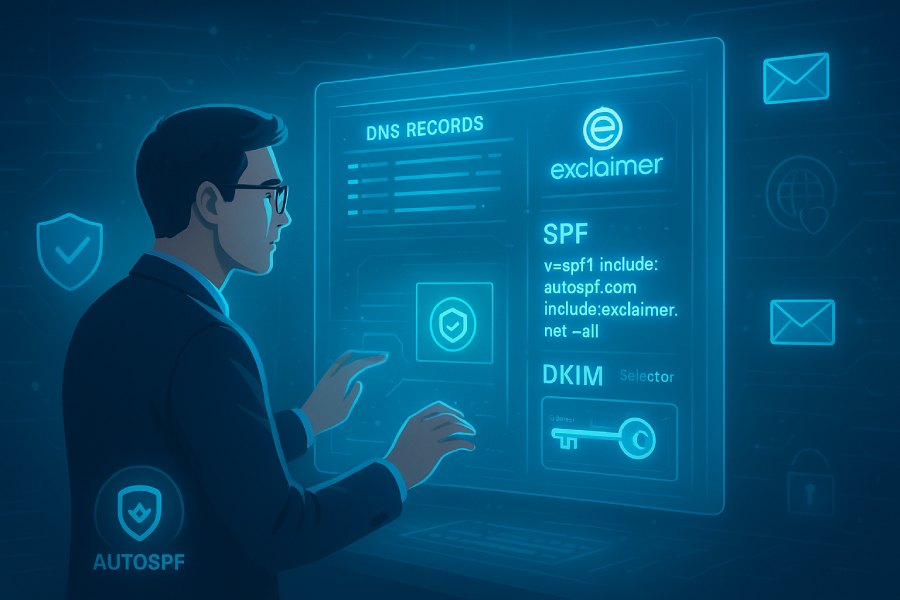
Email authentication is one of the most critical foundations for protecting your brand and domain from spoofing, phishing, and deliverability problems. In 2025, major email providers like Google, Microsoft, and Yahoo increasingly treat SPF, DKIM, and DMARC as must-haves. Without them, legitimate emails may be flagged as spam, rejected outright, or fail to reach the inbox.
DKIM (RFC 6376) signs email messages cryptographically, and unlike SPF, the signature survives email forwarding - which is why DMARC alignment via DKIM is more reliable than SPF alignment for forwarded mail and mailing lists.
In this comprehensive guide, I - AutoSPF - will walk you step-by-step through how to correctly configure SPF (Sender Policy Framework) and DKIM (DomainKeys Identified Mail) for Exclaimer, one of the most widely used email signature and branding services. I’ll explain what these protocols are, why they matter, how they work together, and best practices you should follow to ensure your email stays secure and deliverable.
1. What Are SPF and DKIM - A Quick Recap
Before we get into setup steps, let’s briefly understand what SPF and DKIM are and how they help you.
SPF (Sender Policy Framework)
SPF is a DNS (Domain Name System) record that specifies which mail servers are allowed to send email on behalf of your domain. When an email receiver gets a message, it checks the SPF record to confirm whether the sending server is authorized. If it is not, the email may fail authentication or be flagged as suspicious - that’s the core of how SPF protects your domain.
DKIM (DomainKeys Identified Mail)
DKIM adds a cryptographic signature to outgoing emails. This involves publishing a public key in your DNS that receiving mail servers can use to verify that the message truly came from your domain and that it hasn’t been tampered with in transit. DKIM is essential for proving message integrity.
Together, SPF and DKIM support DMARC (Domain-based Message Authentication, Reporting & Conformance) - a policy framework that tells receiving servers what to do if an email fails authentication checks (monitor, quarantine, or reject).

2. Why Exclaimer Needs Correct SPF & DKIM Setup
Exclaimer is a cloud-based email signature service often used with Microsoft 365 or Google Workspace. Because Exclaimer intercepts and re-sends your outbound emails (to add branding/signatures), you must authorize it to send email on your behalf. Otherwise:
-
SPF checks may fail (because Exclaimer servers aren’t recognized),
-
DKIM signatures may be broken or missing if Exclaimer modifies email headers,
-
Emails could be rejected or marked as spam by receiving providers.
To prevent this, you must update your DNS records for your domain so that Exclaimer’s mail servers are included in your SPF record. Depending on your setup, you may also need assistance from Exclaimer support to correctly handle DKIM.
3. Step-by-Step: Configuring SPF for Exclaimer
The SPF setup is the most critical part of ensuring Exclaimer-signed emails authenticate successfully.
Step 1 - Login to Your DNS Provider
Start by signing in to the DNS management portal where your domain is hosted. This could be Cloudflare, GoDaddy, AWS Route 53, or another DNS provider.
Step 2 - Create or Update Your SPF TXT Record
You must have only one SPF record for your domain. Having multiple SPF TXT records will cause a “PermError” (permanent error) - which means SPF checks will fail entirely.
If you already have an SPF record, you should edit it to include Exclaimer’s SPF mechanism. If you do not, you will need to create one - you can generate an SPF record with our free tool.
Here’s what this SPF entry looks like:
v=spf1 include:spf.<region_code>.exclaimer.net ~all
📌 Important: Replace <region_code> with the region code for your Exclaimer service - for example UAE if you’re in that region, or the region specified in your Exclaimer portal.
Step 3 - Publish the SPF Record
-
If there’s no existing SPF record, add the above as a TXT record.
-
If there is an existing SPF record (e.g., for Office 365, Google Workspace, or other services), merge Exclaimer into it - for example:
v=spf1 include:spf.protection.outlook.com include:spf.UAE.exclaimer.net ~all
This merged approach ensures that all authorized sending services are included in one SPF record - which is required for proper SPF validation.
💡 If you are using other services (third-party mailers, marketing platforms, etc.), be sure to include them within the same SPF TXT record rather than creating multiple SPF records.

Step 4 - Wait for DNS Propagation
After saving the change, it can take up to 72 hours for DNS changes to propagate globally. During this time, mail systems around the world update their caches and begin honoring your new SPF settings.
4. Configuring DKIM for Exclaimer
Unlike SPF, DKIM for Exclaimer isn’t always a simple DNS entry you can paste in yourself. In many cases, Exclaimer’s support team will help you generate and publish the correct DKIM selectors and keys for your domain.
Why You Might Need Exclaimer Support
Exclaimer may need to generate specific DKIM keys or guide you through selector setup because:
-
The DKIM signing must align with Exclaimer’s server footprint,
-
Exclaimer often acts as a relay or intermediate sender in your mail flow,
-
DKIM selectors and key formats vary depending on your tenant/region.
This means you should contact Exclaimer support and request DKIM configuration assistance for your account. They will walk you through generating the required records and publishing them correctly in your DNS.
5. Best Practices to Ensure Authentication Works Smoothly
To get the most out of SPF and DKIM - and avoid common pitfalls - follow these best practices:
📌 Only One SPF Record Per Domain
Multiple SPF records cause SPF to fail with a permanent error. If you use multiple mail services, combine all necessary includes into one SPF record; understanding the types of SPF records makes merging them easier
📌 Always Monitor DNS Propagation
Changes to DNS can take time. Tools like dig, nslookup, or online SPF/DKIM checkers help you confirm DNS visibility after publication.
📌 Don’t Use +all in SPF
Never use +all, as that effectively authorizes all senders, defeating the purpose of SPF security.
📌 Pair with a DMARC Record
Although this Exclaimer guide focuses on SPF and DKIM, you should also implement DMARC to tell downstream receivers how to handle unauthenticated mail. If you already have a DMARC record, you do not need another - domains support only one DMARC TXT record.
📌 Rotate DKIM Keys Regularly (Advanced)
For enhanced security, rotate DKIM keys periodically (e.g., every 6-12 months). Longer keys (e.g., 2048 bits) make cryptographic attacks harder.
6. Common Questions About Exclaimer Email Authentication
🟢 Does Exclaimer Remove DKIM?
Yes - because Exclaimer may re-sign or transform emails as part of adding signatures, the original DKIM signature applied by your mail server may be removed or replaced. After processing, the receiving mail server (e.g., Microsoft 365) may reapply DKIM for external mail delivery.
🟢 Will Exclaimer Work With DMARC?
Yes. Exclaimer can work with DMARC, but only if SPF and DKIM are correctly configured and aligned. If SPF includes Exclaimer and DKIM is correctly generated, DMARC should pass. DMARC alignment requires that the domain in the “From” header matches SPF and/or DKIM domains.
🟢 Why Do Emails Still Go to Spam?
Even with SPF/DKIM configured, other factors like message content, reputation, or embedded images may trigger spam filters. Email authentication improves deliverability but doesn’t guarantee inbox placement by itself.
8. Advanced Deliverability Insights: How AutoSPF Optimizes Exclaimer Authentication
As more organizations move their email signature management to the cloud, the role of proper authentication grows even more important. While SPF and DKIM are the foundation, many subtle technical factors influence your final authentication results. In this section, I - AutoSPF - will dive deeper into advanced deliverability concepts to help you get the most out of your Exclaimer integration.

8.1 The Challenge of Multi-Hop Email Routing
When using Exclaimer with platforms like Microsoft 365 or Google Workspace, your email often takes a multi-hop path:
- You send an email from your domain
- It first flows through your primary mail server (Microsoft, Google, etc.)
- Exclaimer intercepts it to add signatures and branding
- Exclaimer sends it back to your mail server
- The final server signs the email with DKIM and sends it to the recipient
At each hop, authentication can break if:
-
The sender identity changes
-
The DKIM signature becomes invalid due to header/body modifications
-
SPF fails because the sending server is not included in your SPF record
That’s exactly why Exclaimer requires very careful SPF updating and DKIM validation. A single missing include statement can cause an entire authentication chain to collapse. For advanced setups, features like SPF macros exist, but a clean, correctly merged record matters far more.
Topics
Content Specialist
Content Specialist at AutoSPF. Writes vendor-specific SPF configuration guides and troubleshooting walkthroughs.
LinkedIn Profile →