How to Use a DMARC Test Email Before Launching Email Campaigns

Quick Answer
A DMARC test email helps verify your domain’s email authentication before launching campaigns. By checking SPF, DKIM, and DMARC alignment, you can identify configuration issues, prevent email spoofing, and improve email deliverability.
Try Our Free DMARC Checker
Validate your DMARC policy, check alignment settings, and verify reporting configuration.
Check DMARC Record →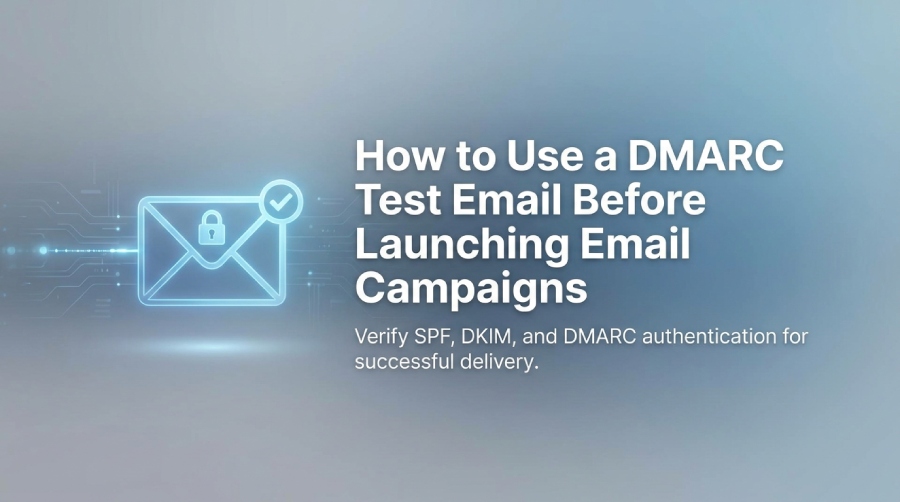
Launching an email campaign without checking authentication can lead to rejected messages, spam filtering, and delivery problems. Even when your marketing platform reports that an email was sent successfully, receiving mail servers may still reject or filter it if authentication fails.
A DMARC test email helps you verify whether your sending domain passes SPF, DKIM, and DMARC checks before launching a campaign. Testing is especially important when using multiple email service providers or making changes to DNS records.
This guide explains how to send a DMARC test email, interpret authentication results, troubleshoot common problems, and maintain accurate SPF records before launching email campaigns.
What Is a DMARC Test Email?
A DMARC test email is a message sent through a marketing platform, customer relationship management (CRM) system, or transactional email service to evaluate email authentication.
DMARC stands for Domain-based Message Authentication, Reporting, and Conformance. It allows domain owners to publish a DNS policy that tells receiving servers how to handle messages that fail DMARC authentication.
A DMARC test helps identify configuration problems before you send messages to a large audience. It is particularly useful when onboarding a new email provider, changing SPF or DKIM settings, introducing a sending subdomain, or preparing to enforce a stricter DMARC policy.
However, passing authentication tests does not guarantee inbox placement. Mailbox providers also consider other factors, including sender reputation, message content, and recipient engagement.
How SPF, DKIM, and DMARC Work Together
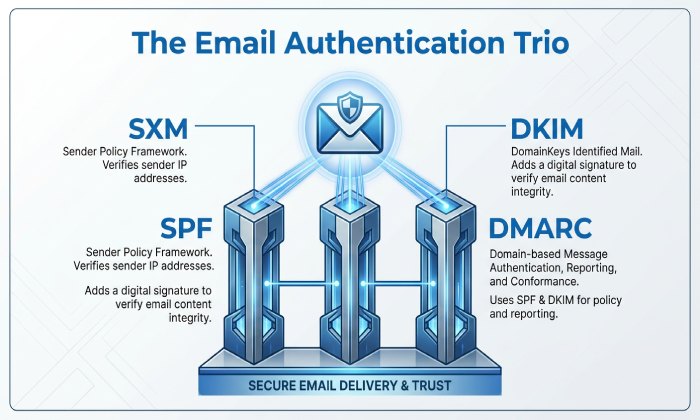
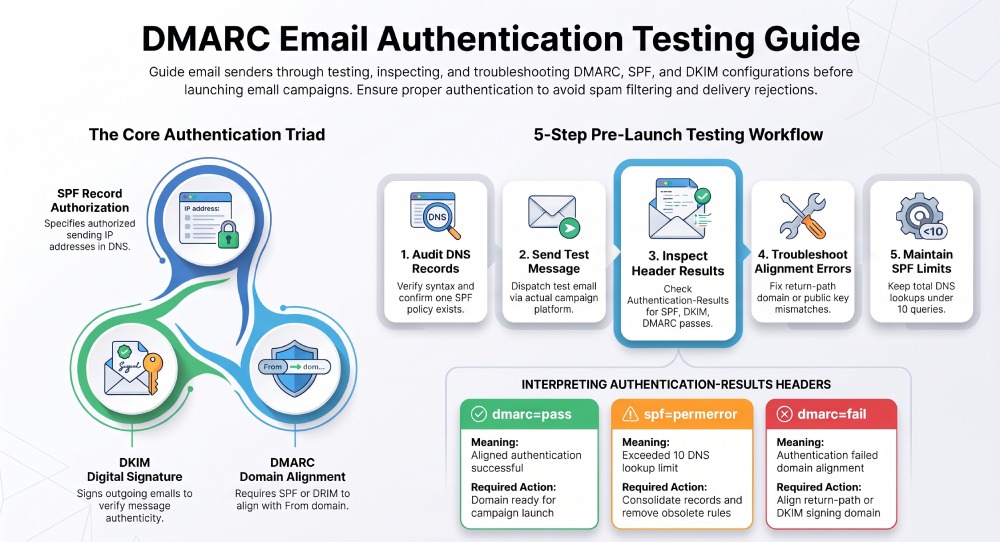
Email authentication relies on three complementary mechanisms.
SPF: Authorize Sending Servers
Sender Policy Framework (SPF) identifies the servers authorized to send email using a domain’s SPF policy. The policy is published in DNS as a TXT record.
For example:
v=spf1 include:example-sender.com -all
This is an illustrative record, not a configuration to copy directly. Replace the example with the sending provider’s documented SPF mechanism.
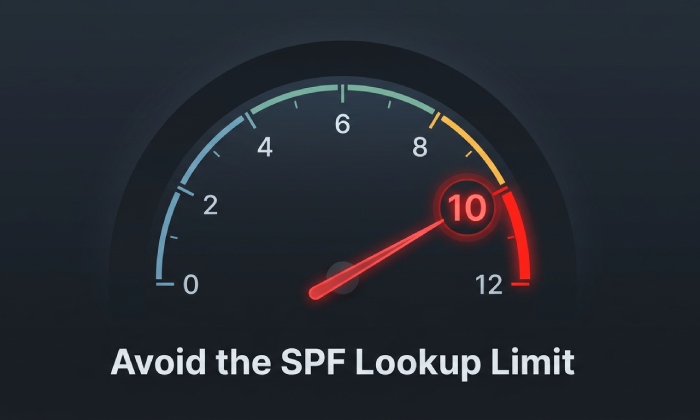
SPF records must be maintained carefully. SPF evaluation has a limit of 10 DNS-querying terms, and exceeding that limit can cause a permanent evaluation error. Multiple SPF records at the same DNS name can also cause authentication problems.
DKIM: Verify Email Signatures
DomainKeys Identified Mail (DKIM) adds a digital signature to outgoing messages. Receiving servers use a public key published in DNS to verify the signature.
Your email provider may require a TXT or CNAME record to enable DKIM. After configuration, send a test message and check whether the receiving server reports dkim=pass.
DMARC: Verify Domain Alignment
DMARC checks whether SPF or DKIM passes and aligns with the domain in the visible From address.
A message passes DMARC if at least one of the following conditions is met:
- SPF passes and its authenticated domain aligns with the visible From domain.
- DKIM passes and its signing domain aligns with the visible From domain.
If neither mechanism passes with alignment, DMARC fails. The receiving server then considers the domain’s published DMARC policy and its own filtering practices.
Step 1: Check Your DNS Records Before Testing
Before sending a test email, review your domain’s SPF, DKIM, and DMARC records.
Verify the DMARC Record
A DMARC record is generally published at _dmarc.yourdomain.com.
For example:
v=DMARC1; p=none; rua=mailto:dmarc-reports@example.com
Replace the example domain and reporting address with your actual configuration.
Check that the record has valid syntax, that only one DMARC policy record exists at the applicable name, and that the reporting address is configured correctly if aggregate reports are required.
The p=none policy supports monitoring without requesting DMARC-based enforcement. Before moving to p=quarantine or p=reject, identify legitimate sending sources and correct authentication problems.
Review SPF and DKIM
Use an SPF lookup tool to confirm that the required sending infrastructure is authorized. Check for obsolete mechanisms, syntax errors, multiple SPF records, and DNS-query-limit problems.
Next, confirm that DKIM signing is enabled in your email platform and that the required DNS records are published correctly.
Do not replace an existing SPF record or modify a DKIM record without checking which legitimate sending services depend on it.
Step 2: Send a Test Email From Your Campaign Platform
Send the test message through the same platform and sending configuration planned for the actual campaign.
- Select the marketing or transactional email platform.
- Configure the intended From address and sending domain.
- Send a test message to an inbox where you can inspect the full email headers.
- Confirm that the message uses the expected sending configuration.
- Repeat the test for other important sending platforms.
Testing only from a personal mailbox is insufficient because different providers may use different return-path domains, DKIM signing domains, and sending infrastructure.
If you recently changed DNS records, allow time for the changes to propagate and for the sending provider to verify the configuration.
Step 3: Inspect Email Authentication Results
Open the received message’s original source or full headers. Look for an Authentication-Results header added by the receiving mail system.
Typical results include:
- spf=pass: The tested SPF identity passed.
- dkim=pass: The DKIM signature verified successfully.
- dmarc=pass: At least one aligned authentication mechanism passed.
- spf=fail or spf=softfail: The SPF identity did not pass normally.
- spf=permerror: SPF evaluation encountered a permanent error.
- dkim=fail: The DKIM signature did not verify.
- dmarc=fail: Neither SPF nor DKIM passed with the required alignment.
Interpret these results together. For example, SPF may pass for a provider’s return-path domain while DMARC fails because that domain does not align with the visible From domain.
Also, do not judge authentication only by inbox placement. A message can reach the inbox despite an authentication failure, and an authenticated message can still be filtered for other reasons.
Step 4: Fix Common Authentication Problems
SPF Passes but DMARC Fails
Check the authenticated SPF domain and compare it with the visible From domain. If they do not align, review whether your provider supports a custom return-path domain. Alternatively, confirm that DKIM passes with an aligned signing domain.
SPF Returns a PermError
Review the SPF record for multiple policies, invalid syntax, and excessive DNS-querying terms. Remove obsolete mechanisms only after confirming they are no longer required.
Do not create a separate SPF record for every email provider at the same DNS name. The required authorization mechanisms generally need to be consolidated into one policy.
DKIM Fails
Confirm that the correct selector and public key are published in DNS. Check the provider’s signing settings and allow for DNS propagation. Message modifications after signing can also invalidate a DKIM signature.
DMARC Fails Under a Strict Policy
Review authentication results and DMARC aggregate reports to identify legitimate senders that may be misconfigured. Correct authorization or alignment problems before tightening enforcement further.
Avoid changing a production policy simply to make one test pass. Investigate the cause and choose a fix that preserves the domain’s intended security controls.
Step 5: Maintain SPF Records Before Campaign Launches
Email authentication requires ongoing maintenance as organizations introduce new marketing tools, replace vendors, and change sending infrastructure.
An effective SPF management process helps teams track authorized senders, validate DNS changes, and avoid exceeding SPF’s lookup limit.
AutoSPF can be considered as part of an SPF management workflow for organizations that need to maintain and validate SPF configurations as their sending requirements evolve.
Before approving an SPF change:
- Confirm which email provider requires the change.
- Review its official authentication instructions.
- Check the existing SPF record and authorized senders.
- Evaluate DNS-query usage and possible configuration conflicts.
- Validate the published record after making changes.
- Send another test email and inspect the authentication results.
This approach helps prevent a common problem: fixing authentication for one platform while accidentally disrupting another.
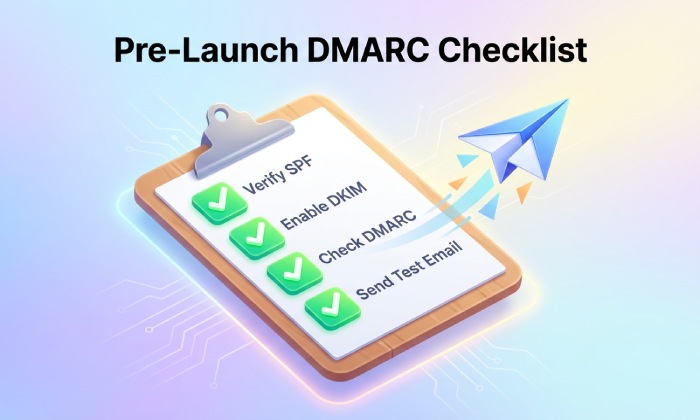
Pre-Launch DMARC Test Email Checklist
Before launching your campaign, confirm the following:
- The domain has one valid SPF policy at the applicable DNS name.
- SPF authorizes the required sending infrastructure.
- SPF evaluation stays within its DNS-query limit.
- DKIM signing is enabled and its DNS records are valid.
- The DMARC record is correctly configured.
- The test email passes DMARC through aligned SPF or DKIM.
- Full email headers have been reviewed.
- Each important sending platform has been tested.
- Recent DNS changes have been validated.
- Authentication failures have been corrected.
- DMARC reports are reviewed where reporting is configured.
General Manager
General Manager of DuoCircle. Product strategy and commercial lead for AutoSPF's 2,000+ customer base.
LinkedIn Profile →