Gmail Spam Filtering Explained: SPF, DKIM, DMARC & Deliverability Fixes

Quick Answer
Gmail spam filtering uses SPF, DKIM, DMARC, sender reputation, engagement, content, and user rules to determine email placement. Fix authentication issues, improve sender reputation, maintain list hygiene, and monitor DMARC reports to improve deliverability.
Try Our Free DMARC Checker
Validate your DMARC policy, check alignment settings, and verify reporting configuration.
Check DMARC Record →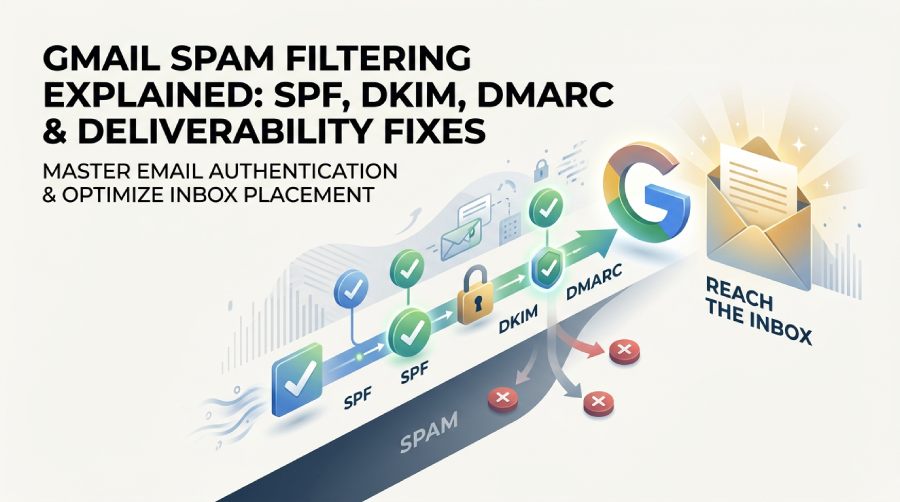
Is Gmail Filtering Emails? How Gmail Decides What Reaches the Inbox
Gmail filtering is a layered decision system. Before a message lands in the inbox, Gmail evaluates authentication, sender reputation, recipient engagement, content signals, user-level rules, and organizational policies. In other words, Gmail does not rely on one spam score; it combines many signals to decide whether to deliver, quarantine, label emails, archive messages, or delete suspicious mail.
For individual users, gmail filters are rules that help filter emails based on sender, subject, keywords, attachments, size, or other search criteria. These user-defined rules can override the way incoming mail appears in the inbox. For example, a user might create filter rules to label emails from a vendor, archive newsletters, forward emails to another account, or delete promotional messages automatically.
For businesses using Google Workspace, filtering can also happen at the domain level through the Admin console. Administrators can manage mailboxes, configure routing, enable automatic forwarding policies, inspect blocked addresses, and apply compliance rules through Google Vault or security settings. This is especially important for high volume emails, shared inboxes, and teams that depend on Gmail, Google Chat, Google Meet, Google Drive, Google Docs, Google Sheets, Google Slides, Google Forms, Google Sites, Google Keep, Google Tasks, Google Classroom, and Google Calendar.
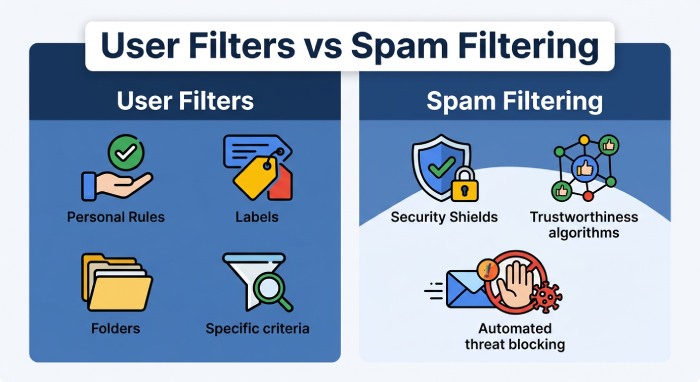
User Filters vs. Gmail Spam Filtering
User-created gmail filters are different from Google’s spam classification engine. When users create filter rules, they define filter criteria such as “from this sender,” “has attachment,” or “contains these words.” These are personal mailbox rules. Gmail’s spam system, by contrast, evaluates whether incoming mail is trustworthy.
Still, the two can overlap. If a user uses “filter messages like these,” Gmail opens the search box with prefilled search criteria. From there, the user can click show search options, refine the filter criteria, and create filter actions such as star, archive, delete, label emails, or forward emails. Users can also manage filters later through Gmail settings under filters and blocked addresses, where they can edit filters, delete filters, import filters, or export filters for backup filters.
The Core Authentication Checks: SPF, DKIM, and DMARC Explained
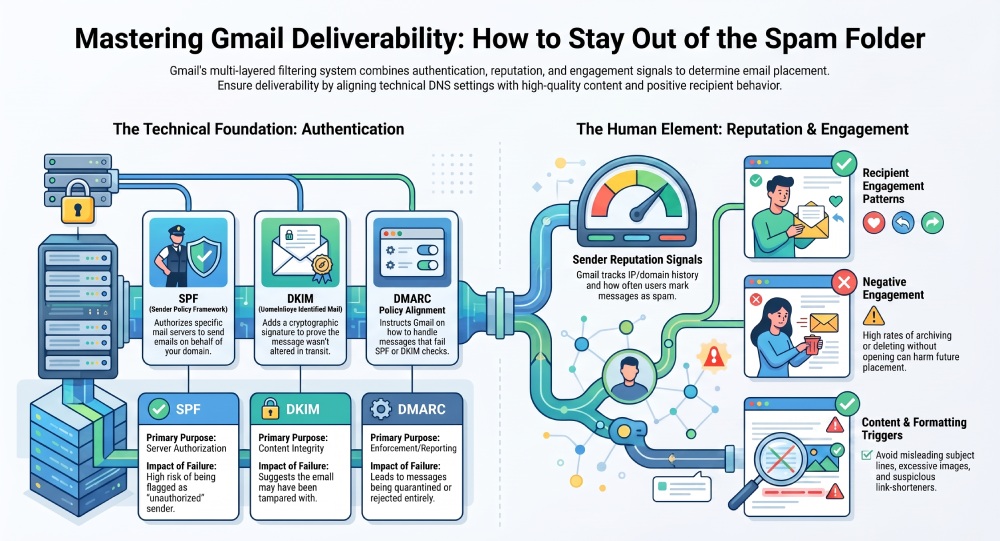
Email authentication is the foundation of deliverability. Gmail uses SPF, DKIM, and DMARC to verify whether a sender is authorized and whether the message was altered in transit. These standards are central to modern email security and help Gmail decide whether incoming mail should reach the inbox or be treated as suspicious.
SPF, DKIM, and DMARC in Plain English
SPF, or Sender Policy Framework, checks whether the sending mail server is allowed to send mail for a domain. Advanced records can even use Sender Policy Framework macros for dynamic rules. If your domain uses Google Workspace, your SPF record should include Google’s authorized sending infrastructure. If you also send through a CRM, help desk, Marketplace app, Newsletter platform, or marketing automation service, those senders must be included too.
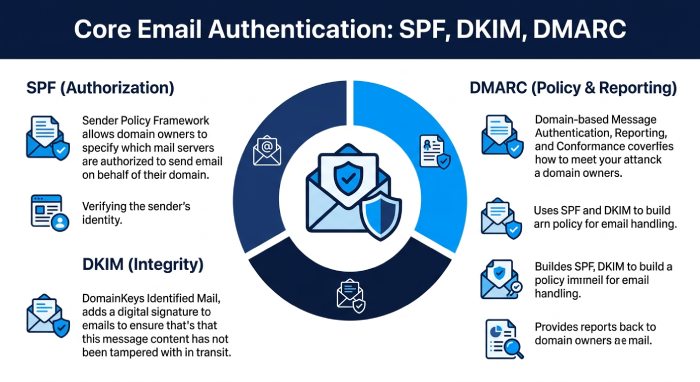 DKIM, or DomainKeys Identified Mail, adds a cryptographic signature to each message. Gmail validates that signature against a public DNS key. If the signature passes, Gmail has stronger evidence that the content was not modified.
DMARC, or Domain-based Message Authentication, Reporting, and Conformance, tells receiving systems what to do when SPF or DKIM fails. DMARC also provides reports that help teams troubleshoot authentication failures, resolve errors, and identify unauthorized senders.
Common Reasons Gmail Sends Legitimate Emails to Spam
Even legitimate messages can be filtered. Gmail may filter emails into spam when authentication is incomplete, sender reputation is weak, user engagement is poor, or message content resembles abuse patterns. This is common when businesses migrate platforms, change DNS records, or begin sending high volume emails without warming up their domain.
Authentication, Reputation, and Engagement Problems
A message can fail Gmail filtering for several reasons:
- SPF is missing, malformed, or does not include the actual sender.
- DKIM is not enabled or signatures break during forwarding.
- DMARC alignment fails because the visible “From” domain does not match authenticated domains.
- The sending IP or domain has a poor reputation.
- Recipients often archive, delete, or mark similar messages as spam.
- Messages contain deceptive links, URL shorteners, aggressive sales language, or suspicious attachments.
- Too many recipients ignore the messages, which signals low engagement.
- Mailing lists continue sending to inactive or invalid users.
- Users have custom gmail filters that label emails, archive mail, or delete messages automatically.
Gmail also considers personal behavior. If a recipient repeatedly uses gmail filters to filter emails from a sender into a folder, Gmail learns that pattern. If many recipients delete a campaign without opening it, that behavior can harm future inbox placement.
Calendar-related messages may also be affected. For example, Google Calendar can generate calendar notifications, RSVP declines, accepted invitations, and updates across multiple calendars. If those messages are routed through unusual systems or duplicated excessively, Gmail may treat them as noisy incoming mail. Organizations should ensure calendar and collaboration notifications from Google Calendar, Google Meet, Google Chat, and related tools are authenticated and expected.
Deliverability Fixes: DNS Records, Sender Reputation, and Content Improvements
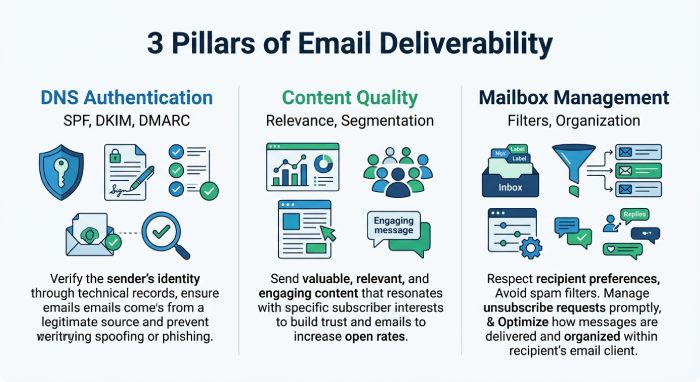 Deliverability fixes should begin with DNS, then move to sender practices and content quality. The goal is to make every signal consistent: authenticated domain, trusted sender, relevant content, and predictable message volume.
DNS and Authentication Fixes
Start by checking SPF, DKIM, and DMARC. Run an SPF check to confirm your record is valid. Your SPF record should include every authorized sender, but it should not exceed DNS lookup limits. Crossing that line causes a too many DNS lookups error. DKIM should be enabled for Google Workspace and any third-party system that sends mail on your behalf. DMARC should begin with monitoring, such as p=none, then move toward stricter enforcement once legitimate sources are aligned. If your record is already erroring, here’s how to fix SPF PermError.
Administrators should use the Admin console to verify Gmail authentication settings and domain configuration. If you send from systems connected to Google Drive, Google Forms, Google Docs, Google Sheets, or a CRM integration, confirm those platforms are included in the authentication plan. For apps built with Gmail API, Apps Script, or Marketplace integrations, follow Google’s api guides and quickstarts to authenticate and authorize correctly.
Content, Segmentation, and Mailbox Rules
Improve content by making messages clear, expected, and easy to act on. Avoid misleading subject lines, excessive images, link stuffing, and spam-like formatting. Segment audiences so recipients receive relevant messages. When users organize emails with gmail filters, help them by using consistent sender names, predictable subject prefixes, and clear categories.
At the mailbox level, users can create filter rules to reduce clutter. In Gmail’s search box, they can enter search operators such as from:, to:, subject:, has:attachment, or older_than:. After defining search criteria, they can click create filter and choose actions to label emails, archive incoming mail, star important messages, or delete low-value alerts. These filter settings are useful for mailbox management, especially when handling high volume emails from YouTube alerts, Blog updates, Newsletter campaigns, X (Twitter) notifications, Cloud Search alerts, or internal tools.
Users who rely on custom gmail filters should periodically manage filters to avoid accidental misrouting. In Gmail settings, the filters and blocked addresses tab allows users to edit filters, delete filters, import filters, and export filters. Exported rules are saved as an xml file, which can be reviewed in a text editor. Keeping backup filters is helpful before a migration. If someone says “idmport filter” in a ticket or documentation note, confirm whether they mean import filters or a single import filter action; similarly, distinguish export filters from an individual export filter file.
How to Monitor Gmail Deliverability and Prevent Future Filtering
Monitoring is ongoing. Gmail deliverability changes as volume, engagement, infrastructure, and recipient behavior change. Teams should review authentication reports, complaint rates, bounce patterns, and mailbox-level behavior.
Practical Monitoring and Prevention Checklist
Use this checklist to prevent future filtering:
- Review DMARC reports regularly. Look for unauthorized senders, SPF failures, DKIM failures, and alignment issues.
- Monitor Google Workspace logs. Admin console tools can help troubleshoot delivery delays, blocked messages, and routing errors.
- Check user-level gmail filters. Users should manage filters when expected incoming mail is missing. A rule may archive, label emails, forward emails, or delete mail before they see it.
- Audit blocked addresses. A sender may appear blocked even when authentication is correct.
- Test with realistic accounts. Send to internal Gmail and external Gmail accounts to compare inbox, spam, and tab placement.
- Use search criteria carefully. Overly broad filter criteria can capture important incoming mail. For example, a rule that says “contains invoice” may filter emails from multiple vendors, not just one.
- Maintain list hygiene. Remove invalid recipients and suppress unengaged contacts.
- Watch engagement metrics. If users consistently archive or delete a message type, reconsider its frequency or relevance.
- Document filter criteria. For shared workflows, document why teams create filter rules and how to manage filters later.
- Use APIs responsibly. If using the Gmail API to filter emails, apply least-privilege scopes, follow Google’s api guides, and test message filtering logic before production.
For individual users, the fastest way to investigate missing mail is to search all folders, including Spam, Trash, and All Mail. Then review Gmail settings, especially filters and blocked addresses. If a rule is too broad, edit filters to narrow the search criteria, or delete filters that are no longer needed. If the rule is useful, adjust the filter criteria so it can label emails without hiding important incoming mail.
For administrators, combine Google Workspace reporting with DMARC data and user feedback. Developer teams can use Gmail API quickstarts, APIs Explorer, Codelabs, Apps Script, and Developer support resources to build monitoring workflows, synchronize clients, and receive push notifications when delivery patterns change. This gives organizations a practical way to manage mailboxes, resolve errors, and prevent legitimate messages from being filtered by Gmail.
General Manager
General Manager of DuoCircle. Product strategy and commercial lead for AutoSPF's 2,000+ customer base.
LinkedIn Profile →