How To Check SPF Records Using Nslookup Powershell, Dig, Or Other DNS Tools

Quick Answer
Sender Policy Framework (SPF) is a DNS authentication standard that helps receiving mail servers verify which IP ranges are authorized to send mail for a given domain name. When you publish an SPF policy as a TXT entry in your DNS records, you’re providing record information that mail hosts can validate at connection time.
Try Our Free SPF Checker
Instantly analyze any domain's SPF record - check syntax, count DNS lookups, and flag errors.
Check SPF Record →
Sender Policy Framework (SPF) is a DNS authentication standard that helps receiving mail servers verify which IP ranges are authorized to send mail for a given domain name. When you publish an SPF policy as a TXT entry in your DNS records, you’re providing record information that mail hosts can validate at connection time. For Windows administrators and cloud teams using Microsoft 365, Office Outlook, Microsoft Teams notifications, Dynamics 365, or Azure services, validating SPF reduces spoofing and soft-fail surprises that look like network issues but are actually policy misconfigurations.
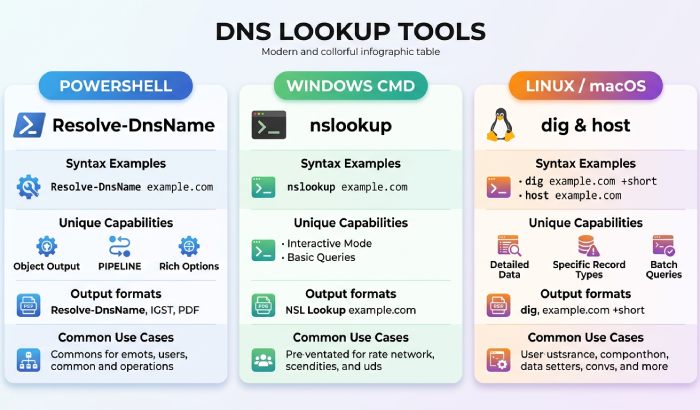
Because SPF lives in DNS, you can check it from any command-line environment. The classic NSLookup (nslookup) utility remains handy on Windows Server and client machines, and many IT pros increasingly prefer the Resolve-DnsName cmdlet in PowerShell for modern functionality and automation efficiency. On macOS, Linux, and Windows Subsystem for Linux (WSL), dig and host are popular choices. Regardless of the tool, your goal is to confirm:
- The SPF TXT record exists for the root domain name and, when applicable, subdomains.
- Mechanisms (ip4, ip6, include, mx, a) enumerate legitimate senders and return IP address ranges you expect.
- Qualifiers (-all vs ~all) align with your enforcement posture.
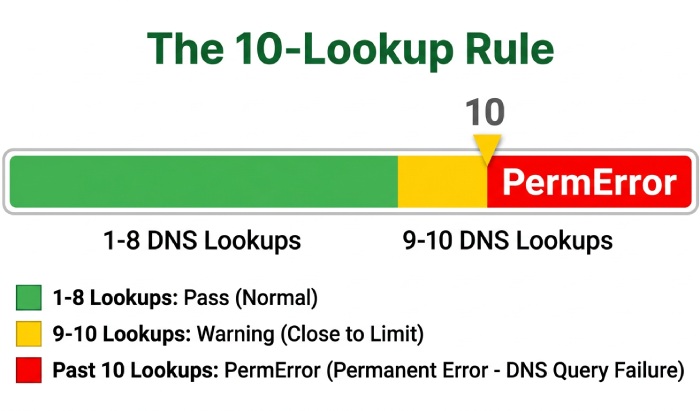
- Dependent lookups don’t exceed the 10-lookup rule.
This is essential troubleshooting for deliverability problems that masquerade as generic DNS troubleshooting or mail server network issues. A methodical DNS lookup from multiple vantage points can save hours of guesswork. If you’d rather skip the command line, you can check your SPF record instantly with AutoSPF’s free SPF checker, which expands every include and counts your DNS lookups automatically. AutoSPF simplifies email authentication by automatically managing and optimizing your SPF records for better deliverability.
Quick Primer: TXT Records, SPF Syntax, and the 10‑lookup Rule
TXT vs. SPF and the key record type
SPF is stored in TXT DNS records. There is an obsolete SPF record type, but modern receivers look for TXT, so you should publish SPF as TXT only. When you use nslookup, dig, or the Resolve-DnsName cmdlet, you’ll query the TXT record type for the target hostname (often the apex domain name).
Core SPF syntax and mechanisms
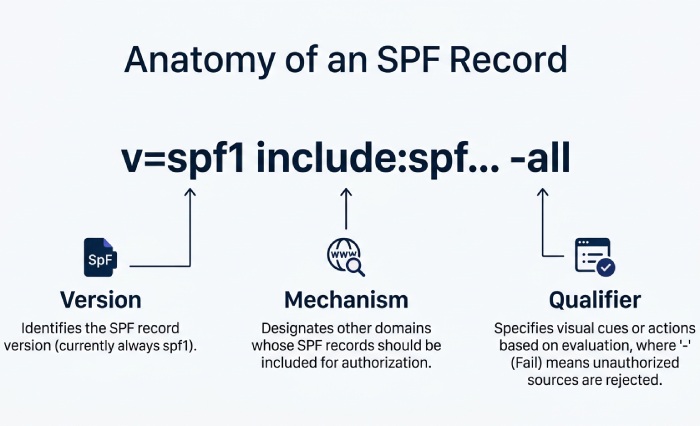
An SPF policy begins with v=spf1 and is followed by mechanisms and qualifiers that define who can send:
- Mechanisms: ip4, ip6, include, mx, a, exists, ptr (ptr is discouraged), and all.
- Qualifiers: + (pass, default), ? (neutral), ~ (softfail),, (fail). Common patterns include ip4:203.0.113.0/24, include:spf.protection.outlook.com, mx (use the MX hosts’ A record results), and a (use the A record for the queried hostname).
Practical examples you’ll see in DNS records
- ip4: Directly authorizes an IP address or CIDR block used by your outbound relay server.
- include: Delegates trust to another domain’s SPF, such as spf.protection.outlook.com (Microsoft 365) or sendgrid.net (for Azure-integrated senders).
- mx: Authorizes whatever IP address is returned by your MX hostname’s A record.
- a: Authorizes whatever IP address is returned by the queried domain’s A record.
A note on -all vs ~all
- -all (hard fail): Receivers should reject messages from senders not listed.
- ~all (soft fail): Receivers may accept but flag; useful while migrating services.
The 10-lookup rule and why it matters
SPF processing allows a maximum of 10 DNS lookups across mechanisms that expand to more DNS queries (include, a, mx, ptr, exists, redirect). If you exceed it, receivers will treat your SPF as a permerror. This commonly happens when you chain multiple include mechanisms for providers such as Microsoft 365, Dynamics 365, Azure services, and third-party mailers. Plan consolidation and flattening to avoid hidden network issues at peak sending times.
Preparing Your Environment: PowerShell, nslookup, dig, and Other DNS Utilities (Windows, macOS, Linux/WSL)
Windows tooling and modules for a future-proof workflow
- PowerShell with the DnsClient module gives you Resolve-DnsName, a modern cmdlet designed for robust DNS queries and automation. Use Get-Help Resolve-DnsName, then Update-Help to refresh help files. In Windows PowerShell ISE, you can draft a PowerShell script and test parameters quickly; in VS Code or the new Windows Terminal, you’ll enjoy better command-line ergonomics on Windows.
- NSLookup is still present on Windows and Windows Server; it’s a classic CMD utility. While Microsoft encourages modern functionality via cmdlets for scripts, nslookup remains excellent for ad hoc checks in Command Prompt or PowerShell.
- Test-Connection can validate basic reachability to a host or DNS server before you query. This test connection step can rule out upstream network devices or firewall issues that look like DNS problems.
CMD, Command Prompt, and “deprecating utilities”
CMD (Command Prompt) is still widely used for quick, single-shot DNS queries. While some older docs - and even Internet Explorer-era habits - lean heavily on nslookup, Microsoft guidance generally nudges sysadmins to prefer Resolve-DnsName for automation. That said, nslookup as a Windows command remains valuable for quick diagnostics.
macOS/Linux/WSL counterparts
- dig is the gold standard on Unix-like systems for DNS queries. Use dig TXT example.com or dig @1.1.1.1 TXT example.com to query a specific DNS server (Cloudflare). You can also query DNS server addresses from Google (8.8.8.8/8.8.4.4).
- host is a lightweight alternative for quick TXT lookups.
- WSL brings these tools to Windows so a single it pro can cross-verify results between Resolve-DnsName, nslookup, and dig from the same workstation, improving troubleshooting speed and consistency.
Checking SPF with nslookup in PowerShell: Essential Commands, Flags, and Querying Specific DNS Servers
Core commands for TXT lookups with nslookup
From PowerShell or Command Prompt, run:
- nslookup -type=TXT example.com
- nslookup -type=TXT -timeout=5 example.com (adding parameters like timeout)
- nslookup -type=TXT -debug example.com (to see expanded record information)
To query dns server endpoints explicitly (switching dns server mid-session), you can run:
- nslookup, then at the interactive prompt: server 1.1.1.1, set type=TXT, example.com This approach lets you query DNS server infrastructure outside your LAN to rule out caching differences that cause DNS lookup confusion.
Flags, parameters, and handy variations
- set type=TXT ensures you’re targeting the correct record type.
- server X.X.X.X temporarily points nslookup at a public resolver.
- For alignment checks, also inspect MX and A record data: set type=MX example.com, then set type=A mx1.example.com to see which IP address will be authorized by the mx mechanism.
Using Resolve-DnsName for a scriptable approach
Resolve-DnsName -Type TXT example.com conveniently returns structured properties. You can pipe results to Select-Object or -ExpandProperty to extract values for automation:
- Resolve-DnsName -Type TXT example.com | Select-Object -ExpandProperty Strings
- Resolve-DnsName -Type MX example.com | ForEach-Object { Resolve-DnsName $_.NameExchange -Type A | Select-Object -ExpandProperty IPAddress }
This lets a sysadmin build a PowerShell script that validates SPF content, enumerates includes, and correlates MX host IPs automatically. Use a variable like $domain = “example.com” to reuse parameters across foreach loop constructs and pipe results into CSV for audits. You can also select ipaddress directly (e.g., Select-Object -Property IPAddress) to return IP address data for comparison.For larger estates, integrate Active Directory inventories: Get-ADComputer -Filter * -SearchBase “OU=MailGateways,OU=Security,$ouPath” | Select-Object Name,IPv4Address and validate whether each hostname resolves as expected. Even if you’re focusing on SPF, this inventory confirms that A record and PTR hygiene aren’t the root cause of delivery network issues.
Topics
General Manager
Founder and General Manager of DuoCircle. Product strategy and commercial lead for AutoSPF's 2,000+ customer base.
LinkedIn Profile →