How to Configure DKIM for SpamExperts for Secure Email Delivery

Quick Answer
To configure DKIM for SpamExperts, generate a DKIM key pair, add the provided public key as a TXT record in DNS, select the DKIM selector, allow DNS propagation, and verify authentication by checking email headers for a DKIM=pass result.
Understanding DKIM and Its Role in SpamExperts Email Security
What DKIM Does for Sender Authentication
DKIM, or DomainKeys Identified Mail, is an email authentication method that allows a recipient mail server to verify that a message was authorized by the domain owner and was not altered in transit. In SpamExperts, DKIM helps establish sender authentication by attaching a cryptographic DKIM signature to outgoing mail. The receiving server then checks that DKIM signature against the public key published in DNS.
This process supports email legitimacy, content verification, and spoofing protection. When DKIM is configured correctly in SpamExperts, your domain can sign outgoing emails so that receiving systems such as Gmail, Microsoft 365, Yahoo, and enterprise mail gateways can verify message integrity. DKIM also works alongside SPF and DMARC to strengthen overall email security.
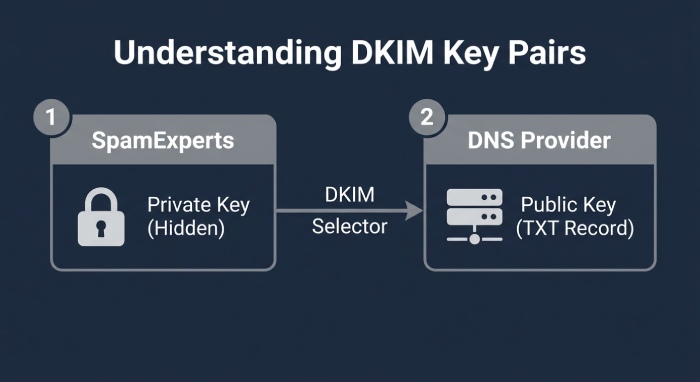
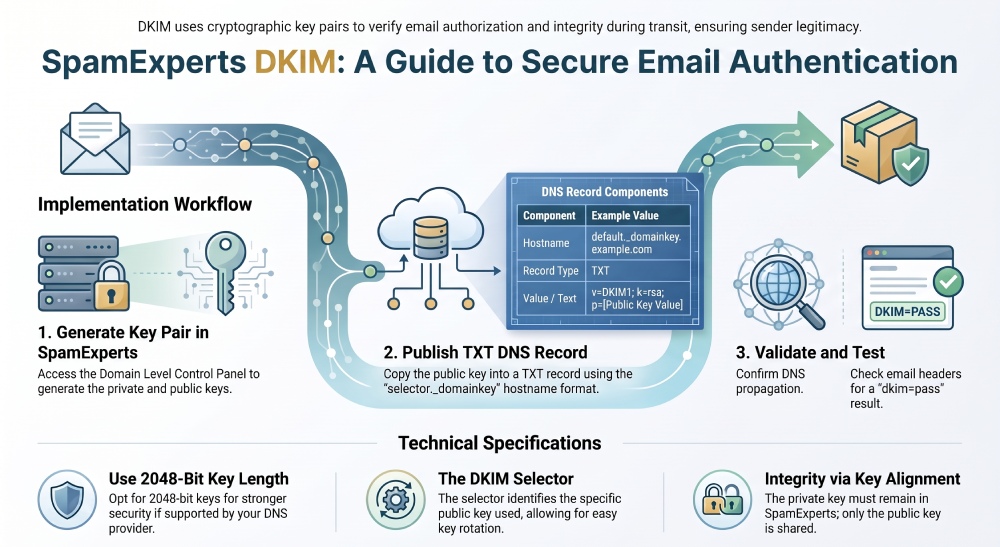
A DKIM key pair consists of a public key and a private key. The private key remains inside SpamExperts and is used for DKIM signing, while the public key is published as a TXT DNS record. The recipient mail server performs a DKIM record lookup, retrieves the public key in DNS, and validates the message signature.
DKIM Signing in SpamExperts
In SpamExperts, DKIM signing is commonly configured through the domain level control panel. Administrators can generate DKIM certificate data, assign a DKIM selector, and publish the matching TXT DNS record in the domain’s DNS zone. The DKIM selector identifies which public key should be used for validation and is included in the email headers of signed messages.
For example, if your DKIM selector is default, the DNS hostname may resemble:
default._domainkey.example.com
Some platforms document this format as selector.domainkey, where the selector is replaced with your chosen DKIM selector. The domainkey namespace is where DKIM public key records are stored.
How SpamExperts Uses DKIM with Outgoing Filtering
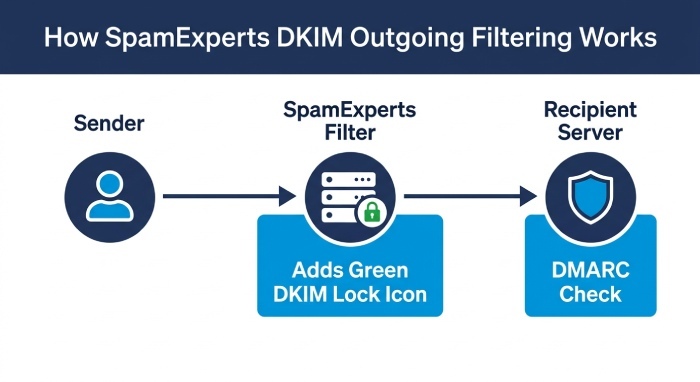
SpamExperts, also referred to as Spam Experts in some documentation, provides outgoing filtering to help mitigate spam, detect compromised mailboxes, and protect IP reputation. DKIM signing is part of the outgoing authentication workflow because it confirms that outbound messages were signed by an authorized system.
Administrators using SpamExperts Local Cloud or hosted filtering cluster deployments may configure DKIM through the Domain Level Control Panel, API calls, or automation. N-able documentation for SpamExperts often references areas such as Outgoing Filter, Outgoing Users, Outgoing Authentication, and Outgoing > DKIM depending on the interface version.
Outgoing Filtering, DMARC, and Delivery Trust
DKIM alone does not guarantee inbox placement, but it improves trust signals. When DKIM aligns with DMARC, the recipient mail server can confirm that the visible From domain is authorized. This helps reduce spoofing, phishing, and unauthorized domain use.
SpamExperts can sign with DKIM for authenticated senders, including outgoing users configured in the platform. For forwarded emails, DKIM can also help preserve message trust when SPF may fail due to forwarding paths, although the original DKIM signature must remain intact.
Prerequisites Before Configuring DKIM in SpamExperts
Access, DNS, and Control Panel Requirements
Before you configure DKIM in SpamExperts, confirm that you have access to the domain level control panel for the domain you want to protect. You also need DNS management access so you can publish the required TXT DNS record. Without the correct DNS permissions, you can generate DKIM certificate data in SpamExperts, but the public key cannot be verified externally.
You should also confirm the following:
- The domain is active in SpamExperts.
- Outgoing filtering is enabled if you want to sign outgoing emails.
- You can access outgoing settings, Outgoing Authentication, or outgoing > DKIM.
- You have permission to manage outgoing users if DKIM signing is tied to an outgoing user.
- You can edit DNS records through your DNS host, registrar, or hosting provider.
The domain level control panel is typically the easiest place to manage DKIM for a single domain. In some SpamExperts interfaces, you may see a Green box in the SpamExperts UI reference indicating that a DKIM key pair has been generated or that the DNS status is valid.
DNS Management and TXT Record Planning
The TXT DNS record must be added exactly as provided by SpamExperts. A common mistake is placing the full hostname in a DNS panel that already appends the root domain. For instance, entering default.domainkey.example.com in a DNS panel that expects only default.domainkey can create an invalid hostname.
You may also encounter providers that support CNAME-based DKIM delegation, but SpamExperts DKIM commonly relies on publishing the public key as a TXT record. Always verify whether your DNS provider expects the hostname, the full fully qualified domain name, or only the selector portion.
DKIM Key Pair, Selector, and Key Length Decisions
A DKIM key pair includes a private key and public key. The private key must remain secure inside SpamExperts, while the public key is inserted into the TXT DNS record. If the private key is exposed, regenerate the DKIM key pair immediately and update the public key in DNS.
The DKIM selector is also important. A selector allows you to rotate keys without disrupting email flow. For example, you might use default, mail, s1, or a date-based DKIM selector such as 2025. SpamExperts uses the DKIM selector in the DKIM signature so recipient systems know which TXT DNS record to query.
DKIM Key Length, OpenSSL, and Python Options
For stronger cryptographic protection, use a DKIM key length of 2048 bits when supported by your DNS provider and mail systems. Some older DNS interfaces may have trouble with long TXT values, so check that the 2048-bit public key can be saved without truncation.
SpamExperts can generate and save the DKIM key pair through the UI, but advanced administrators may also use OpenSSL or Python tooling for certificate generation, or spin one up quickly with our free DKIM generator. In some Local Cloud environments, scripts such as makepriv.py may be referenced for creating DKIM material. API-driven workflows may use apisetdkimcertificate to upload a private/public pair and apisetdkimselector to define the DKIM selector.
Step-by-Step Guide to Generating, Adding, and Testing DKIM Records
Generate DKIM Certificate and Add the TXT DNS Record
 To configure DKIM in SpamExperts, start in the domain level control panel for the domain. Navigate to Outgoing > DKIM or the equivalent outgoing settings page. Depending on your SpamExperts version, the menu may appear under Outgoing Authentication or Outgoing Filter.
Follow these steps:
- Open the domain level control panel for the target domain.
- Go to outgoing > DKIM or Outgoing > DKIM.
- Choose the option to generate DKIM certificate.
- SpamExperts will create a DKIM key pair containing a private key and public key.
- Select or confirm the DKIM selector.
- Click generate and save, save new private/public pair, or the equivalent save action.
- Copy the provided TXT DNS record.
- Add the TXT DNS record in your DNS management portal.
- Wait for DNS propagation.
- Return to SpamExperts and validate DKIM record status if the interface provides a validation option.
When you generate DKIM certificate data, SpamExperts stores the private key for DKIM signing and displays the public key for DNS publication. Do not publish the private key. Only the public key belongs in the TXT DNS record.
If configuring by API, automation may call apisetdkimcertificate with the DKIM certificate material and apisetdkimselector with the chosen DKIM selector. This is useful for providers managing many domains across a filtering cluster.
Record Format: Selector, Hostname, and Public Key
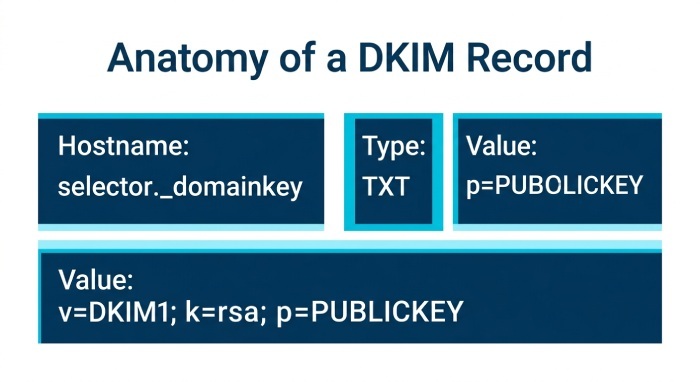
A typical DKIM TXT DNS record contains:
- Hostname:
selector._domainkey.example.com - Type: TXT record
- Value:
v=DKIM1; k=rsa; p=PUBLICKEYVALUE
The hostname may also be shown using placeholders such as SERVERNAME, USERNAME, or selector-specific values in provider documentation. The p= value contains the public key. If your DNS panel automatically appends the domain, enter only selector._domainkey.
Always use the DKIM record values generated by SpamExperts and follow your DNS provider’s formatting requirements when publishing the record.
Verifying DKIM Authentication and Testing Email Delivery
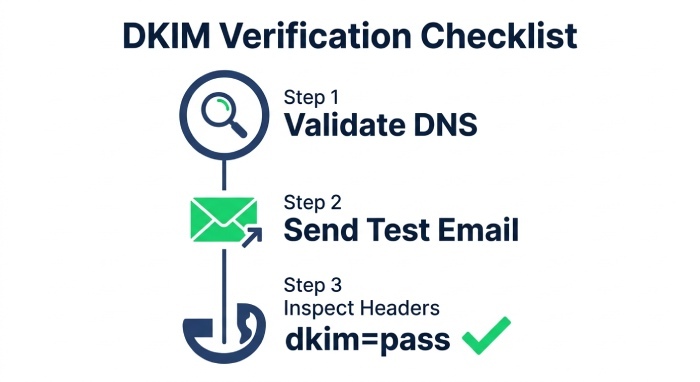
After adding the TXT DNS record, wait for DNS propagation and then validate DKIM record status. You can use our DKIM lookup tool to confirm that the public key in DNS is visible. SpamExperts may also provide an internal validation indicator, sometimes shown visually in the interface.
Next, send a test message from an authenticated sender or outgoing user. The message should sign with DKIM if outgoing authentication is functioning and DKIM signing is enabled. Inspect the email headers of the received message and look for:
DKIM-Signatured=matching your domains=matching your DKIM selector- Authentication results showing
dkim=pass
If DKIM passes, the recipient mail server successfully matched the DKIM signature against the public key. This confirms that the DKIM key pair, TXT DNS record, DKIM selector, and private key are aligned.
Troubleshooting Common SpamExperts DKIM Configuration Issues
If DKIM fails, start with DNS. The most common issue is an incorrect TXT DNS record hostname. Check whether your DNS provider requires the full hostname or only the selector._domainkey portion. Then run a DKIM record lookup to ensure the public key is returned.
Other common issues include:
- The wrong DKIM selector is configured in SpamExperts.
- The public key was copied incorrectly or line breaks were inserted.
- The TXT DNS record has not propagated.
- The private key in SpamExperts does not match the public key in DNS.
- DKIM signing is disabled in outgoing settings.
- The sending mailbox is not routed through SpamExperts outgoing filtering.
- An outgoing user needs re-authenticating user credentials or updated outgoing authentication settings.
If you recently changed the DKIM key pair, make sure SpamExperts is using the new private key and DNS contains the matching public key. If needed, generate DKIM certificate data again, save new private/public pair values, and replace the old TXT DNS record. For API-managed environments, confirm that apisetdkimcertificate and apisetdkimselector were applied to the correct domain, selector, and filtering cluster.
General Manager
General Manager of DuoCircle. Product strategy and commercial lead for AutoSPF's 2,000+ customer base.
LinkedIn Profile →