How to Create and Publish an SPF Record Without Breaking Email
Quick Answer
Creating an SPF record seems simple as it requires adding the list of servers allowed to send emails on your behalf and publishing it in your DNS. This simplicity is exactly what makes it so vulnerable to misconfiguration. But when you implement SPF, you are not just authorizing senders;
How to Create and Publish an SPF Record Without Breaking Email
Related: How to Create an SPF Record ·SPF Record Format

Creating an SPF record seems simple as it requires adding the list of servers allowed to send emails on your behalf and publishing it in your DNS. This simplicity is exactly what makes it so vulnerable to misconfiguration.
Per RFC 7208, SPF evaluation is capped at 10 DNS mechanism lookups and 2 void lookups per check — exceeding either limit produces a PermError that fails authentication for every message from the domain.
But when you implement SPF, you are not just authorizing senders; you are defining how receiving servers should perceive every message that claims to come from your domain. This is pretty straightforward as long as you have only a few sending sources. As you add new tools, services, and platforms to your email ecosystem, it becomes more complex, and subsequently, the SPF record becomes longer. This makes it harder for you to manage and maintain your SPF record over time.
If you simply list the sending servers and don’t keep up with the changes, it can result in authentication failures or delivery issues, even when legitimate emails are being sent.

In this article, we will understand how you can create and publish an SPF record for your domain without disrupting email flow.
What is an SPF record, and why do you even need one?
An SPF record is a TXT record that lists the servers allowed to send email for your domain. When the receiving server receives an email from your domain, it checks the SPF record to verify whether the sender is authorized.
If the sending server appears in the SPF record, the email is accepted as authorized. If it does not, the message is treated as unauthenticated and is either sent to the spam folder or rejected, based on how the receiving server handles such cases.
If you don’t authenticate your domain with SPF, which essentially means that you don’t have an SPF record, the receiving servers will not be able to verify whether emails claiming to come from your domain were sent by an authorized source. As a result, these messages are more likely to be treated with caution, filtered more aggressively, or rejected altogether.

Over time, it also impacts how mail servers perceive your domain. If they do not get the assurance that incoming emails that claim to come from your domain are properly authenticated, they are more likely to apply stricter filtering or limit trust in messages, even when those messages are legitimate.
How to create an SPF record?
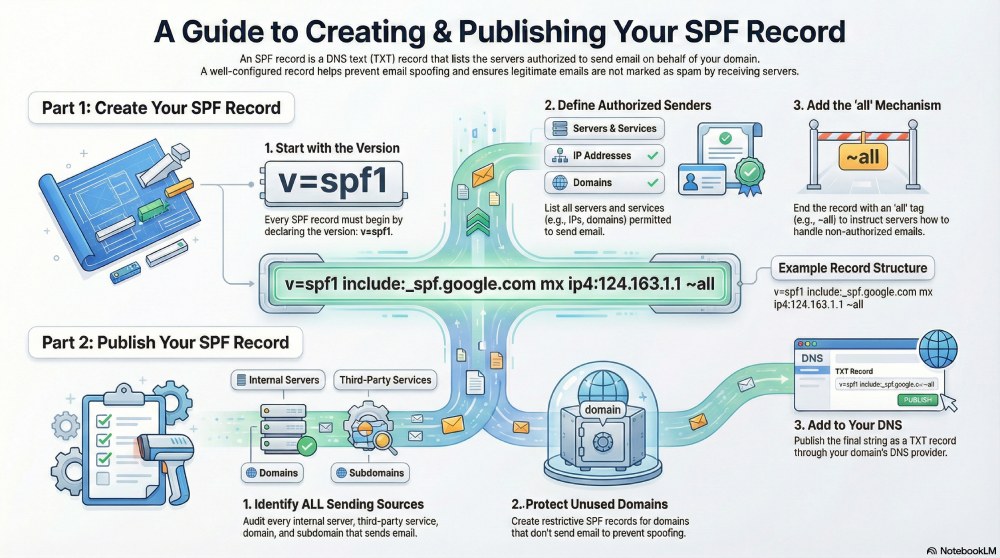
Creating an SPF record involves defining which mail servers are permitted to send email for your domain and how receiving servers should handle messages that do not match those permissions.
Since this TXT record follows a specific structure, here are a few things you should keep in mind while creating an SPF record for your domain:

Specify the SPF version
Your SPF record must begin with declaring the version being used. The version should be “v=spf1” as all other versions have now been discontinued.
Define authorized sending sources
The next step is to add servers that will be sending emails on behalf of your domain. This can be done using different mechanisms, depending on your email setup. Some of the most commonly used mechanisms include specifying individual IP addresses, allowing servers associated with a domain’s A records, or permitting servers listed in the domain’s MX records.
Add the “all” mechanism
While creating the SPF record, make sure that it ends with the all mechanism. This tells receiving servers how to handle emails sent from servers that are not listed in the record. The qualifier used with all determines whether such messages should be rejected, treated with caution, or handled neutrally.
Once your record is ready, it should look something like this:
v=spf1 include:_spf.google.com include:example.com a:mail.example.com mx ip4:124.163.1.1 ~all
How to publish an SPF record?
To authenticate your domain with SPF, you have to publish the record that you created. Publishing the record involves more than adding a single entry to DNS. It requires understanding where email is sent from, which domains are in use, and how each domain is configured.
Here’s how you can do it in a structured way:
Identify all email sending sources
The first step is to list all the servers that send emails on your behalf. This can include internal mail servers, email service providers used for marketing campaigns, platforms that send transactional messages, and any third-party tools that send automated emails. All legitimate sending sources must be accounted for before publishing the record.

Review all domains and subdomains
Identify each domain and subdomain that your organization owns. If that domain is used for sending emails, it should have its own SPF record. If you miss even a single domain, it can lead to authentication failures or create opportunities for misuse.
Publish SPF records for unused domains
It is also recommended that you create SPF records for domains and subdomains that are not actively used for sending email. Although these domains don’t actively send emails, they are vulnerable to spoofing. So, in such cases, the SPF record is restrictive and indicates that no servers are permitted to send email on behalf of the domain. This gives receiving servers a clear signal and reduces the risk of abuse from inactive domains.
Add the SPF record to DNS
Once the SPF record is ready, publish it as a TXT record in your domain’s DNS. This is done through your domain administrator or DNS provider. Some email service providers provide a comprehensive guide to SPF setup, but it is important to understand how these entries affect your overall sending configuration and your control over sender reputation.
To sum up

Implementing SPF is the first step in your email authentication journey, and it is important that you do it the right way. A well-configured SPF record ensures that only authorized servers can send email on your behalf and helps receiving servers handle your messages as intended.
Remember, it doesn’t just stop at publishing; keeping the record accurate and up to date as your email setup changes is equally important.
Create and publish an SPF record without breaking email delivery by using AutoSPF to automatically configure, validate, and manage your sender permissions with confidence.To learn more about setting up SPF for your domain, get in touch with us!
Topics
Content Specialist
Content Specialist at AutoSPF. Writes vendor-specific SPF configuration guides and troubleshooting walkthroughs.
LinkedIn Profile →Fix your SPF record in 60 seconds
Try AutoSPF free for 30 days. No credit card required.
Start Free Trial