How to Fix domainconnect CNAME Record Errors in DNS

Quick Answer
A `_domainconnect` CNAME record error occurs when the record is missing, points to an incorrect target, or conflicts with other DNS records. Fix it by checking authoritative nameservers, correcting the CNAME value, removing conflicting records, and verifying DNS propagation.
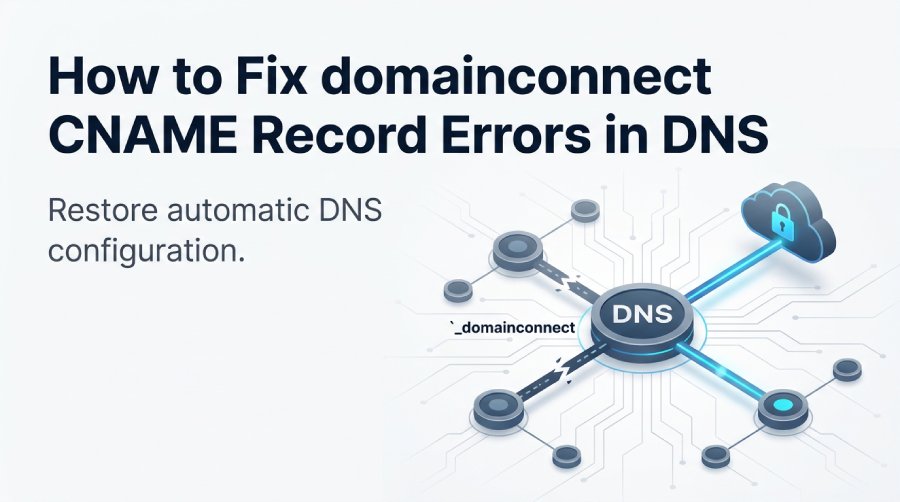
What the domainconnect CNAME Record Is and Why It Matters
The _domainconnect DNS record helps compatible service providers discover the Domain Connect endpoint used by a domain’s authoritative DNS provider. This protocol simplifies DNS configuration by allowing supported services to request approved DNS changes without requiring users to enter every record manually.
When Domain Connect setup fails, the cause may be an incorrect or missing discovery record, an unexpected DNS response, or a configuration issue involving the authoritative DNS provider. The exact record format and target depend on the provider’s implementation, so verify the expected configuration before making DNS changes.
Domain Connect is an open standard that enables compatible service providers to request specific DNS changes with the domain owner’s authorization. It can simplify connections to websites, email platforms, and other hosted services that support the protocol.
If Domain Connect discovery is incorrectly configured, an external service may be unable to initiate its automatic DNS setup process. In that case, the user may need to correct the discovery configuration or configure the required DNS records manually.
A valid _domainconnect CNAME record matters because it supports automatic DNS configuration. Without the correct CNAME, the external service may not detect the domain provider’s Domain Connect capability. As a result, the automatic domain connection may fail, forcing manual domain configuration through the DNS interface.
For businesses managing DMARC, SPF, DKIM, MTA-STS, or BIMI records through tools such as AutoSPF, clean DNS records are essential. A broken _domainconnect CNAME record may not directly affect SPF or DKIM validation, but it can interfere with service automation, domain synchronization, and onboarding workflows used by an external service.
Common Causes of domainconnect CNAME Record Errors
Errors involving the domainconnect CNAME record usually happen when DNS settings are changed manually, migrated between DNS hosting providers, or overwritten during domain registration updates. Because a CNAME record must follow strict DNS protocol rules, even a small formatting issue can break connectivity.
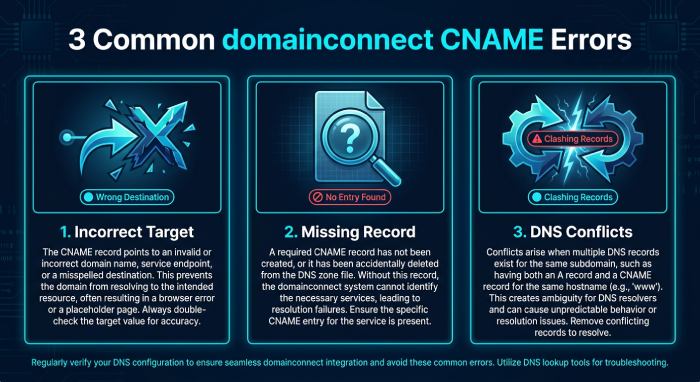
Incorrect Target or Assigned CNAME
One common issue is an incorrect assigned CNAME value. The _domainconnect host may point to the wrong service provider, an outdated endpoint, or a typo in the canonical name. For example, a domain originally managed at IONOS may have used a Domain Connect target associated with ionos.com, but after a move to Cloudflare or another domain registrar, the old CNAME record may no longer align with the current domain provider.
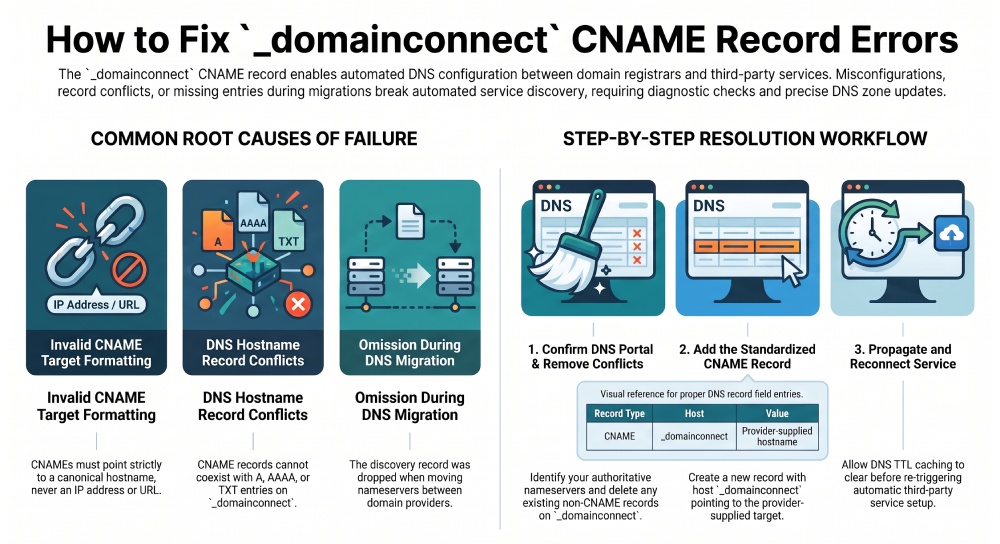
A CNAME record must point to a hostname, not an IP address. If the _domainconnect DNS record points to an IP, contains an invalid character, or omits the required trailing domain structure, the DNS record may fail DNS compliance checks.
Missing domainconnect Record After DNS Migration
A _domainconnect discovery record may be missing after a DNS migration if the record was not transferred to the new provider. Compare the old and new authoritative DNS zones, then restore the required discovery configuration according to the new provider’s documentation.
In that case, an external website connection may fail because the external service cannot confirm that the domain supports the Domain Connect protocol. This is common with managed domains where domain management and DNS hosting are handled by different companies.
Conflicts With Existing DNS Records
DNS protocol rules do not allow a CNAME record to coexist with certain other record types at the same hostname. If _domainconnect.example.com already has an A, AAAA, TXT, or another conflicting DNS record, the CNAME may be rejected or ignored.
This conflict often appears when administrators experiment with manual DNS automation, add diagnostic TXT records, or create a subdomain for testing. Since _domainconnect is reserved for the Domain Connect protocol, it should not be reused for unrelated services.
How to Check Your Current domainconnect DNS Record
Before changing anything, verify the current domainconnect DNS record. This helps you identify whether the CNAME record is missing, incorrect, duplicated, or affected by a DNS zone conflict.
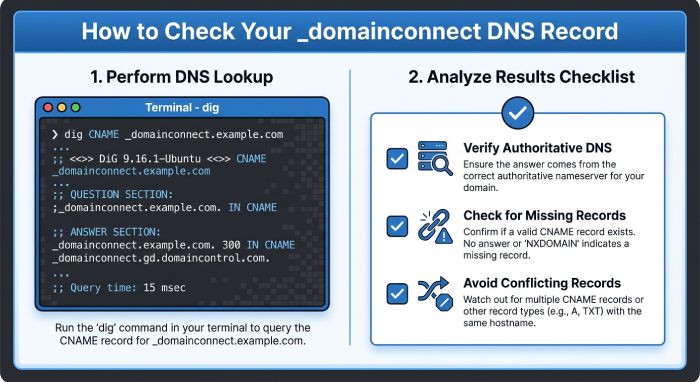 Start by checking your DNS settings in the control panel of your DNS hosting provider. If your domain uses Cloudflare nameservers, check Cloudflare. If it uses IONOS nameservers, check IONOS. If your domain registration is with one company but DNS hosting is with another, the authoritative DNS zone is what matters.
You can also check the record from a terminal:
dig CNAME _domainconnect.example.comOr use:
nslookup -type=CNAME _domainconnect.example.comReplace example.com with your actual domain name. A healthy response should return a CNAME target associated with your service provider or supported provider. If there is no answer, the _domainconnect CNAME record may be missing. If the target is unfamiliar, it may belong to a previous external service or external host.
Also review the full domain zone for conflicting DNS records. Look specifically for records using _domainconnect as the host. If you see TXT, A, AAAA, or multiple CNAME entries at the same subdomain, that indicates a conflict. A CNAME record should be the only record at that exact hostname.
For deeper troubleshooting, check DNS propagation from multiple regions. This is important because DNS caching can make an old DNS record appear valid in one location while another resolver already sees the updated CNAME. Connectivity issues may simply be propagation delays rather than a permanent domain configuration error.
Step-by-Step Fixes for Incorrect, Missing, or Conflicting CNAME Records
Fixing a _domainconnect CNAME record depends on the type of error. The goal is to restore a clean CNAME record that points to the correct Domain Connect endpoint for your domain provider or service provider.
1. Confirm Where DNS Is Authoritative
First, identify the authoritative nameservers for the domain. Your domain registrar may be different from your DNS hosting provider. For example, a domain registration may be held at 1and1.com or ionos.com, while DNS is managed through Cloudflare.
Use a WHOIS lookup or your registrar dashboard to confirm nameservers. Then make all DNS settings changes in the authoritative DNS interface. Editing DNS records in the wrong portal will not fix the live domain.
2. Remove Conflicting Records
Next, search for any existing _domainconnect entries in the DNS zone. If you find an A, AAAA, TXT, or duplicate CNAME record using the same host, remove the conflicting DNS record unless your provider specifically instructs otherwise.
Keep in mind that _domainconnect should generally be dedicated to the Domain Connect protocol. Do not use this subdomain for an external website, tracking service, or unrelated external service. Reusing the host can break automatic DNS configuration and prevent automatic connection workflows.
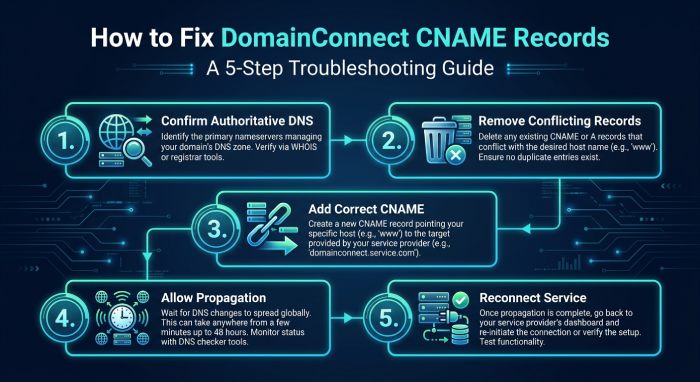
3. Add or Correct the CNAME Record
Create a new CNAME record with the host set to:
_domainconnectThen enter the target provided by your service provider, domain provider, or Domain Registrar. The exact value depends on the provider. IONOS-managed domains, for example, may use a provider-specific Domain Connect target associated with IONOS infrastructure.
A typical setup looks like this:
| Type | Host | Value |
|---|---|---|
| CNAME | _domainconnect | Provider-supplied Domain Connect hostname |
Avoid adding https://, slashes, spaces, or IP addresses in the CNAME value. A CNAME record must point to a hostname. If your DNS interface automatically appends the domain name, enter only the host portion requested by the service provider.
4. Save the DNS Settings and Allow Propagation
After saving the DNS settings, allow time for DNS propagation. Many changes appear within minutes, but some resolvers may cache the old DNS record until the TTL expires. During this period, an external website connection or service integration may still report an error.
If the external service supports Domain Connect, retry the automatic setup after propagation. The service provider should detect the _domainconnect CNAME record and continue the automatic domain connection process.
5. Reconnect the External Service
Return to the external website, hosted service, or third-party service that originally reported the error. Start the connection again. A properly configured _domainconnect CNAME record should allow the Domain Connect protocol to validate the domain and request permission for required DNS records.
This may include records for website integration, email routing, SPF, DKIM, DMARC, MTA-STS, or BIMI, depending on the platform. Review the requested DNS changes before approving them, particularly when they affect email authentication, mail routing, or other security-sensitive services.
How to Verify the Fix and Prevent Future DNS Issues
 After making changes, verify the fix from both your DNS hosting dashboard and public DNS resolvers. Run another lookup for the
 _domainconnect CNAME record and confirm that the returned CNAME matches the expected service provider target.
You should also test the external website connection again. If the external service now recognizes Domain Connect support, the protocol is working. If it still fails, check whether the provider is a supported provider and whether your domain settings use the correct authoritative nameservers.
To prevent future issues, document your DNS records before changing domain management platforms. Export the DNS zone when moving between Cloudflare, IONOS, or another Domain Registrar. Keep a record of the assigned CNAME, TTL, domain zone, and related DNS records so they can be recreated accurately.
For organizations using DNS automation, service automation, or automatic DNS configuration, restrict who can edit DNS settings. Changes to a single CNAME record can disrupt connectivity between the domain and an external website. Likewise, removing the _domainconnect DNS record may disable automatic connection features for future hosted services.
Finally, monitor DNS compliance and email authentication records alongside Domain Connect. Email authentication monitoring tools can help track DMARC, SPF, and DKIM records, while provider communities, developer forums, and official documentation can clarify provider-specific behavior. A disciplined DNS management process keeps the Domain Name System predictable, reduces configuration drift, and ensures the _domainconnect CNAME record remains available when a service provider needs it.
General Manager
General Manager of DuoCircle. Product strategy and commercial lead for AutoSPF's 2,000+ customer base.
LinkedIn Profile →