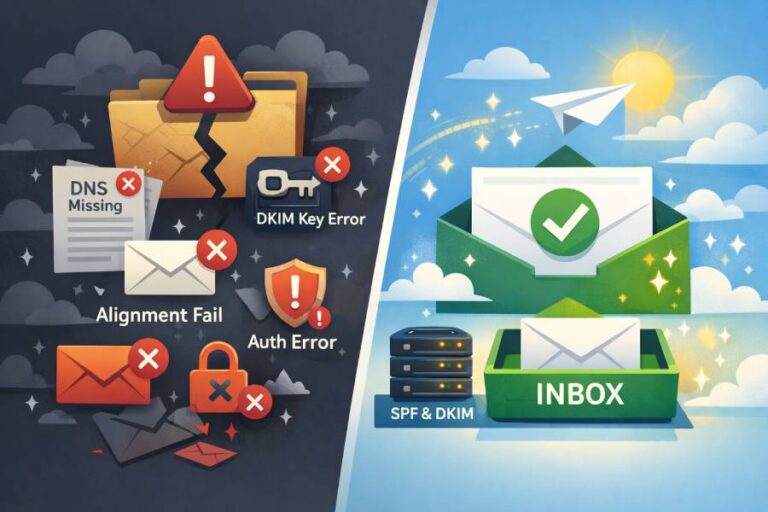
In today’s digital world, the success of your email communications doesn’t just depend on creative copy or timely outreach — it hinges deeply on email authentication and deliverability. Whether you’re sending invoices, system notifications, or marketing campaigns through a platform like NetSuite, ensuring those emails actually reach the inbox without tripping over spam filters or security blocks is critical.
At AutoSPF, we see hundreds of domains every month that struggle with one fundamental issue: their emails aren’t properly authenticated. That’s why we’ve created this comprehensive, step-by-step guide to configuring SPF (Sender Policy Framework) and DKIM (DomainKeys Identified Mail) for NetSuite — with clarity, practical tips, and real-world insights. We’ll also touch on how this fits into the broader DMARC (Domain-based Message Authentication, Reporting & Conformance) email authentication ecosystem.
Why NetSuite Needs SPF and DKIM
Understanding the Basics
Before we dive into configurations, it’s vital to understand why SPF and DKIM matter:
- SPF is a DNS record that tells receiving email servers which servers are allowed to send mail on behalf of your domain. If email arrives from an IP that’s not authorized in your SPF record, the receiving server can reject or flag the message.
- DKIM adds a cryptographic signature to each message. It lets email receivers verify that the content hasn’t been altered in transit and proves the email was truly sent by a server you authorized.

Together, SPF and DKIM build trust, reduce spoofing, and improve overall email deliverability. When combined with DMARC, you get visibility and policy control over how unauthenticated mail is treated.
For NetSuite users specifically, configuring these properly is essential because NetSuite — by default — sends emails on your behalf from their infrastructure. If you don’t authenticate those emails correctly, they may fail common anti-spam checks, land in spam folders, or be rejected outright.
The NetSuite Challenge: Why Authentication Isn’t Plug-and-Play
NetSuite’s email engine includes two distinct services:
- Email Infrastructure — which handles regular transactional and campaign emails.
- Tax Infrastructure — which handles tax-related notifications.
Each portion can send email, and each needs to be properly authenticated in DNS so that messages are recognized as legitimate by receivers.
Without proper SPF and DKIM setup, NetSuite will use its own return-path domains — such as sent-via.netsuite.com — for outbound mail, which won’t align with your domain’s records and won’t pass SPF alignment checks.
So if a recipient server checks “Is this mail really from your domain?”, the answer could be “no.” This is exactly what leads to deliverability issues. The good news? You can fix that.
Step-by-Step: Configuring SPF for NetSuite with AutoSPF Guidance
1. Access Your DNS Zone Records
To begin, you must have access to your DNS provider dashboard — whether that’s Cloudflare, GoDaddy, Route 53, or another DNS host. This is where you’ll publish the DNS records that authorize NetSuite to send email for you.
2. Understand Your SPF Record Landscape
Your domain should have only one SPF TXT record. Multiple records will break SPF evaluation and may cause a DNS permerror, which instantly invalidates SPF for that domain.
Example of an invalid situation:
v=spf1 include:netlify.com ~all

v=spf1 include:sendgrid.net ~all
This would cause authentication to fail. The correct approach is to combine all authorized senders into one record.

3. Crafting the SPF Record for NetSuite
To authorize NetSuite, you add a NetSuite include mechanism in your SPF TXT record like this:
v=spf1 include:mailsenders.netsuite.com ~all- Replace mailsenders.netsuite.com with the correct include based on whether you use NetSuite for email or another NetSuite-related service.
- If you already use other sending platforms (e.g., a marketing platform or transactional email service), consolidate them into the same record:
v=spf1 include:mailsenders.netsuite.com include:sendgrid.net include:_spf.google.com ~all
4. Add Your SPF TXT Record
Within your DNS provider:
- Create a new TXT record.
- For the host name, you can often leave it blank or use @ to represent the root domain.
- In the value section, paste your SPF expression.
- Save and publish the record.
DNS propagation can take up to 72 hours depending on TTL settings.
Step-by-Step: Configuring DKIM for NetSuite
1. Navigate to DKIM Settings in NetSuite
From within NetSuite:
- Log in with an Administrator or equivalent permission.
- Go to Setup > Company > Email > Email Preferences.
- Click the Email Domains (DKIM) subtab.
This is where you will enter domains you want NetSuite to authenticate with DKIM.

2. Create and Generate DKIM Keys
In the DKIM section:
- Add your domain name (e.g., yourcompany.com) that you control.
- Enter a Domain Selector — typically a short label like ns1 or 2025q4.
- Click Generate Key Pair — NetSuite will produce both a public and a private key.
- Then click Generate DNS Entry — this reveals the DNS records you must publish.
3. Publish DKIM Records in Your DNS
NetSuite will provide you with one or two DNS TXT records (often formatted with selectors like ns1._domainkey.yourcompany.com). These contain the public key that receiving email servers use to verify email signatures.
Add these as CNAME or TXT records (as specified) in your DNS:
- Name/Host: [selector]._domainkey
- Value: The provided public key
📌 This step effectively tells the world: “Emails signed with this key are legit for this domain.”
4. Activate and Verify
Back in NetSuite:
- Set DKIM keys to Active.
- Use the Verify DNS Entry function to check whether the records are live and correct.
DNS propagation sometimes delays verification, so you might need to wait a few hours.
Beyond SPF & DKIM: Aligning with DMARC
While SPF and DKIM authenticate email, DMARC ties those mechanisms to your visible “From” address and tells receiving servers how to handle failures. DMARC is not mandatory to configure SPF and DKIM, but if you want full deliverability and security visibility, you should publish a DMARC record.
Here’s why it matters:
- Without DMARC, even if your emails pass SPF or DKIM, receivers don’t have a policy telling them what to do if future emails fail.
- With DMARC, you can instruct receivers to quarantine or reject unauthenticated mail, protecting your domain from spoofers.
A basic DMARC record might look like:
v=DMARC1; p=quarantine; rua=mailto:dmarc-reports@yourdomain.comThis tells mail receivers to send aggregated reports and treat suspicious mail cautiously.

Common Mistakes and Best Practices
At AutoSPF, we’ve seen organizations trip over a few common pitfalls during NetSuite authentication:
1. Duplicate SPF Records
Remember: Only one SPF singular TXT record per domain. If you have more than one, SPF stops working. Always merge includes into a single entry.
2. Misaligned Return-Path
NetSuite sends mail with its own default return-path domain unless you configure SPF, DKIM, and use your custom MAIL-FROM. Unauthenticated return paths will cause DMARC alignment failures.
3. Waiting for DNS Propagation
DNS changes aren’t instant. Even after publishing a record, allow 24–72 hours for global DNS caches to update before re-testing.
4. Ignoring Testing Tools
Tools that check SPF, DKIM, and DMARC status (including AutoSPF) are invaluable. They help you confirm whether your setup is functioning as expected.
Wrapping Up: Why This Matters for Your Business
Email isn’t just communication — it’s reputation. Whether you’re sending monthly statements, internal alerts, or crucial customer notifications, you want recipients to trust it’s really you. Proper SPF and DKIM setup ensures:
✔ Your email passes authentication checks
✔ Fewer messages land in spam folders
✔ Your brand identity stays protected
✔ Deliverability and engagement improve
NetSuite is a powerful platform, but without authentication it can become a source of deliverability headaches. By following the steps above and aligning your DNS with SPF and DKIM best practices, you significantly improve your email presence.
If you ever feel stuck on configuring your records, DNS propagation, or DMARC alignment, AutoSPF is here to help — with tools and guidance tailored to ensure your SPF and email authentication journey is smooth and actionable.