PDF Phishing Email: How Cybercriminals Use Malicious PDF Attachments

Quick Answer
PDF phishing emails use malicious attachments containing fake login pages, embedded links, or QR codes to steal credentials or deliver malware. Users can reduce risk by verifying senders, avoiding suspicious links, and using email security controls.
What PDF Phishing Emails Are and Why They Work
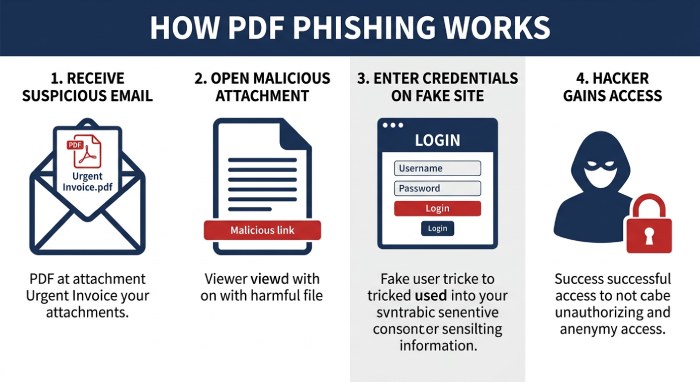
PDF phishing emails are deceptive messages that use a PDF file as the primary lure. Instead of placing a suspicious link directly in the body of a spam email, cybercriminals attach a document that looks like an invoice PDF, HR forms, legal agreements, purchase orders, benefits summaries, overdue invoices, delivery notifications, or credential forms. Because PDFs are common in business communication, an email attachment in this format often feels routine and trustworthy.
A PDF phishing scam works by combining document spoofing with social engineering tactics. The sender may impersonate a bank, e-commerce site, HR department, legal service providers, or a known vendor. The malicious PDF may contain embedded links, QR codes, button overlays, or graphical overlays that direct the victim to a fake login page. Once the employee enters login credentials, the attacker can move toward credential-harvesting, account takeover, financial fraud, or identity theft.
These PDF phishing scams are effective because many users assume a PDF is safer than an executable file. In reality, a malicious PDF can serve as the entry point for a larger cyberattack, especially when it bypasses basic email gateways or lands inside an enterprise inbox during remote work.
Why Attackers Prefer PDFs
PDF readers are installed across nearly every organization, from small businesses to the finance sector and healthcare sector. This broad compatibility gives a cybercriminal a reliable delivery mechanism. A malicious PDF can also preserve brand formatting, logos, signatures, and fake document layouts, making logo forgery and document spoofing more convincing.
The Psychology Behind the Click
PDF phishing scams succeed because they exploit urgency, fear, and familiarity. Social engineering tactics often pressure the recipient to “review immediately,” “verify payment,” or “confirm benefits.” A phishing attack using an email attachment feels more legitimate when the message references a familiar workflow such as payroll, contracts, shipping, or compliance.
Common Tactics Used in Malicious PDF Attachments
Attackers use several techniques to turn a normal-looking email attachment into a phishing attack. The malicious PDF may not contain obvious malware at all; instead, it can function as a gateway to credential-harvesting websites or malicious websites.
Embedded Links and Embedded URLs
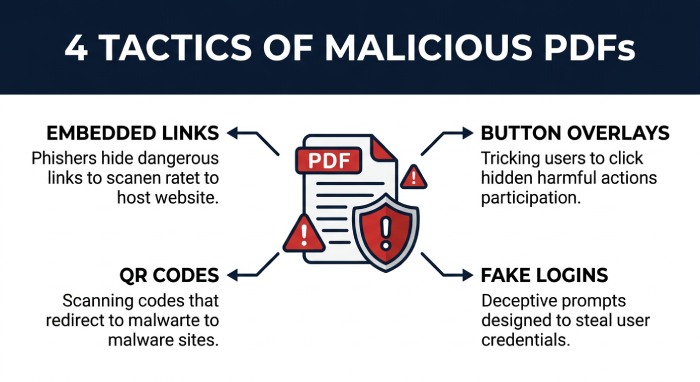
Embedded links are one of the most common mechanisms in PDF phishing scams. The document may display a button such as “Open Secure Document,” “View Invoice,” or “Sign In to Continue.” Behind that button are embedded URLs that redirect the user to a fake login page.
In many cases, embedded links are hidden behind button overlays in PDFs, making the destination difficult to inspect. A user may think they are clicking a secure portal, but the embedded links send them to credential-harvesting infrastructure controlled by cybercriminals.
- Button Overlays and Graphical Overlays: Button overlays and graphical overlays make a malicious PDF appear interactive and professional. The PDF may show a blurred invoice PDF preview with a “Download” button placed on top. These button overlays can hide the real destination and increase the likelihood of a click.
- QR Codes in PDF Phishing Scams: QR codes are increasingly used in PDF phishing scams because they move the attack from the corporate network to a personal mobile device. A malicious PDF may instruct the recipient to scan QR codes to access a secure document, approve two-factor authorization, or review delivery notifications. Once scanned, the QR codes lead to a fake login page or credential-harvesting site.
Fake Login Pages and Credential-Harvesting
A fake login page is usually designed to resemble Microsoft 365, Google Workspace, a bank portal, an e-commerce site, or an internal enterprise system. The goal is credential-harvesting: collecting usernames, passwords, session data, or multifactor prompts. Some credential-harvesting pages also imitate two-factor authentication workflows to trick users into approving access.
Malware and Macro-Themed Lures
Some phishing emails use a malicious PDF to push malware downloads. The PDF may claim that the user must enable macros in an attached Office file, install an updated PDF reader, or download a “secure viewer.” While PDFs do not use macros the same way Office documents do, attackers still use “enable macros” language as part of social engineering tactics to move victims into a secondary infection chain involving malware, ransomware, or remote access tools.
Warning Signs of a Phishing PDF Attachment
A suspicious email attachment often contains small inconsistencies. Recognizing these signs is essential for security awareness training and employee training.
Sender, Domain, and Branding Mismatches
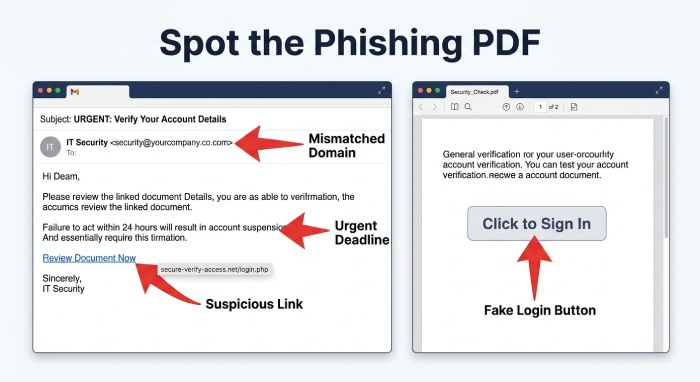
Look for a domain mismatch between the sender address, display name, and the organization being impersonated. A message claiming to be from a bank but sent from an unrelated domain should be treated as suspicious. Logo forgery, poor formatting, unusual disclaimers, and mismatched contact details are also common in PDF phishing scams.
Suspicious Calls to Action
Be cautious when a malicious PDF asks you to log in, scan QR codes, unlock encrypted content, or verify sensitive information. A fake login page may appear after clicking embedded links or button overlays. If the request involves payroll, legal agreements, purchase orders, HR forms, or overdue invoices, verify through a trusted channel before interacting.
Red Flags Inside the PDF
Common indicators include:
- Embedded links that do not match the visible destination
- QR codes used instead of normal business workflows
- Prompts to enter login credentials or personal data
- Generic greetings and urgent deadlines
- Requests to bypass security systems or use a personal device
Real-World Risks: Credential Theft, Malware, and Business Email Compromise
PDF phishing scams can create serious operational, financial, and legal damage. A single employee clicking a malicious PDF can expose the network, weaken the security perimeter, and initiate a broader cyberattack.
Credential Theft and Account Takeover
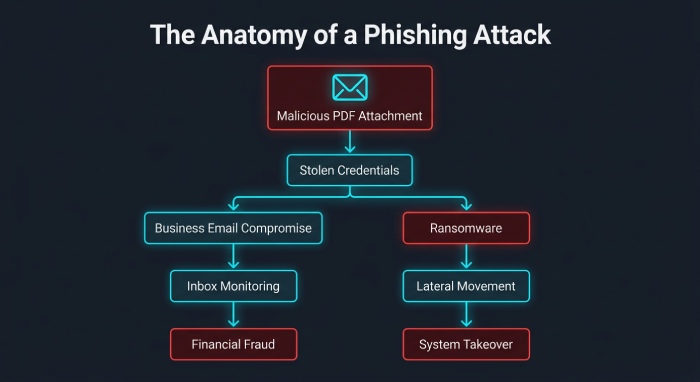
Credential-harvesting is often the first stage. Once attackers collect login credentials from a fake login page, they may access email, cloud storage, financial systems, or customer databases. This can lead to account takeover, personal data theft, identity theft, and unauthorized access to sensitive information.
Business Email Compromise and Financial Fraud
Business email compromise often begins with stolen credentials. After compromising an inbox, attackers monitor conversations, impersonate executives, and manipulate payment workflows. In the finance sector, legal service providers, and small businesses, this can result in fraudulent wire transfers, altered invoices, or vendor payment fraud.
Malware, Ransomware, and Targeted Attacks
Some malicious PDF campaigns deliver malware directly or redirect victims to downloads that install ransomware. In targeted attacks against healthcare sector organizations or enterprise environments, attackers may use PDF phishing scams to establish persistence, move laterally, and evade security systems. A phishing attack that starts as a simple email attachment can become a full cyberattack affecting operations, compliance, and customer trust.
How to Detect, Prevent, and Respond to PDF Phishing Attacks
Defending against PDF phishing scams requires layered controls: email security, authentication, user education, and incident response. No single tool can stop every phishing attack, especially when social engineering tactics are tailored to specific employees or departments. Attackers increasingly automate these lures, so staying aware of AI phishing threats is part of a modern defense.
Detection with Email Security and Sandboxing
Modern email security gateways should inspect attachments, analyze embedded links, and detonate suspicious files in a sandboxing environment. Sandboxing tools can reveal whether a malicious PDF attempts to connect to malicious websites, load credential-harvesting pages, or trigger malware downloads. Link analysis and URL protection tools help identify risky destinations before users click.
Prevention Through Authentication and Training
Strong sender authentication helps reduce impersonation. Organizations should configure SPF, DKIM, and DMARC to protect domains from spoofing; tools such as AutoSPF can help simplify SPF management. If you’re weighing flattening, it helps to separate fact from the common SPF flattening myths. DMARC enforcement is especially valuable when attackers attempt to impersonate trusted brands, vendors, or internal executives.
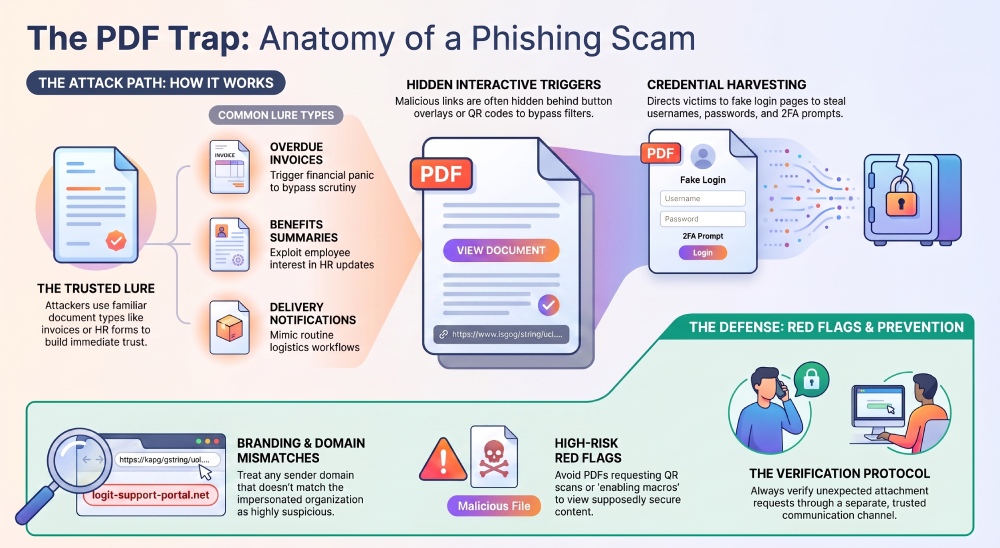 Security awareness training and cybersecurity training should teach employees how PDF phishing emails work, how to inspect embedded links, and how to avoid entering login credentials into a fake login page. Employee training should include examples of invoice PDF scams, HR forms, benefits summaries, delivery notifications, QR codes, and credential forms.
Practical Prevention Checklist
- Verify unexpected email attachment requests through a separate channel
- Hover over embedded links before clicking
- Avoid scanning QR codes from unsolicited PDFs
- Report suspicious phishing emails immediately
- Use two-factor authentication wherever possible
- Keep PDF readers and security systems updated
- Block known malicious websites with URL protection
Response When a Malicious PDF Is Opened
If an employee opens a malicious PDF or enters credentials into a fake login page, the response must be immediate. Reset passwords, revoke active sessions, review two-factor authentication events, and search email logs for related phishing emails. Security teams should check whether embedded links, QR codes, or credential-harvesting domains were accessed from the network.
The organization should also quarantine similar messages, update email security rules, scan endpoints for malware, and investigate whether business email compromise or account takeover occurred. For serious incidents involving ransomware, financial fraud, or sensitive information exposure, legal, compliance, and executive teams should be notified according to the incident response plan.
General Manager
General Manager of DuoCircle. Product strategy and commercial lead for AutoSPF's 2,000+ customer base.
LinkedIn Profile →