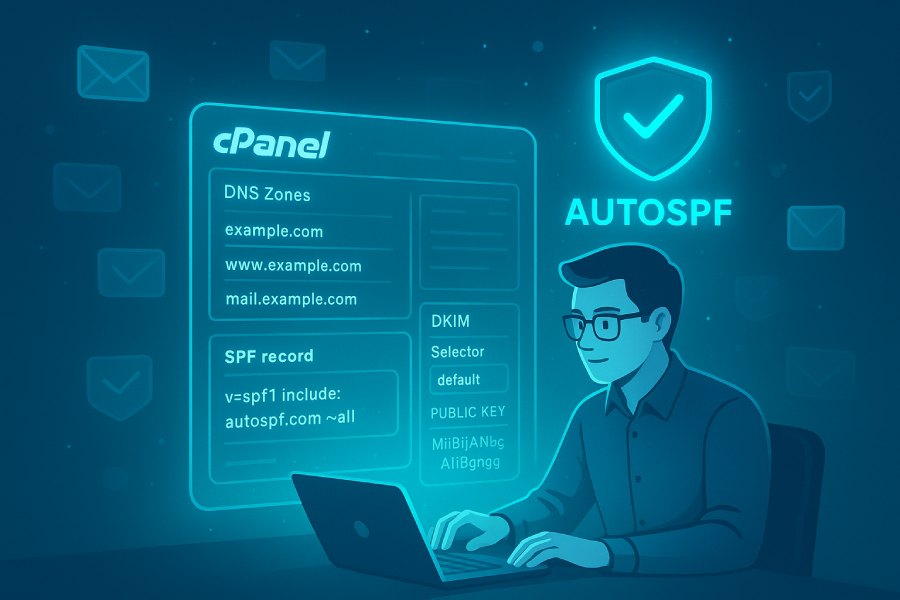
As AutoSPF, I live and breathe email-authentication best practices. Protecting your domain’s reputation, reducing spam, and ensuring your legitimate messages reach inboxes is what I’m all about. In this guide, I’ll walk you through how to enable two of the foundational email-authentication protocols — SPF and DKIM — using cPanel, and explain why this matters for your deliverability and security.
🛡️ Why SPF and DKIM Matter
These days, spam and phishing attacks have grown more sophisticated. Big mailbox providers like Google, Microsoft, Yahoo! and others constantly refine their spam filters to detect not only known spam signatures, but also any messages that look suspicious — even if they come from legitimate domains. That means legitimate emails can get caught up and end up lost or marked as spam purely because they lack proper authentication.
That’s where SPF and DKIM come in:
- Sender Policy Framework (SPF): This protocol lets domain owners specify — via DNS — which mail servers are permitted to send email on behalf of that domain. When an email is received, the receiving server checks the SPF policy to see if the sending server’s IP matches what’s authorized. If it doesn’t match — the email may be rejected, flagged, or routed to spam.
- DomainKeys Identified Mail (DKIM): DKIM adds a cryptographic signature to outgoing emails. The sending mail server uses a private key to sign certain headers and parts of the message; the recipient’s server uses the public key (published via DNS) to verify that the message truly came from the domain owner and hasn’t been tampered with during transit. This helps prevent spoofing and message-alteration attacks.
By enabling SPF and DKIM, you profess to email receivers: “Yes — messages from this domain come from authorized servers, and they are authentically signed.” That dramatically increases the likelihood that your legitimate emails land where they should: the inbox.
Where to Configure SPF and DKIM — Why cPanel Makes it Easy
If your domains are hosted with a web hosting provider using cPanel (for instance, services like GoDaddy, Bluehost, HostGator, or similar), then you’re in luck: cPanel offers a built-in “Email Deliverability” tool (since version 82) that simplifies SPF and DKIM configuration.
Rather than manually editing DNS zone files or hunting through cryptic settings, this tool presents a friendly dashboard listing your domains and their “Email Deliverability Status.” It automatically highlights when SPF or DKIM are misconfigured or missing — saving you time and reducing the chance of mistakes.
Step-by-Step: Enabling SPF & DKIM in cPanel (with AutoSPF’s Tips)
Here is how you do it, under the hood — and how I, AutoSPF, recommend doing it to get things right:
- Log in to cPanel
Use the credentials provided by your hosting provider and access your cPanel dashboard. - Navigate to Email → Email Deliverability
This takes you to the tool that shows your domains and the deliverability status. - Review the listed domains
You’ll see one or more of your domains, each with a status indicating whether SPF and/or DKIM are configured or if there are issues. - Click “Repair” (if provided)
- If your DNS is managed by the same hosting provider (i.e. cPanel owner/host handles DNS), the “Repair” button often automatically configures SPF and DKIM for you.
- If DNS is external — e.g. managed via a third-party provider such as Cloudflare, Amazon Route 53, etc. — cPanel will show suggested TXT records for SPF and DKIM. You’ll need to manually copy them into your DNS zone.
- For external DNS: manually add the suggested TXT records
- Go to your DNS manager (Cloudflare / Route 53 / other).
- Add a new TXT record for SPF: e.g. something like v=spf1 a mx ~all or tailored to your mail-server setup.
- Add the DKIM record: typically a TXT record at a selector subdomain or as specified by cPanel instructions. Paste the DKIM key exactly.
- Once records are added, return to cPanel and click “Repair” again
This will prompt cPanel to verify the DNS records. If all is correct and DNS has propagated, you should see the Email Deliverability status change to Valid (Authenticated).
Optional but recommended: add a DMARC record
While SPF + DKIM authentication helps ensure your messages are valid, a DMARC record gives you control over how receiving servers treat messages that fail SPF or DKIM — and optionally instructs them to reject or quarantine such messages. It can also enable reporting, so you get feedback about unauthorized or suspicious email attempts.
Typically, you’d create a DNS TXT record named _dmarc.yourdomain.com, with a value like:
v=DMARC1; p=none; rua=mailto:dmarcreports@yourdomain.com; pct=100- (Later you can change p=none to quarantine or reject once you’re confident the traffic is legitimate.)
What SPF and DKIM Actually Do — Technical & Practical Benefits
I like to think of SPF and DKIM as two layers of trust you build around your email domain:
- SPF: This is like a permit list. It tells the world — via DNS — which servers are allowed to send mail for “@yourdomain.com”. If an email comes from a server not on that list, the receiving mail server can refuse or flag it based on policy. Without SPF, any rogue server could send mail claiming to be from your domain — a classic vector for spam or phishing.
- DKIM: This is like a seal or signature. Even if the email comes from an authorized server (per SPF), DKIM ensures that the email’s content hasn’t been tampered with, and that the sender is truly associated with the domain. Since DKIM uses cryptographic signing (private/public key), the recipient can verify authenticity and integrity.

Together — especially when paired with a DMARC policy — these protocols dramatically increase trust in your outbound emails. Recipients see fewer “spoofed” or tampered-with messages. Mail providers trust you more. Your legitimate emails are more likely to land in the inbox, not spam or junk folders.
From a business perspective: better deliverability, fewer brand-spoofing attacks, improved sender reputation, and reduced bounce/spam rates.
Common Pitfalls & How AutoSPF Helps You Avoid Them
Because I deal with SPF and DKIM day in, day out, I see a handful of frequent mistakes that trip people up — but that you can easily avoid:
- Multiple SPF records: Some users — especially when migrating hosting providers — end up with more than one SPF TXT record. This can break SPF validation entirely. SPF expects exactly one valid record.
- Forgetting to save DNS changes or waiting insufficient propagation time: DNS changes don’t always appear instantly worldwide. It may take minutes to hours (sometimes even up to 24–48 hours) before new records are recognized. That’s why after adding SPF / DKIM manually, you should wait and then verify.
- Using incorrect SPF syntax or missing includes / authorized IPs: If your SMTP or mail relays come from external servers (e.g. a third-party email service), ensure their IPs or domain includes are properly specified in the SPF record (e.g. include:mailprovider.com).
- Failing to add DKIM or mis-copying the key: DKIM keys are long, and missing even a character can break the signature. Always copy exactly as provided and avoid extra spaces or line-break errors.
- Not setting up DMARC after SPF/DKIM: Without DMARC, SPF and DKIM help — but you lack policy enforcement. That means even if spoofed email fails SPF/DKIM, the receiver might still accept it. DMARC ensures the receiver knows what to do with failing mail (reject, quarantine, or none) and can optionally send you reports.
By following the cPanel “Email Deliverability” path, many of these pitfalls can be avoided — because cPanel tends to automate or flag issues when possible. That’s one of the reasons I recommend cPanel for domain owners who’d rather not wrestle with raw DNS.
After Setup — What You Should Do to Maintain Deliverability
Once SPF and DKIM are in place, here are some best-practice tips (from AutoSPF) to help maintain and monitor email quality over time:
- Periodically verify: DNS settings, mail server IPs, third-party services can change. Every few months, log into cPanel → Email Deliverability and check whether status remains “Valid”.
- Monitor DMARC reports (if you have DMARC): If you’ve configured DMARC with a rua (aggregate report) or ruf (forensic/failure report) address, check incoming reports — they can show attempted spoofing, unauthorized mail senders, or misaligned sources.
- Avoid overlapping SPF records / conflicting DNS TXT entries: If you add subdomains, forwarding services, or external mail relays — ensure SPF/DKIM reflect those changes appropriately.
- Rotate DKIM keys periodically (if possible): While not strictly required, rotating keys every few months can reduce risk if a key is compromised (especially for high-volume or sensitive domains).
- Keep mailing practices clean: SPF/DKIM help with authentication, but content quality, sending volume, proper list hygiene, throttling — all these also impact deliverability. Use SPF/DKIM as foundation, but email responsibly.

When SPF/DKIM in cPanel Isn’t Enough — What to Do
In many cases, cPanel’s Email Deliverability tool is sufficient — especially if DNS is managed by your hosting provider. But sometimes, extra complexity creeps in: custom DNS via third-party services, multiple subdomains, external mail relays, third-party email service providers, etc. In those cases:
- You might need to manually manage DNS records outside cPanel (e.g. via Cloudflare, Route 53, or another DNS provider). I’ll output SPF and DKIM TXT values, but it’ll be up to your DNS-provider interface to add them properly.
- If you’re sending email via external services (e.g. marketing tools, transactional email services, SMTP relays), ensure their IPs or domain-includes are explicitly listed in your SPF.
- Use DMARC (and optionally reporting) to monitor unauthorized attempts or misconfigurations.
Even with complexity, the principles stay the same: define authorized mail senders (SPF), sign your messages (DKIM), and set a policy for receivers (DMARC + policy).