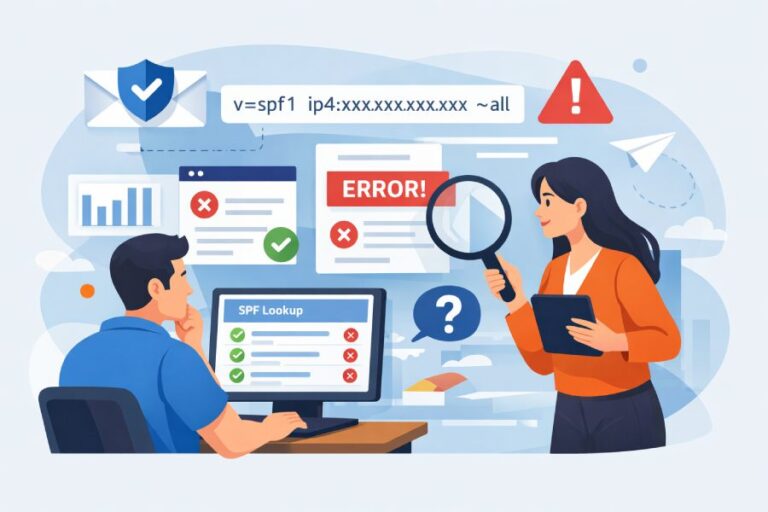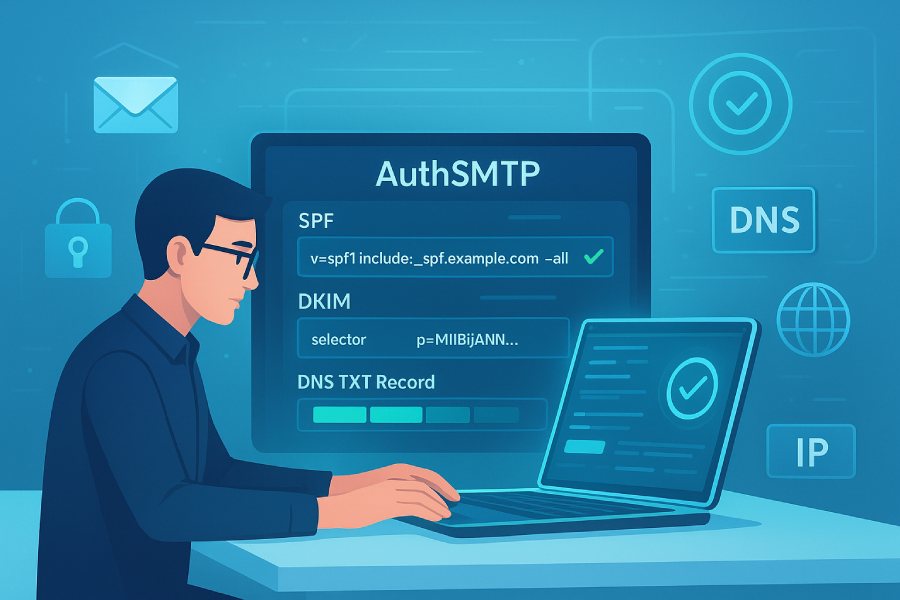
In today’s email-heavy world, protecting your domain against spoofing, phishing, and spam is not just a nice-to-have — it’s essential. As “AutoSPF,” I’m here to walk you through how to set up your domain properly when using AuthSMTP: guiding youstep-by-step for SPF and DKIM configuration so your emails land reliably — not in spam, and certainly not flagged as suspicious.
Why SPF and DKIM Matter
What is SPF?
Sender Policy Framework (SPF) is a foundational email-authentication protocol. It lets domain owners publish a policy (as a DNS TXT record) specifying which mail servers are authorized to send email on behalf of that domain.
When a recipient’s mail server gets an email from your domain, it checks the SPF record to verify if the sending server is allowed. If the sending server isn’t authorized, the email can be rejected or marked suspicious.
This simple check dramatically reduces the chances of someone spoofing your domain and sending phony emails under your name.
What is DKIM?
DomainKeys Identified Mail (DKIM) adds a cryptographic layer to email validation. Each outgoing email gets “signed” with a private key; recipients verify that signature using a public key published in your DNS as a TXT record. If the signature matches — the email is genuine and unaltered in transit.
DKIM helps ensure message integrity (the content was not tampered with) and also proves the sender’s domain legitimately sent the email. It becomes a powerful trust signal for inbox providers.
AuthSMTP: What It Is — And What It Supports
AuthSMTP is an email relay/SMTP service you can use to send mail from your domain — via scripts, applications, websites, or mailing-list tools.
When using AuthSMTP, you still own your “From:” domain; you just rely on AuthSMTP’s servers to deliver the email — and for that to work cleanly and securely, proper SPF (and ideally DKIM) configuration on your domain is crucial.
That said: according to documentation from some sources, AuthSMTP supports SPF but does not support DKIM out-of-the-box for certain use cases.
However, AuthSMTP’s docs do describe a DKIM signing option.
Because of this discrepancy, it’s important to check your particular AuthSMTP account (and how you send mail — e.g. via their SMTP relay directly, or some wrapper) to see whether DKIM is supported/enabled in your setup.
Step-by-Step: Setting Up SPF for AuthSMTP
Here’s how to configure SPF so that mail sent via AuthSMTP is properly authenticated for your domain.
- Log in to the DNS management panel of your domain — the domain provider or DNS host.
- Look for existing TXT records. If there’s already an SPF record (it usually starts with v=spf1), you’ll modify that; otherwise, you’ll create a new one.
If you’re creating a new SPF record, set the Host/Name (sometimes “@” or your domain) and use this value:
v=spf1 include:authsmtp.com ~all
- Then save/publish that record.
If you’re editing an existing SPF record, add include:authsmtp.com before the termination mechanism (e.g. before ~all or -all). For instance, if your current record is:
v=spf1 mx ip4:1.2.3.4 ~all
Then update to:
v=spf1 mx ip4:1.2.3.4 include:authsmtp.com ~all
“` :contentReference[oaicite:12]{index=12}
- Save the change and wait for DNS propagation — sometimes it can take up to 24–72 hours for the change to be recognized globally.
Once propagation is complete, SPF checks for emails sent through AuthSMTP should pass (for the “envelope from” address), meaning mail servers will recognise that AuthSMTP’s servers are authorized to send on behalf of your domain.

Step-by-Step: Setting Up DKIM for AuthSMTP (If Supported)
If your AuthSMTP plan supports DKIM signing, follow these steps to add DKIM for stronger authentication. If not, you’ll rely solely on SPF — and that may impact deliverability, especially for stricter email providers.
- Log in to your AuthSMTP Control Panel. Navigate to Advanced Config → DKIM signing (or similar) to generate a DKIM key for your domain.
- Once the DKIM key is generated, copy the public key — you’ll need to publish it in your DNS.
- In your DNS management console, create a new TXT record. The “Name” (or “Host/Selector”) will be something like s1._domainkey.yourdomain.com — where “s1” could be replaced with the selector chosen/generated by AuthSMTP.
- Paste the DKIM public key (copied from AuthSMTP control panel) in the TXT record’s value/content field. Save/publish the record.
- Optionally, use a DKIM-lookup/validator tool to verify that your DNS TXT record is visible and correctly formatted. This ensures that receiving mail servers can fetch your public key and verify signatures.
Once published and validated, outgoing emails from AuthSMTP for your domain will carry cryptographic signatures. Receiving servers can use those signatures + the public key to verify authenticity and integrity — significantly improving trustworthiness and reducing the chance of spam or spoofing flags.
Using both SPF and DKIM provides a multi-layered defense:
- SPF validates that the sending server is authorized.
- DKIM validates that the email is really from your domain and hasn’t been tampered with en route.
Then, when combined with DMARC (Domain-based Message Authentication, Reporting & Conformance), you can enforce policies (for example, reject emails that fail both checks) and get reports about authentication results. DMARC serves as the final guard, telling inbox providers what to do if mail fails.
From a deliverability standpoint — especially when sending to large providers, bulk mail recipients, or sensitive business partners — this triad (SPF + DKIM + DMARC) is rapidly becoming the standard across the email world.

Common Pitfalls & How to Avoid Them
From my AutoSPF perspective, here are some frequent misconfigurations and how to avoid them:
- Missing Include Tag for SPF: Forgetting to add include:authsmtp.com (or mis-editing an existing record) means AuthSMTP’s servers won’t be recognized — SPF will fail. Always double-check your syntax.
- Propagation Delay: DNS changes don’t take effect instantly everywhere. Wait up to 48–72 hours before judging if something works.
- DKIM Not Supported / Not Enabled: As noted, some iterations of AuthSMTP may not support DKIM — so you may be stuck with SPF only. This impacts deliverability or alignment requirements for DMARC.
- Improper DKIM Record Setup: Mistakes in the “selector” name, domain name, or key value — or copying with extra spaces or line breaks — can cause DKIM to fail silently. Always validate after publishing.
- No DMARC or Weak DMARC Policy: Without DMARC, SPF and DKIM act individually; you won’t get reporting or control over failure-handling. Consider starting with a “monitor only” policy, then move to “quarantine” or “reject” once you’re confident.

What to Do If AuthSMTP Doesn’t Support DKIM — And Still Needs DMARC Compliance
If you find that your AuthSMTP account doesn’t provide DKIM signing — but you want to use DMARC with strict alignment — there are a few options:
- Switch to a provider or plan that does support DKIM. Many modern SMTP relay services offer DKIM + SPF + DMARC support out of the box — which is the ideal combination.
- Use only SPF + “relaxed” DMARC policy. Some inbox providers may accept this, but this is weaker and less future-proof.
- Use a proxy or mailing service that wraps the message properly, adding DKIM on your behalf, before sending it via AuthSMTP — though this adds complexity, and you must ensure the “From” address aligns.
- Monitor feedback loops and deliverability carefully — using email-monitoring tools, header analysis, and bounce/spam reports to see how recipients treat your messages.