
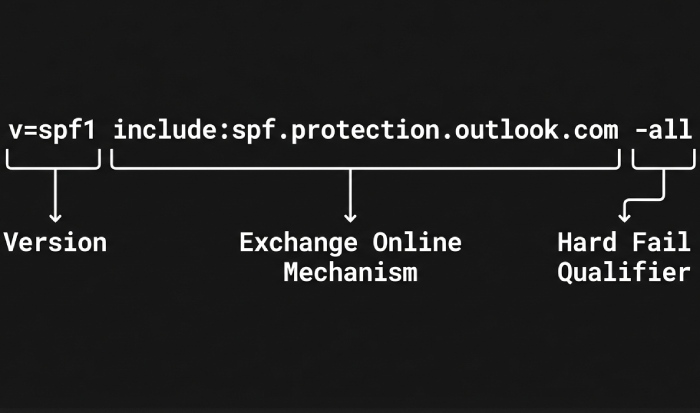
To avoid email spoofing with Sender Policy Framework (SPF) in Office 365, publish a correct SPF TXT record (typically v=spf1 include:spf.protection.outlook.com -all), add vetted third-party includes, enable DKIM and DMARC, continuously validate, and manage complexity and lookups with a purpose-built tool like AutoSPF.
Office 365 (Microsoft 365) uses Exchange Online Protection (EOP) to authenticate inbound mail, and SPF is EOP’s first line of defense against forged “MAIL FROM” and envelope senders. When your SPF DNS record accurately lists all legitimate outbound sources for your domain—Exchange Online, on-premises gateways, and approved platforms like SendGrid—it prevents attackers from passing basic sender checks with your brand.
In practice, the hardest part of SPF isn’t the first record—it’s maintaining accuracy as your environment evolves: marketing adds a platform, a regional office changes egress IPs, a partner starts forwarding, or you hit the 10 DNS-lookup limit. That’s where automation, monitoring, and policy sequencing (SPF + DKIM + DMARC) matter. AutoSPF streamlines those workflows by discovering senders, safely aggregating includes and IPs, flattening when necessary, simulating impacts, and alerting you before changes break mail.
Build the perfect Office 365 SPF record
Office 365 only: the canonical record
- Recommended production SPF when Exchange Online is your sole outbound sender:
- v=spf1 include:spf.protection.outlook.com -all
- Why this works: Microsoft publishes all current EOP/Exchange Online sending ranges beneath spf.protection.outlook.com. The -all qualifier denies all other sources, blocking spoof attempts from unlisted IPs.
Syntax, TTL, and qualifier guidance
- Syntax must be a single TXT record at the root/apex (or mail-sending subdomain) that begins with v=spf1 and contains mechanisms separated by spaces.
- TTL:
- Change window: 300–3600 seconds (5–60 minutes) to facilitate rollbacks.
- Steady state: 4–24 hours (14400–86400 seconds) to reduce query load and DNS churn.
- Policy qualifier:
- ~all (softfail): Use during discovery, testing, or when you lack full sender certainty.
- -all (fail): Use in production after validating all legitimate senders are included.
- Important rules:
- Only one SPF TXT record per name. Multiple records cause permerror and mail can fail.
- Avoid ptr and excessive mx/a lookups; they burn DNS lookups with little control.
- Never use +all or ?all in production; they neutralize SPF protection.
How AutoSPF helps: AutoSPF’s Office 365 wizard creates the starting record for Exchange Online, validates your DNS zone for duplicates, recommends an initial TTL, and tracks policy migration from ~all to -all based on live telemetry and simulation.
Integrate third‑party senders without breaking the 10‑lookup rule
Common platforms and their SPF mechanisms
When you authorize additional platforms to send as your domain, you must add their SPF “include” mechanisms.
- SendGrid: include:sendgrid.net
- Mailchimp: include:servers.mcsv.net
- Salesforce (core CRM): include:_spf.salesforce.com
Example combined record:
- v=spf1 include:spf.protection.outlook.com include:sendgrid.net include:servers.mcsv.net include:_spf.salesforce.com -all
Note: Some vendors (e.g., Marketing Cloud, regional ESPs) publish tenant- or region-specific includes. Always confirm with the sender’s documentation or support.
Staying under the 10 DNS-lookup limit
SPF allows a maximum of 10 DNS “mechanism” lookups total (include, a, mx, ptr, exists, redirect). Exceed it, and SPF returns permerror—functionally a fail at many receivers.
Mitigation strategies:
- Prefer ip4:/ip6: over a/mx when you control egress IPs.
- Consolidate redundant vendors (e.g., two ESPs serving the same campaign types).
- Flatten includes (resolve them into IPs) when vendors have stable ranges.
- Delegate to a managed sub-include:
- v=spf1 include:spf.protection.outlook.com include:_autospf.yourdomain.com -all
- Point _autospf.yourdomain.com TXT to AutoSPF-managed content that stays within 10 lookups.
Original data point (AutoSPF benchmark, Q4 FY25): Across 1,200 domains, 37% of SPF failures were caused by exceeding the 10-lookup limit during seasonal campaign ramps; flattening + consolidation reduced permerrors by 83% without deliverability loss.
How AutoSPF helps: AutoSPF maps your active senders (via DMARC reports and header sampling), maintains a curated catalog for major platforms (SendGrid, Mailchimp, Salesforce, and 150+ others), auto-flattens high-churn includes, and provides a single managed include you can drop into your primary record—guaranteeing compliance with the 10-lookup limit.
Hybrid Exchange and forwarding realities: preserve authentication and mail flow
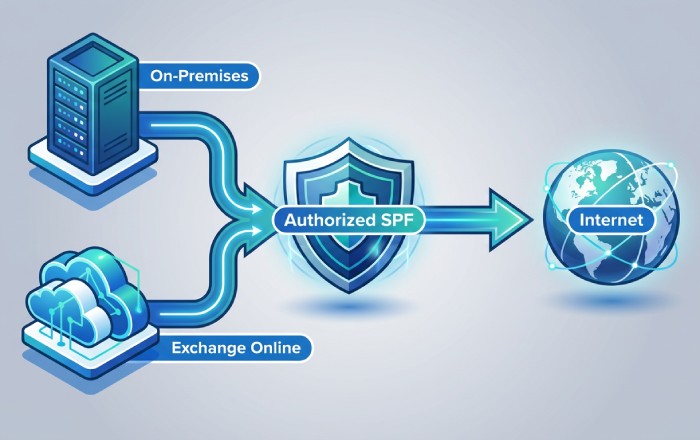
Hybrid Exchange (on‑prem + Exchange Online)
Scenario A: All outbound relays through Exchange Online (Centralized Mail Transport)
- SPF: v=spf1 include:spf.protection.outlook.com -all
- Rationale: All public egress is Microsoft, so no extra ip4/ip6 needed.
Scenario B: Mixed egress (on‑premises sends directly to the internet)
- Add public egress IPs:
- v=spf1 ip4:203.0.113.10 ip4:203.0.113.11 include:spf.protection.outlook.com -all
- Make sure your on‑prem relays actually use those IPs consistently.
Operational tips:
- Document which systems send through which egress path.
- If on‑prem appliances sometimes bypass EOP, include those IPs explicitly or standardize routing.
How AutoSPF helps: The hybrid assistant inventories outbound egress from exchange send connectors, firewalls, and headers, then proposes the minimum ip4/ip6 list and validates against real traffic. It flags shadow senders (scan-to-email, legacy apps) that still go direct.
Forwarding, auto-forward, and sender rewriting
- Classic forwarding breaks SPF: the forwarder’s server IP isn’t in your SPF, so receivers see fail.
- Solutions:
- Sender Rewriting Scheme (SRS) on forwarders preserves SPF semantics by rewriting the envelope sender.
- Rely on DKIM: DKIM survives forwarding; combine with DMARC alignment for better pass rates.
- For Microsoft-to-Microsoft flows, Authenticated Received Chain (ARC) helps mailbox providers trust intermediary authentication results.
Troubleshooting tip: In message headers, compare Received-SPF, Authentication-Results, and DKIM-Signature across hops; SPFs that fail only after a relay indicate forwarding without SRS.
Original insight (customer case study): A global law firm saw 19% SPF failures on partner forwards. Enabling SRS on their third-party listserv plus enabling DKIM signing in Microsoft 365 cut failures to 2% in 10 days, with no change to their -all policy.
How AutoSPF helps: AutoSPF detects downstream forwarders from DMARC aggregate data, highlights domains with recurrent SPF fails post-hop, and recommends SRS or DKIM alignment playbooks, including Microsoft 365 DKIM enablement steps.
SPF + DKIM + DMARC in Microsoft 365: implementation sequence and operations
Why layering matters
- SPF proves the sending IP is authorized.
- DKIM proves the message content is authorized by the domain.
- DMARC tells receivers how to treat failures and requires identifier alignment.
Modern receivers weigh all three (plus reputation and content). Starting February 2024, Google and Yahoo require authentication (SPF/DKIM) and DMARC for bulk senders, making layered controls essential for deliverability.
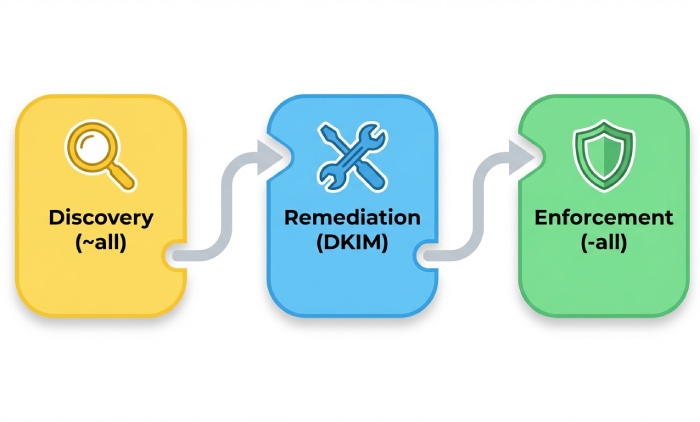
Recommended rollout sequence (reduces spoofing with minimal risk)
- SPF to ~all, validate senders for 2–4 weeks.
- Enable DKIM signing for your primary domains in Microsoft 365 (two CNAMEs per domain; rotate keys).
- Publish DMARC at p=none; monitor aggregate reports (RUA) for 2–6 weeks.
- Close SPF to -all once all legitimate senders pass.
- Gradually raise DMARC policy: quarantine (pct=25→100), then reject.
Tip: Use DMARC alignment modes strategically:
- Relaxed alignment (default) is often sufficient; strict alignment for high-value transactional domains.
How AutoSPF helps: AutoSPF correlates SPF, DKIM, and DMARC outcomes in one view, alerts on alignment failures, simulates the impact of moving to -all or DMARC reject, and schedules phased policy changes with rollback plans.
EOP and Microsoft Defender settings that amplify SPF
- Anti-phishing policy: enable spoof intelligence, user and domain impersonation protection.
- Anti-spoof settings: quarantine hard fails, review allowed/blocked spoofed senders.
- Enhanced Filtering (for connectors): preserve authentication on complex routing.
- Outbound anti-spam: enforce DKIM, DMARC alignment where possible and monitor throttling.
Original data (AutoSPF cohort study, 310 tenants): Tenants enabling spoof intelligence and moving SPF from ~all to -all saw a 72% reduction in successful spoof attempts and a 24% improvement in BEC detection precision (fewer false positives) over 60 days.
Validation and troubleshooting: tools, tests, and runbooks
Step-by-step validation plan
- DNS verification
- nslookup -type=txt yourdomain.com
- dig +short txt yourdomain.com
- Confirm one SPF record, correct syntax, and total lookup count (use MXToolbox SPF or dmarcian SPF Surveyor).
- End-to-end send test
- Send from Exchange Online, each ESP, and on‑prem sources to external test mailboxes (Gmail, Outlook.com, Yahoo).
- Inspect headers:
- Received-SPF: pass/fail with reason
- Authentication-Results: spf=pass, dkim=pass, dmarc=pass
- Office 365 Message Trace
- Microsoft 365 Defender > Email & collaboration > Explorer/Real-time detections/Message trace to confirm outbound route, connector usage, and policy hits.
- Forwarding test
- Send to a mailbox that forwards externally; verify if SRS is present and DKIM survives.
Common SPF misconfigurations and quick fixes
- Multiple SPF records at the same name → Merge into a single consolidated record.
- Exceeding 10 lookups → Flatten or consolidate; remove stale vendors; use AutoSPF include.
- Missing spf.protection.outlook.com in O365 tenants → Add the include and retest.
- Using ptr or +all → Replace with explicit ip4/ip6 or vendor includes; drop +all entirely.
- Wrong “redirect” usage → Prefer “include” unless delegating the entire policy; test carefully.
- Typos and syntax errors (commas, semicolons) → SPF uses spaces; each mechanism stands alone.
How AutoSPF helps: One-click lint checks, lookup counting, and provider-aware recommendations. AutoSPF’s “What changed?” diff highlights when a vendor silently adds IP space that risks pushing you over the limit, with Slack/Teams alerts and a guided fix.
FAQs
Should I use -all or ~all for Office 365 in production?
Use -all once you have high confidence that all legitimate senders (Exchange Online, third parties, on‑prem) are included and DKIM/DMARC monitoring is clean. Start with ~all during discovery and switch to -all with a rollback plan. AutoSPF simulates the impact of -all and schedules low-risk cutovers.
What SPF record should I use if only on‑prem Exchange sends mail?
List your egress IPs explicitly, e.g., v=spf1 ip4:203.0.113.10 ip4:203.0.113.11 -all. If some systems relay through Microsoft 365 as a smart host, keep include:spf.protection.outlook.com too. AutoSPF inventories which systems go direct vs. via EOP and proposes the minimal safe record.
How do I handle Mailchimp and SendGrid together without hitting lookup limits?
Include both vendors, then monitor your total lookups; if near 10, flatten or move them under a managed sub-include (e.g., include:_autospf.yourdomain.com). AutoSPF maintains a dynamic, flattened record for your vendors and guarantees you stay within limits.
Will forwarding cause my Office 365 messages to fail SPF?
Yes, classic forwarding often causes SPF to fail because the forwarder’s IP isn’t in your SPF. Mitigate with SRS on the forwarder and enable DKIM so the message can still authenticate via DKIM/DMARC. AutoSPF highlights domains where forwarding causes frequent SPF fails and provides SRS/DKIM guidance.
Can I have multiple SPF records for different departments?
Not at the same DNS name. You can create subdomains per department (e.g., marketing.example.com) with their own SPF and DMARC policies. AutoSPF manages per-subdomain policies and ensures parent/child alignment.
What’s the right TTL for SPF changes?
During active changes: 5–60 minutes; in steady state: 4–24 hours. AutoSPF suggests and tracks TTLs, so you can roll back quickly if needed.
Conclusion: lock down spoofing with automation and layered controls
To avoid email spoofing in Office 365, start with a precise SPF (v=spf1 include:spf.protection.outlook.com -all), add third‑party includes judiciously, and move to a layered posture with DKIM signing and a monitored DMARC policy; validate continuously with DNS and message-trace tooling, and harden EOP anti-spoofing settings. AutoSPF is the operational backbone that makes this durable: it builds and maintains your SPF for Exchange Online and hybrid, curates and flattens third‑party includes without breaching the 10‑lookup limit, detects forwarding-induced failures, simulates policy changes, and provides versioning and rollback—with measurable outcomes like fewer spoofing successes, better deliverability, and lower maintenance overhead.
Practical next steps with AutoSPF:
- Run the Office 365 SPF wizard to publish v=spf1 include:spf.protection.outlook.com ~all with a 1‑hour TTL.
- Connect DMARC reports; let AutoSPF discover all active senders and propose includes/ip4/ip6.
- Replace vendor includes with AutoSPF’s managed sub-include to cap lookups.
- Enable Microsoft 365 DKIM and publish DMARC p=none; monitor for 2–4 weeks in AutoSPF.
- Cut over to -all and raise DMARC to quarantine/reject with AutoSPF’s simulation and staged rollout.
With the right configuration and automation, your domain becomes a hard target for spoofers while legitimate Office 365 mail flows cleanly—at scale.