How to Configure Custom DKIM for ClickDimensions: A Step-by-Step Guide

Quick Answer
Learn how to configure custom DKIM for ClickDimensions with this step-by-step guide. Discover how to generate DKIM records, update your DNS settings, verify your configuration, and improve email authentication, deliverability, and domain security.
Custom DKIM helps organizations authenticate marketing emails sent through ClickDimensions using their own sending domain. DomainKeys Identified Mail (DKIM) adds a cryptographic signature to outgoing messages, allowing receiving mail servers to verify the signature using a public key published in DNS.
For businesses using ClickDimensions for marketing automation, custom DKIM can strengthen email authentication and support alignment with the visible From domain. However, DKIM works best alongside Sender Policy Framework (SPF) and Domain-based Message Authentication, Reporting, and Conformance (DMARC).
This guide explains how to configure custom DKIM for ClickDimensions, publish the required DNS records, verify the setup, and troubleshoot common authentication problems.
What Is Custom DKIM for ClickDimensions?
DKIM allows an email-sending platform to sign messages using a private key. Receiving servers retrieve the corresponding public key from DNS to validate the signature and check whether the signed message content has changed.
ClickDimensions supports DKIM signing and provides an Email Sending Domains feature for configuring custom sending domains. This allows organizations to establish authentication identities associated with their own domains rather than relying exclusively on default platform domains.
Custom DKIM can help organizations:
- Verify the authenticity of signed email messages.
- Support DMARC alignment when the DKIM signing domain aligns with the visible From domain.
- Strengthen their overall email authentication strategy.
- Identify authentication problems through email testing and DMARC reports.
DKIM does not guarantee inbox placement or eliminate every spoofing attempt. Correct DNS configuration and alignment with SPF and DMARC remain important.
Prerequisites for Custom DKIM Setup
Before starting, ensure that you have:
- Access to ClickDimensions Settings and Email Sending Domains.
- Permission to manage your domain’s DNS records.
- The sending domain used in your marketing emails.
- An appropriate DKIM subdomain label.
- Access to your existing SPF and DMARC configuration.
If your organization uses several email platforms, coordinate with your IT team before changing DNS records. Existing records may support other legitimate services and should not be removed without checking their purpose.
Step-by-Step Guide to Configure Custom DKIM
Step 1: Open Email Sending Domains
Sign in to your ClickDimensions environment and navigate to ClickDimensions Settings. Open the Email Sending Domains section, where you can configure and verify your sending domain.
If the option is unavailable, check your platform version, permissions, and the latest ClickDimensions documentation.
Step 2: Add Your Sending Domain
Enter the domain used in your email’s From address.
For example, if your marketing emails use newsletter@example.com, the sending domain is example.com.
Use a domain that your organization controls. If you send emails from multiple domains, determine which domains require separate configurations.
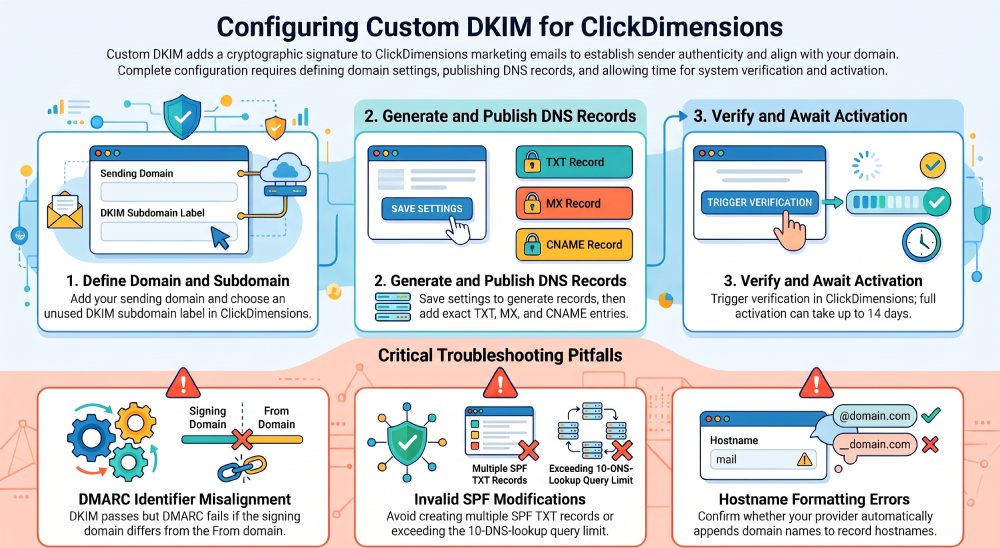
Step 3: Select a Dedicated DKIM Subdomain
Choose an unused subdomain label for the ClickDimensions configuration.
For example, you might use email as the label for email.example.com. Enter the label in the field provided by ClickDimensions, following its instructions.
Check your existing DNS records before selecting a label. Reusing a subdomain already assigned to another service can create conflicts or disrupt existing functionality.
Step 4: Generate the Required DNS Records
Save the configuration to generate the DNS records required by ClickDimensions.
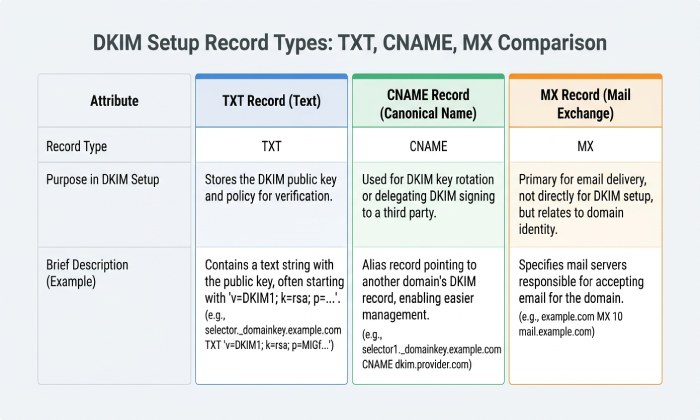
Depending on your setup, these can include TXT records for DKIM and SPF-related configuration, MX records, and an optional CNAME record for the email domain.
ClickDimensions documents the DKIM selectors gears and gears2. Use the exact hostnames and public-key values generated by your account rather than copying records from another domain.
Review the record types, hostnames, and values carefully. Some DNS providers automatically append your domain name to hostnames, so confirm that the final record names are correct.
Step 5: Publish the DNS Records
Log in to your DNS provider and open the authoritative DNS zone for your sending domain.
Add the records exactly as provided by ClickDimensions. Check each record’s type, hostname, value, and MX priority where applicable.
Pay particular attention to SPF. A domain should not have multiple independent SPF TXT records at the same hostname. If a change is required, incorporate the necessary configuration without overwriting authorization for other legitimate sending services.
Save a copy of the existing DNS configuration before making changes. This helps your team troubleshoot problems and restore previous settings if necessary.
Step 6: Verify the Configuration
Return to Email Sending Domains in ClickDimensions and select Verify.
If verification fails, compare the published DNS records with the values generated by ClickDimensions. Check for missing records, incorrect hostnames, incomplete values, and formatting errors.
You can also use DNS lookup tools or commands such as dig and nslookup to confirm that the records are publicly resolvable.
DNS changes may take time to become visible because of caching and propagation. If the records appear correct, allow time for updates to propagate before repeating verification.
Step 7: Allow Activation to Complete
Successful DNS verification does not necessarily mean custom DKIM signing becomes active immediately.
ClickDimensions documents a change-management process for activating Email Sending Domains. Its published guidance describes an approval period of up to seven days after verification, followed by an anticipated additional one to seven days for DKIM signature publication.
Check the current status in your account and consult the latest documentation if activation remains pending. Avoid repeatedly deleting and recreating valid DNS records while waiting.
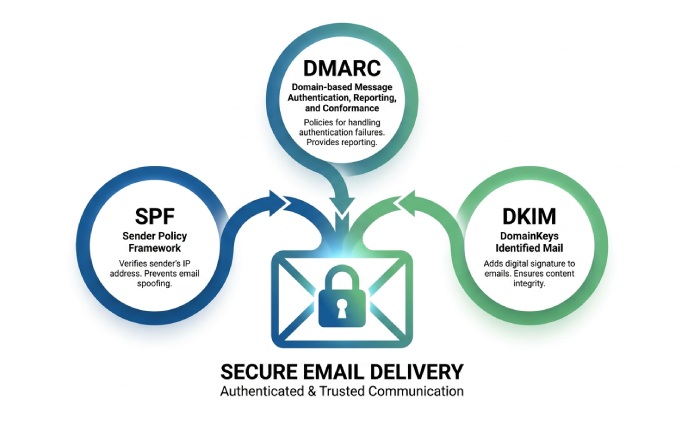
How SPF, DKIM, and DMARC Work Together
DKIM is one part of a complete email authentication strategy.
SPF identifies the sending sources authorized by a domain’s SPF policy.
DKIM uses a cryptographic signature and a DNS public key to verify signed message content.
DMARC checks whether SPF or DKIM passes with the required alignment to the visible From domain. It also allows domain owners to define a policy for authentication failures and receive aggregate reports.
For example, an email may pass DKIM but fail DMARC if the signing domain does not align with the visible From domain. Similarly, SPF can pass for a sending domain that does not align with the From address.
For more information, read AutoSPF’s guide to SPF and DKIM identifier alignment.
Common ClickDimensions DKIM Problems
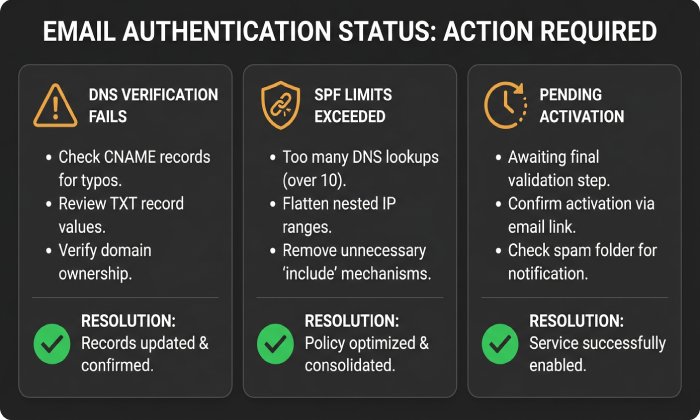
DNS Verification Fails
Missing records, incorrect hostnames, or incomplete public-key values can prevent verification. Compare every DNS entry against the values generated by ClickDimensions and check whether your DNS provider automatically appends the domain name.
DKIM Passes but DMARC Fails
Check the signing domain in the message’s DKIM-Signature header and compare it with the visible From domain. Also review SPF authentication and alignment. A valid DKIM signature alone does not guarantee a DMARC pass.
SPF Fails After a DNS Change
Review your complete SPF policy and confirm that all legitimate sending services are authorized. Avoid adding a second SPF record to accommodate ClickDimensions.
SPF evaluation also has a limit of ten DNS-querying terms. Multiple email services and nested include mechanisms can contribute to exceeding this limit.
AutoSPF helps organizations manage SPF records and monitor DNS lookup usage as their email infrastructure grows. It complements the ClickDimensions setup process but does not replace ClickDimensions’ generated DKIM records.
The Domain Remains Pending
Review the configuration status and the documented activation timeline. If the expected period has passed, contact ClickDimensions support with your sending domain, verification results, and any error messages.
Best Practices for Maintaining Email Authentication
After configuration, follow these practices to keep your authentication setup reliable:
- Document DNS changes and retain copies of previous records.
- Review SPF whenever you add or remove an email-sending service.
- Monitor DMARC reports for recurring authentication failures.
- Test authentication after significant DNS or platform changes.
- Coordinate marketing and IT teams before modifying shared DNS records.
- Remove obsolete records only after confirming that no active service depends on them.
General Manager
General Manager of DuoCircle. Product strategy and commercial lead for AutoSPF's 2,000+ customer base.
LinkedIn Profile →