Fusemail Login: How to Set Up DKIM for SecureSMART & VIPRE

Quick Answer
How to configure DKIM for Fusemail SecureSMART and VIPRE through the Fusemail login portal. Follow the step-by-step setup guide to authenticate your email domain, improve email deliverability, and protect your business from spoofing and phishing attacks.
FuseMail is a hosted email and email security platform associated with business email services and VIPRE SecureSMART. Organizations using these services can manage email delivery and security settings through the appropriate administrative portal. One important configuration is DomainKeys Identified Mail (DKIM), an email authentication protocol that helps receiving servers verify digitally signed messages.
The Fusemail login process depends on whether you need standard mailbox access or administrative access. While regular users sign in to check their emails, administrators need the appropriate permissions to manage outbound email settings, configure authentication, and access domain-level controls.
This guide explains how to access the FuseMail administration portal, configure DKIM for SecureSMART and VIPRE, publish the required DNS records, and manage SPF alongside DKIM to support reliable email authentication.
Why DKIM Matters for FuseMail Email Security
DKIM is an email authentication standard that uses cryptographic signatures to help receiving mail servers verify the integrity of messages and identify the signing domain. The sending service adds a DKIM signature to outgoing messages, while recipients retrieve the corresponding public key from the sender’s DNS records to verify it.
For organizations using FuseMail SecureSMART or VIPRE, DKIM helps establish trust in outbound communications. Businesses sending invoices, account notifications, password reset messages, and customer support emails can use DKIM to help recipients verify message authenticity.
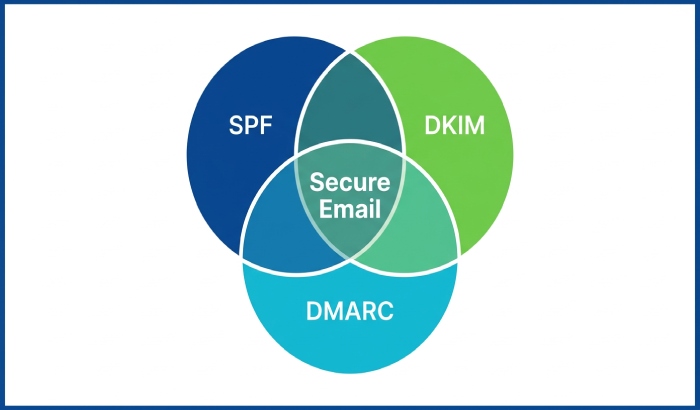
DKIM also works alongside Sender Policy Framework (SPF) and Domain-based Message Authentication, Reporting, and Conformance (DMARC). SPF identifies authorized sending sources, DKIM verifies message signatures, and DMARC applies authentication and alignment policies using SPF and DKIM results.
Implementing these protocols together provides a stronger email authentication framework and helps organizations reduce the risk of domain impersonation.
Prerequisites Before Accessing FuseMail Login
Before configuring DKIM, make sure you have the necessary account access and DNS permissions. You will generally need:
- Administrator credentials for the FuseMail or VIPRE management portal.
- Access to the domain used for sending business emails.
- Permission to manage DNS records through your hosting provider.
- Confirmation that outbound DKIM signing is available for your service.
- Access to the domain’s existing SPF and DKIM configurations.
Standard mailbox credentials may not provide access to administrative settings. If you cannot access the management portal, contact your service provider or account administrator for assistance.
For security, access the portal through a verified provider-supplied URL. Check the website address and HTTPS connection before entering your credentials. Avoid saving administrator passwords on shared computers, and sign out after completing configuration changes.
How to Access the FuseMail Login Portal
To access the FuseMail administration environment, use the login address supplied by your email provider or refer to the official VIPRE documentation. The appropriate portal depends on your service arrangement and account type.
After signing in, confirm that you have administrative permissions. A standard webmail inbox does not necessarily provide access to outbound relay settings or domain authentication controls.
If you cannot locate the administration settings, contact your provider to confirm which management interface supports your FuseMail or SecureSMART account.
How to Set Up DKIM for FuseMail SecureSMART and VIPRE
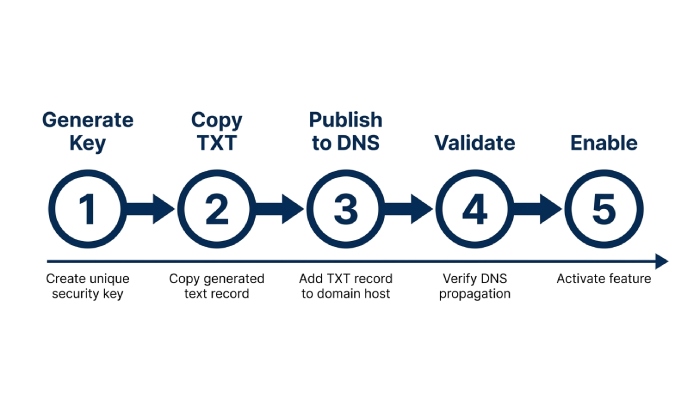
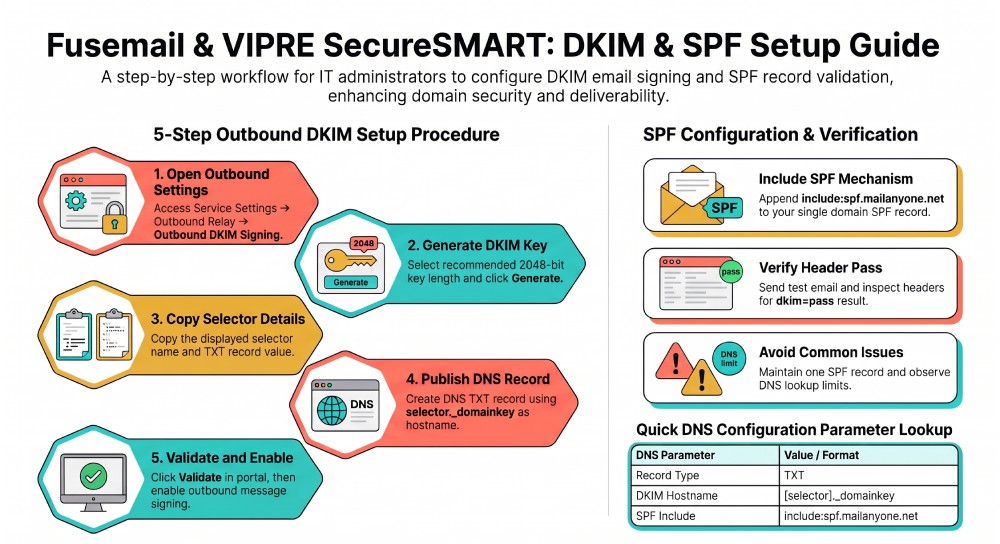
Configuring DKIM involves generating a cryptographic key, publishing its public component in DNS, validating the record, and enabling message signing.
Step 1: Open Outbound DKIM Signing Settings
After logging in to the FuseMail or VIPRE administration portal, navigate to:
Service Settings ’ Outbound Relay ’ Outbound DKIM Signing
This section contains the settings required to generate DKIM keys for outgoing email.
Step 2: Generate a DKIM Key
Choose the available DKIM key length. The documented FuseMail configuration supports 1024-bit and 2048-bit keys, with 2048-bit recommended.
Click Generate to create the DKIM public and private keys. The administration portal will display the selector and TXT information needed for DNS configuration.
Keep the generated values unchanged. The private key should remain protected by the email service and must never be published in DNS.
Step 3: Copy the DKIM Selector and TXT Value
Locate the generated DKIM selector and corresponding TXT value in the administration portal.
The selector identifies the public key used to verify the message signature. You will need this selector when creating the DNS record.
Step 4: Publish the DKIM Record in DNS
Sign in to your domain’s DNS management provider and create a new TXT record.
Use the following configuration:
A DKIM record is typically configured as a TXT record in the domains DNS settings. The hostname consists of the DKIM selector followed by ._domainkey, which identifies the location of the DKIM record. The TXT value contains the generated DKIM public key used to verify email signatures. The TTL (Time to Live) should be set according to the email providers recommended configuration to ensure proper DNS record caching and updates.
For example, if your selector is mailselector, the hostname will be:
mailselector._domainkey
Copy the exact TXT value provided by FuseMail or VIPRE. Do not use a sample public key or modify the generated value.
Save the record and allow DNS changes to become publicly available.
Step 5: Validate and Enable DKIM
Return to the FuseMail or VIPRE administration portal after publishing the DNS record.
Click Validate next to the configured domains. The system checks whether the required DKIM records are available and correctly published.
If validation succeeds for all required domains, the Enable DKIM option becomes available. Enable signing according to your organization’s configuration requirements.
Note that VIPRE documentation describes outbound DKIM signing as a global or site-level setting that requires configuration across the domains in the relevant environment. Check the scope before enabling it.
How to Configure SPF for FuseMail
While DKIM verifies message signatures, SPF identifies which mail servers are authorized to send emails on behalf of your domain.
Published FuseMail SecureSMART configuration guidance specifies the following SPF mechanism:
include:spf.mailanyone.net
If this mechanism applies to your account, add it to your existing SPF record rather than creating a separate SPF record.
For example, an existing record might look like:
v=spf1 mx -all
After including the FuseMail mechanism, it could become:
v=spf1 mx include:spf.mailanyone.net -all
This is an illustrative configuration. Confirm the required sending sources and existing SPF mechanisms before making changes. Preserve authorization for all legitimate email services.
Avoid publishing multiple SPF records for one domain. Also check the SPF DNS lookup limit, as excessive DNS-based mechanisms can cause SPF evaluation errors.
How to Verify FuseMail SPF and DKIM Records
After configuring both authentication protocols, verify that the DNS records are published correctly.
For DKIM, use a DKIM lookup tool to check the selector and public key. You can also send a test email and inspect its message headers for a valid DKIM signature and a dkim=pass authentication result.
For SPF, use an SPF lookup tool to inspect the published TXT record. Confirm that the FuseMail mechanism is present where required and that the record does not exceed the permitted DNS lookup limit.
If either authentication check fails, review the DNS hostname, TXT value, domain configuration, and outbound mail routing. Allow time for DNS updates before repeating validation.
Common FuseMail DKIM and SPF Configuration Issues
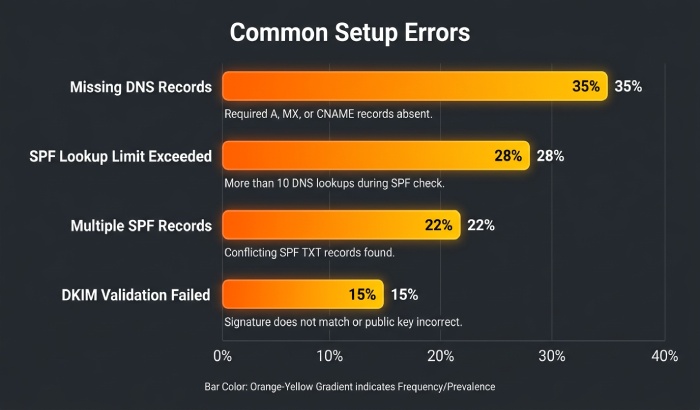
Administrators may encounter several issues during email authentication setup:
- DKIM validation failure: Check whether the selector and public key match the values generated in the administration portal.
- Missing DNS records: Confirm that the TXT record was published in the authoritative DNS zone.
- SPF lookup errors: Review nested includes and other DNS-based mechanisms to identify lookup-limit problems.
- Multiple SPF records: Combine authorized sending sources into one valid SPF record.
- DKIM signing not enabled: Confirm that all required domains have passed validation and signing has been activated.
- Authentication failures: Inspect message headers and verify that outbound emails pass through the intended sending service.
Regularly reviewing DNS records and authentication results helps prevent configuration issues from affecting legitimate business communications.
Simplify SPF Management with AutoSPF
Organizations using FuseMail alongside marketing platforms, CRM systems, and other third-party email providers may find SPF management increasingly complicated.
AutoSPF helps administrators optimize and flatten SPF records to manage DNS lookup limits and maintain more manageable sender authorization configurations.
By regularly reviewing SPF records and keeping authorized sending sources updated, organizations can reduce configuration errors and support consistent email authentication.
Combining proper FuseMail DKIM configuration with effective SPF management and DMARC policies creates a more reliable approach to protecting business email domains.
General Manager
General Manager of DuoCircle. Product strategy and commercial lead for AutoSPF's 2,000+ customer base.
LinkedIn Profile →