How to Configure SPF for McAfee Email Using the MXLogic Portal

Quick Answer
Learn how to configure SPF for McAfee Email through the MXLogic Portal. This guide explains the required SPF settings, DNS configuration steps, and best practices to help authenticate email, prevent spoofing, and improve email deliverability.
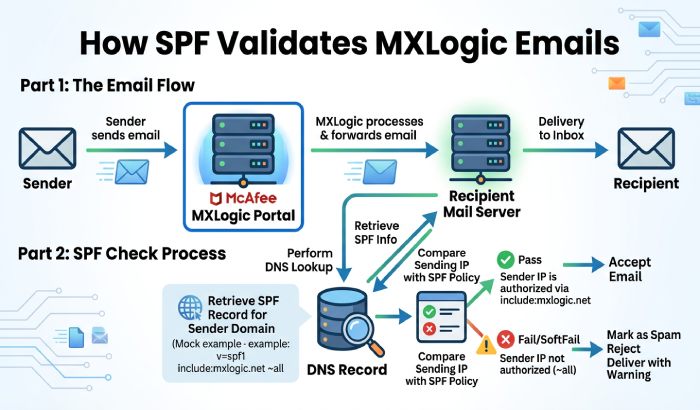
Sender Policy Framework, or SPF, is a DNS-based authentication mechanism that tells receiving mail systems which servers are authorized to send email for your domain. In a McAfee email security environment, SPF helps protect your organization from spoofing, phishing, and unauthorized use of your domain identity. When Microsoft 365, Gmail, Google Workspace, Exchange, O365, or another receiving platform checks your domains SPF record, it compares the sending server against the approved SPF values published in DNS.
For organizations using McAfee MXLogic, also known as MX Logic, SPF is especially important because mail delivery may pass through McAfee infrastructure before reaching external recipients. The mxlogic portal is used to review email protection settings, routing behavior, and policy configuration, while SPF itself is typically published as a TXT record in your public DNS zone. In other words, the mxlogic portal supports the workflow, but the actual SPF record is usually managed where your DNS is hosted.
A correct SPF record helps authorised email pass authentication checks and reduces the risk of legitimate messages being rejected or marked as suspicious by receiving mail systems. See SPF lookup basics to understand how receivers evaluate your record.
SPFs Role Alongside McAfee MXLogic Email Protection
SPF is one layer of authentication; it does not replace broader email security controls. McAfee MXLogic email protection also relies on the Control Console, policy enforcement, inbound policy configuration, spam filters, content filters, attachment policy rules, and threat and incident management workflows. These controls help protect Inbound Mail and Outbound Mail from phishing, malware, suspicious email attachments, spoofed domains, and targeted social engineering.
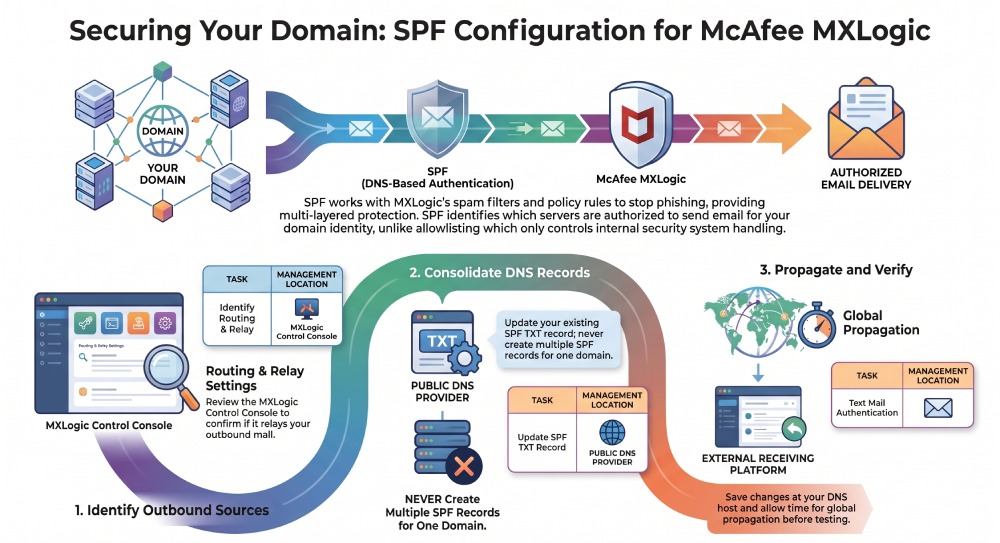
SPF and allowlisting serve different purposes. SPF uses DNS to verify whether a sending server is authorised to send email for a domain, while allowlisting controls how an email security system handles specific trusted senders.
For best practices, avoid using SPF as a substitute for proper security policy design. The strongest setup combines SPF with DKIM, DMARC, secure email routing, and careful configuration of spam filters and content filters in the McAfee MXLogic Control Console.
Understanding the MXLogic Portal and Its DNS Management Workflow
Accessing the Control Console Through MXlogin
Sign in to the McAfee MXLogic Control Console using your organisation’s authorised administrator account. Once logged in, review the email routing and outbound mail settings to determine whether MXLogic sends email on behalf of your domain.
After signing in to the MXLogic Control Console, review the available email routing and outbound mail settings to determine whether McAfee MXLogic sends email on behalf of your domain. The MXLogic portal supports this configuration workflow, but the SPF record itself is typically published and managed through your DNS provider.
For technical troubleshooting, confirm that the administrator account has the right permissions in Identity and Access Management. If access fails, check password status, client login URL, browser restrictions, proxies, firewall rules, and any product updates or support notices from McAfee.
DNS Management Workflow for SPF
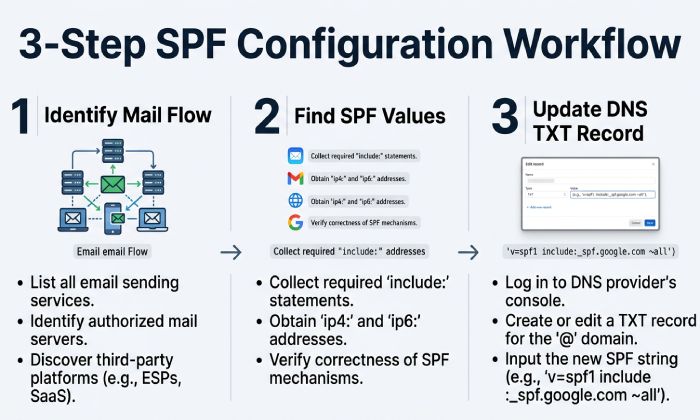
The DNS workflow usually starts in the mxlogic portal and ends in your DNS provider. First, identify whether McAfee MXLogic is handling outbound relay, inbound mail flow, or both. Next, determine whether your domain routes through an MX record pointing to McAfee services or whether only certain traffic uses McAfee infrastructure. Finally, update the SPF TXT record in DNS to include the appropriate McAfee MXLogic sending source.
A typical SPF record may already include services such as M365, Microsoft 365, Google Workspace, Gmail, Exchange, O365, marketing platforms, or ticketing systems. If McAfee MXLogic sends mail on behalf of your domain, its sending values must be included in the same SPF record. Avoid creating multiple SPF TXT records for one domain because that can cause SPF permerror results and disrupt mail delivery. When includes stack up, hosted SPF flattening keeps everything in one compact record.
After editing DNS, save the record at your DNS host and allow a delay for changes to propagate. Then return to the mxlogic portal or related email console to confirm that mail flow and email protection behavior remain normal.
SPF and MXLogic Filtering Policies
SPF works alongside McAfee MXLogic’s filtering and policy controls but does not replace them. SPF uses DNS to verify whether a sending server is authorised to send email for your domain, while MXLogic filtering policies determine how messages are handled within the email security environment.
Avoid relying on allowlisting as a substitute for proper SPF configuration. Excessive allowlisting can allow unwanted messages to bypass normal security checks, so trusted senders should be added only when necessary and verified carefully.
Prerequisites Before Configuring SPF for McAfee Email
Access and Organizational Readiness
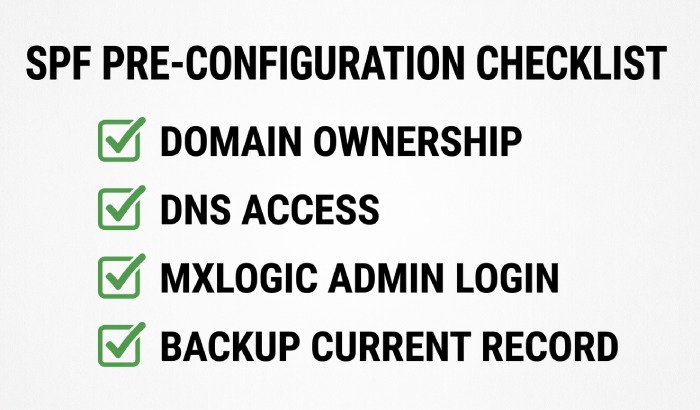
Before editing SPF, confirm ownership of the domain and access to the DNS provider. Your organization should know who manages DNS, who owns the McAfee MXLogic tenant, and who can access the mxlogic portal through MXlogin. If responsibilities are split between IT, security operations, and a managed service provider, define the change owner before proceeding.
You also need administrative access to the Control Console, the ability to view routing and email protection settings, and permission to modify security policy rules if inbound mail flow testing requires temporary allowlisting. Keep a rollback copy of the existing SPF record before making changes.
Recommended preparation includes:
- Confirming MXlogin access and login credentials.
- Verifying the correct organization and domain in the console.
- Reviewing current inbound policy and outbound routing.
- Checking whether Exchange, M365, Google Workspace, or another platform sends mail.
- Reviewing FAQ, article, help center, implementation resources, and support documentation.
- Using a Technical Corner or œget started with mxlogic guide if available.
Identifying McAfee/MXLogic Sending Servers and Required SPF Values
To identify the required SPF values, determine whether McAfee MXLogic is actually sending outbound mail for your domain. If the service only filters inbound mail flow, SPF may not need to include McAfee. If it relays outbound messages, the SPF record must authorize the McAfee MXLogic sending infrastructure.
Look in the mxlogic portal for outbound routing, relay host, and email protection service details. The Control Console may show relevant IP addresses, routing destinations, or integration settings. In some environments, McAfee support may provide the correct include mechanism or IP ranges. Never guess SPF values from unrelated tenants because McAfee, MX Logic, and legacy MXlogin environments may vary.
If your organisation uses another email platform or security gateway alongside McAfee MXLogic, review the mail-routing configuration before changing SPF. Make sure all legitimate outbound senders are authorised in the same SPF record and that mail is not being routed through an unexpected sending server.
Reviewing Your Existing SPF Record to Avoid Conflicts
Before publishing a new SPF record, review the existing TXT record for your domain. It may already include M365, Google Workspace, Gmail, Exchange, marketing systems, CRM platforms, or helpdesk tools. Your goal is to update one SPF record, not create another.
A clean review should check for:
- More than one SPF record on the same hostname.
- Excessive DNS lookups beyond the SPF limit — watch for the 10 DNS lookup limit.
- Deprecated mechanisms or old IP addresses.
- Missing senders that affect mail delivery.
- Overly broad mechanisms such as +all.
After you edit the SPF record, save it in DNS and wait for the delay for changes to pass. Then test mail delivery from McAfee MXLogic and other authorized systems. If messages still fail authentication, return to MXlogin, review the mxlogic portal, inspect the Control Console, verify policy-level allowed senders, confirm that spam filters and content filters are not overcorrecting, and save changes only after each verified adjusent.
General Manager
General Manager of DuoCircle. Product strategy and commercial lead for AutoSPF's 2,000+ customer base.
LinkedIn Profile →