How to Monitor SPF DKIM & DMARC With Google Postmaster Tools

Quick Answer
Google Postmaster Tools helps domain owners monitor SPF, DKIM, and DMARC authentication, track sender reputation, identify email delivery issues, and maintain Gmail compliance. Regular monitoring helps improve email deliverability and protect domain reputation.
Try Our Free DMARC Checker
Validate your DMARC policy, check alignment settings, and verify reporting configuration.
Check DMARC Record →
What Google Postmaster Tools Is and Why It Matters for Email Authentication
Google Postmaster Tools is a free Google platform that helps domain owners monitor email performance for messages sent to Gmail and Google Mail users. For brands, SaaS platforms, ecommerce senders, publishers, and any bulk sender, Postmaster Tools provides visibility into how Gmail evaluates your sending domain, IPs, message authentication, spam rate, reputation, encryption, and delivery errors.
Because Gmail is one of the largest mailbox providers in the world, its dashboard data is especially valuable for high-volume senders. If your email campaigns are underperforming, Postmaster Tools can help identify whether the issue is related to DKIM, SPF, DMARC, sender requirements, spam complaints, message formatting, or infrastructure problems.
Why Gmail Signals Matter
Gmail uses a mix of authentication, user engagement, complaint behavior, and infrastructure diagnostics to decide whether outgoing email reaches the inbox, promotions tab, spam folder, or is rejected. Postmaster Tools does not show individual recipients or personal Gmail accounts, but it does aggregate access data for qualified senders with enough email sending volume.
That makes it useful for:
- Tracking email delivery trends to Gmail.
- Reviewing spam reports and spam rate changes.
- Monitoring IP reputation and domain reputation.
- Checking compliance status against Gmail sender requirements.
- Investigating delivery errors and authentication failures.
Where Authentication Fits
Message authentication is central to Gmail’s sender requirements. Your domain should use SPF, DKIM, and DMARC correctly so Gmail can verify that your email is legitimate. DKIM is especially important because it cryptographically signs messages and helps preserve domain-level reputation even when mail is routed through third-party platforms.
SPF, DKIM, and DMARC in Context
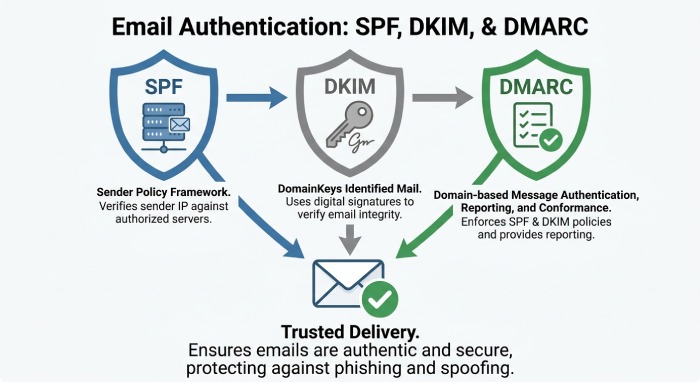
SPF authorizes the servers allowed to send mail for your domain. DKIM signs each message with a private key and allows Gmail to validate the signature using a public DNS record. DMARC evaluates whether a message passes SPF or DKIM authentication with alignment to the domain in the visible From address. A message passes DMARC when at least one of these authentication methods passes with the required alignment. The domain owner’s DMARC policy specifies how receiving servers should handle messages that fail DMARC evaluation.
Why Reputation Depends on Authentication
Authentication alone does not guarantee inbox placement, but failed message authentication can damage email performance and trigger delivery errors. Gmail evaluates authentication together with spam rate, user engagement, IP reputation, domain reputation, and compliance status.
Setting Up Google Postmaster Tools and Verifying Your Sending Domain
To use Postmaster Tools, you need a Google Account or Google Workspace account. The setup is straightforward, but domain verification must be completed correctly before dashboard data appears.
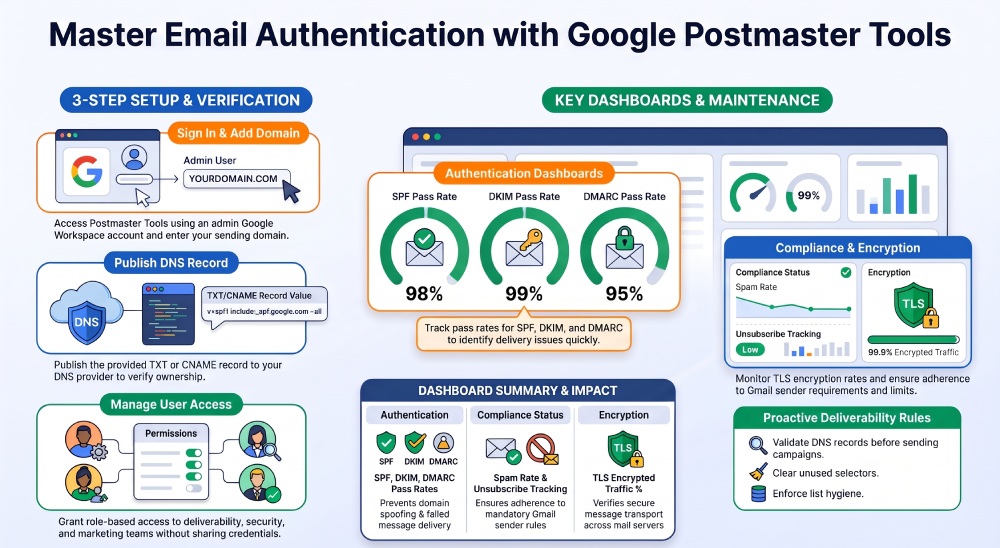
Step 1: Sign In and Add Your Domain
Open Google Chrome or another modern browser and go to Google Postmaster Tools. Sign in with the Google Account you want to use for long-term user access. If your organization uses Google Workspace, consider using an admin-controlled Google Workspace account rather than an employee’s personal login.
Click Add new domain and enter the domain used to authenticate your outgoing email through SPF or DKIM. This can be your SPF Return-Path domain or your DKIM signing domain (d=). If both authentication methods use the same domain, Postmaster Tools can use messages authenticated by either or both methods. If you want to monitor a subdomain independently, add it separately after verifying the primary domain.
Step 2: Complete Domain Verification
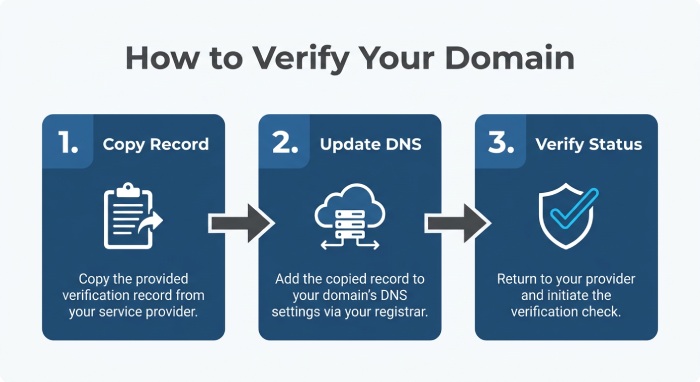
Postmaster Tools provides a DNS verification record, which may be a TXT or CNAME record. Copy the exact record provided by Google and publish it through your domain’s DNS provider. After the record is added, return to Postmaster Tools and complete the verification process. Google notes that verification usually happens quickly, although it may take several minutes for the status to update.
TXT Record Verification
A TXT record proves that you control the domain. After adding the record, return to Postmaster Tools and click Verify domain. DNS propagation may take time, so verification may not be instant.
CNAME Record Considerations
CNAME records can serve different purposes in email infrastructure. Some email service providers use CNAME records to publish DKIM selectors or configure branded tracking domains. These records are separate from SPF TXT records and should be configured according to the sending provider’s instructions.
Step 3: Manage Users and Access
After you have a verified domain, you can manage users inside Postmaster Tools. This allows security, deliverability, marketing operations, and support teams to access data without sharing one login.
User Access Best Practices
Grant user access only to people who need dashboard data for deliverability, compliance status, or diagnostics. Review access periodically, especially when employees change roles.
Monitoring SPF, DKIM, and DMARC Authentication Results in the Dashboard
Authentication Dashboard
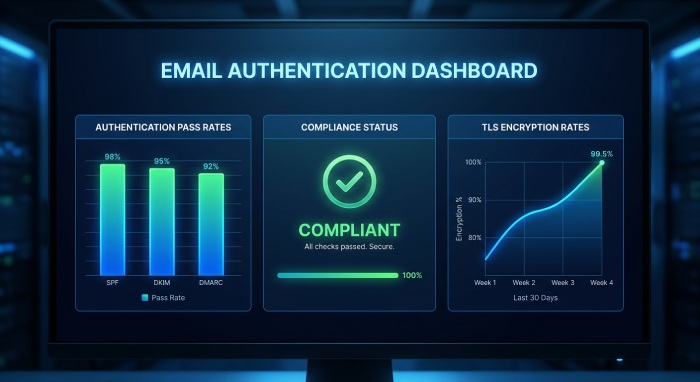
The Authentication dashboard displays the percentage of outgoing messages that pass SPF, DKIM, and DMARC authentication. Users can review results by the From-header domain or by DKIM and SPF domains. The From-header view helps assess authentication alignment with the sending domain, while the DKIM and SPF domain view provides separate authentication success rates for those protocols. Note that the latter view does not display the DMARC success rate.
Compliance Status Dashboard
The Compliance Status Dashboard helps senders monitor whether they meet Gmail’s requirements for authentication, unsubscribe functionality, low spam rates, and secure email transmission. If compliance issues arise, review sending practices, email authentication, list quality, and message formatting to maintain good sender reputation.
Encryption Dashboard
The Encryption Dashboard monitors whether emails are protected by TLS during transmission. A drop in encryption may indicate mail server configuration issues. Although TLS does not replace SPF, DKIM, or DMARC, it helps secure email delivery and maintain a trustworthy sending environment.
Best Practices for Fixing Authentication Problems and Maintaining Deliverability
Maintaining Gmail deliverability requires ongoing monitoring, not a one-time setup. Postmaster Tools should be part of a broader email performance process that includes DNS management, authentication reviews, complaint monitoring, and sender requirements compliance.
Fix Authentication at the Source
Start by confirming that all legitimate senders are included in DNS records and that every platform signs with DKIM. Review SPF includes, DKIM selectors, and DMARC alignment whenever you add a new email service provider. AutoSPF helps domain owners manage and validate SPF records, identify DNS configuration issues, and maintain reliable email authentication alongside DKIM and DMARC.
Keep DNS Records Clean
Review SPF records for obsolete mechanisms and unnecessary DNS lookups. Identify outdated DKIM selectors and remove old DNS records only after confirming that the associated sending services no longer use them. Periodically review unused CNAME records to keep your DNS configuration accurate.
Validate Every Sending Platform
Before launching new email campaigns, send test messages to Gmail and verify that SPF, DKIM, and DMARC pass. Then monitor Postmaster Tools for authentication changes over the next several days.
Reduce Spam Rate Proactively
A healthy spam rate depends on permission, relevance, cadence, and list hygiene. Suppress inactive recipients, honor unsubscribes quickly, and avoid sudden volume spikes. Gmail’s spam rate data should be reviewed alongside engagement and conversion metrics.
Monitor Reputation and Delivery Analytics Regularly
Use Postmaster Tools weekly—or daily during high-volume periods—to monitor email performance, reputation, delivery analytics, and delivery errors. Compare each dashboard type over the same time range so you can correlate authentication issues with spam rate, IP reputation, domain reputation, and encryption changes.
Align With Gmail Sender Requirements
Follow Google’s email sender guidelines for authentication, unsubscribe support, message formatting, and complaint control. High-volume senders should pay close attention to compliance status, because Gmail sender requirements can directly affect inbox placement.
Build an Internal Deliverability Workflow
Create a repeatable workflow for domain verification, DNS updates, dashboard data review, diagnostics, and incident response. Assign ownership for Postmaster Tools, Google Workspace administration, DNS changes, and deliverability support so authentication problems are fixed quickly before they damage Gmail reputation or long-term email performance.
General Manager
General Manager of DuoCircle. Product strategy and commercial lead for AutoSPF's 2,000+ customer base.
LinkedIn Profile →