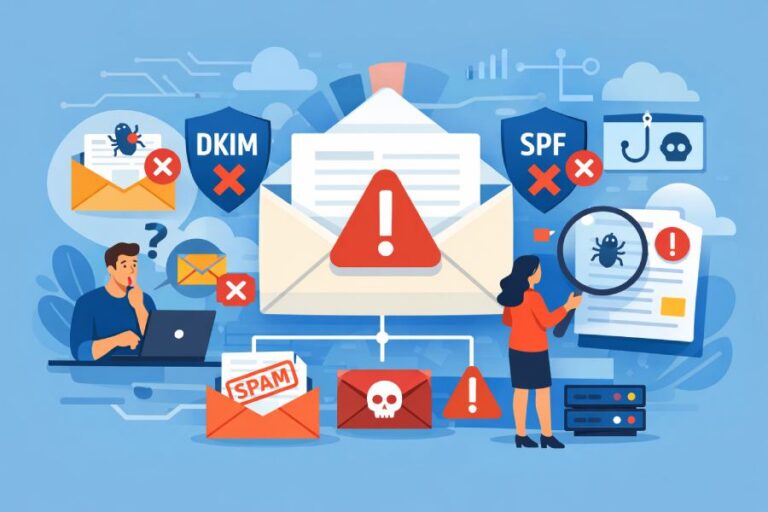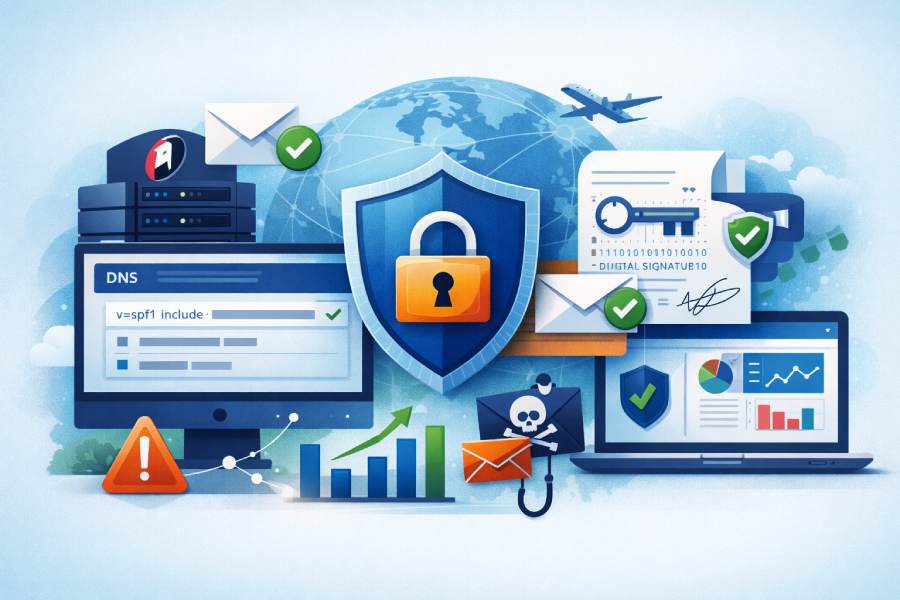
Email authentication is a cornerstone of modern email security and deliverability. Without properly configured authentication protocols such as SPF (Sender Policy Framework) and DKIM (DomainKeys Identified Mail), organizations expose themselves to spoofing, phishing, spam filtering issues, and poor sender reputation. When you use Rackspace Email as a sending platform, ensuring both SPF and DKIM are correctly configured in your DNS is not optional — it’s essential.
In this comprehensive guide, AutoSPF walks you through the configuration process step by step, explains the why behind the how, and offers best practices to ensure you get it right the first time.
Why SPF and DKIM Matter for Rackspace Email
Before diving into setup, it’s important to understand the role these mechanisms play in email authentication and deliverability:
SPF: Defining Authorized Senders
SPF allows domain owners to publish a list of mail servers authorized to send email on behalf of their domain. Each receiving email server can look up that DNS record to verify whether a given email originated from an approved source.
For Rackspace, this means explicitly including Rackspace’s mail servers in your domain’s SPF record so that mail sent via Rackspace is authenticated correctly. Without this, receiving mail services (like Gmail, Outlook, Yahoo, etc.) may mark your legitimate email as spam or reject it altogether.

DKIM: Cryptographic Integrity
Where SPF defines who is allowed to send email, DKIM proves that the email was not tampered with in transit. DKIM uses a pair of cryptographic keys (one public, one private). The private key is used to sign outgoing messages, and the public key is published in DNS so recipients can verify that signature.
Together, SPF and DKIM provide a powerful authentication foundation — essential for protecting your domain’s reputation and ensuring high delivery rates.
Pre-Configuration Checklist
Before you begin, make sure you have:
- Access to your domain’s DNS host control panel (e.g., Cloudflare, GoDaddy, AWS Route 53, Rackspace DNS if you host DNS there).
- Administrative access to Rackspace Cloud Office if you’re enabling DKIM.
- A basic understanding of DNS record types (TXT, CNAME).
- A plan for tracking DNS propagation; changes can take up to 24–72 hours to propagate globally.
Step-By-Step SPF Configuration for Rackspace
Here’s how to configure the SPF record that authorizes Rackspace servers to send on your domain’s behalf:
1. Log In to Your DNS Provider
Open your DNS hosting provider’s dashboard and navigate to the DNS records section. This is where you manage all DNS entries for your domain.
2. Identify the SPF TXT Record
If your domain already has an SPF record, you’ll modify it. Remember: Each domain should have only one SPF TXT record — having more than one causes SPF to return a permanent error (PermError).
3. Compose or Update the SPF Record
If you don’t have an SPF record, create a new TXT record with the following syntax:
Type: TXT
Name/Host: @ (or leave blank depending on your DNS provider)
Value: v=spf1 include:emailsrvr.com ~all
TTL: 3600
This SPF record tells the world that mail sent by Rackspace (via emailsrvr.com) is legitimate.
Pro Tip:
The ~all tag indicates a “soft fail” for anything not listed in the record. If you want a stricter policy once you’re confident your sources are listed, you can use -all, though this should be done carefully.
4. Include Additional Sending Services
If you use other email-sending platforms (e.g., marketing tools, CRMs, support systems), you must include them within the same SPF record:
v=spf1 include:emailsrvr.com include:thirdparty.com ip4:192.0.2.0/24 ~all
This keeps DNS evaluation efficient and avoids SPF lookup limits.
5. Save and Wait for Propagation
Once published, allow up to 72 hours for DNS changes to fully propagate. Your SPF record will begin authenticating Rackspace email during this window.
Step-By-Step DKIM Configuration for Rackspace
Configuring DKIM for Rackspace involves creating a DNS record that holds the public key.
1. Log In to Rackspace Cloud Office
Access your Cloud Office Control Panel.
2. Navigate to DKIM Settings
In the Domains section, locate the Sender Authentication (DKIM) link. Here you will manage DKIM keys for your domain.
3. Enable DKIM
Select the domain you want to configure and click Enable DKIM. Rackspace will generate a key pair for you.
4. Retrieve the DKIM DNS Record
Copy the provided hostname (selector) and public key value. Rackspace either automatically inserts this into DNS if Rackspace hosts your DNS, or provides these details for manual DNS entry.
5. Publish the DKIM DNS Record
In your DNS provider’s dashboard, create a CNAME (or TXT if specified) record with the values Rackspace gave you:
Type: CNAME
Name: selector._domainkey.yourdomain.com
Value: <provided Rackspace key>
6. Verify DKIM
Return to the Cloud Office panel and initiate a verification. If the DNS entry has propagated correctly, Rackspace will confirm DKIM is active.
7. Monitor Ongoing Deliverability
Once DKIM is enabled, outgoing messages will be signed using your DKIM key. Regularly check email deliverability reports and watch for DKIM failures, which might indicate misconfiguration or DNS propagation issues.
Best Practices for SPF & DKIM with Rackspace
To get the most benefit from your authentication setup, follow these professional best practices:
📌 Combine SPF Elements
Keep all authorized senders in a single SPF record to avoid lookup errors and minimize failure points.
🔐 Use Strong DKIM Keys
Opt for 2048-bit DKIM keys where possible — they provide stronger cryptographic protection and reduce spoofing risks.
📢 Monitor DNS Propagation
Changes can take up to 72 hours to reach all DNS servers globally. Test your authentication records during this window for early validation.

📊 Enable Monitoring and Reporting
Once SPF and DKIM are set up, implement DMARC with reporting to track email authentication results. DMARC helps you see who is sending on your behalf and detect unauthorized use.
⚠️ Avoid Multiple DMARC/SPF TXT Records
Much like SPF, only one DMARC TXT record is allowed per domain — having more leads to policy errors and undefined behavior.
Final Thoughts
Proper email authentication is not just a “nice-to-have” — it’s foundational to protecting your brand, safeguarding your domain, and preserving your email deliverability. With AutoSPF’s guidance, you’ve now seen how to configure SPF and DKIM for Rackspace Email in clear, actionable steps.
By following this process:
- You authorize Rackspace as a legitimate sender
- You establish the cryptographic signing of outgoing messages
- You strengthen your defenses against spoofing and phishing
- You lay the groundwork for advanced policies like DMARC
If you ever make changes to your email infrastructure (e.g., adding service providers, migrating domains), revisit your SPF and DKIM records as part of your authentication strategy. Proper maintenance ensures ongoing security and maximum deliverability.Need help auditing your records or generating valid SPF/DKIM entries? AutoSPF is here to assist with automated tools, best-in-class validation, and professional support services.